 RestocksAIO Docs
POD Downloader
Bulk-download Proof of Delivery PDFs from UPS, DHL, and DPD.
The POD Downloader is a standalone window that downloads Proof of Delivery PDFs in bulk from the carrier's website. You do not need to get each PDF one by one for disputes or accounting. Paste a list of tracking numbers (or tracking URLs) and choose a carrier. The tool downloads every PDF into a single folder.
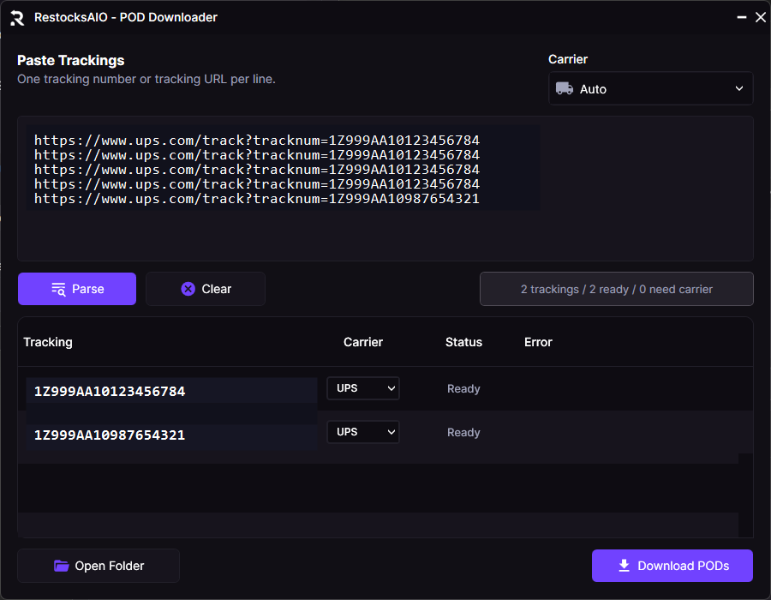
The POD Downloader window. Paste one tracking number or tracking URL per line, choose a carrier, review the trackings, and click Download PODs.
Where to find it
Open the POD Downloader from the Features tab in the main window (POD Downloader button under the Functions section).
Supported carriers
The POD Downloader currently supports:
- UPS
- DHL
- DPD
Any other carrier shows Needs carrier in the row Status column and is skipped during download.
How to use it
1. Paste your trackings
Paste one tracking per line into the Paste Trackings textbox. Each line can be either:
- A bare tracking number (
1Z999AA10123456784) - A full carrier tracking URL (
https://www.ups.com/track?tracknum=1Z999AA10123456784)
The parser extracts the tracking number from URLs automatically.
2. Pick a carrier mode
Use the Carrier dropdown in the top right:
- Auto (default) — detects the carrier from the URL host or the tracking-number format.
- UPS / DHL / DPD — parses every line as that carrier. Use it when you have raw tracking numbers without URLs.
3. Review trackings
Click Review trackings. The tool:
- Splits the textbox into lines and trims whitespace.
- Removes duplicates by
carrier:tracking, so you can paste the same tracking twice. - Turns each line into a row with a detected carrier.
The summary strip on the right shows a live count: N trackings / X ready / Y need carrier.
4. Adjust per-row carrier (optional)
Each row has its own Carrier dropdown. If a row was detected as the wrong carrier, or shows Needs carrier, choose the correct carrier in the row. The row's status updates immediately.
5. Download
Click Download PODs. The tool goes through every row that is Ready and:
- Calls the carrier's POD endpoint and saves the PDF.
- Updates the row's status as it goes (
Downloading→Downloaded/Saved/Failed). - Shows a final snackbar:
PODs finished. Downloaded: X, skipped: Y, failed: Z.
6. Open the folder
Click Open Folder to open the destination folder in Windows Explorer.
Where the PDFs are saved
PODs are saved to a Delivery PDFs folder next to the tool's startup directory. Each file is named after the tracking number, for example 1Z999AA10123456784.pdf.
The tool creates the folder automatically the first time you download. Files already in this folder are not re-downloaded. The row status switches to Saved instead. You can paste the same list in several sessions without calling the carrier APIs again.
Status reference
| Status | Meaning |
|---|---|
| Ready | Row has a valid tracking + supported carrier — will be downloaded. |
| Saved | A non-empty PDF for this tracking already exists in the Delivery PDFs folder. |
| Downloading | The tool is currently fetching this row's PDF. |
| Downloaded | PDF was just saved. |
| Needs carrier | No supported carrier was detected. Select UPS, DHL, or DPD in the row dropdown. |
| Invalid | Tracking code is missing or untrackable. |
| Failed | Download failed — hover the row to see the error reason. |
Tips
- You can mix carriers in one batch. Leave the Carrier dropdown on Auto and paste a mix of UPS/DHL/DPD URLs. Review trackings handles each row separately.
- You can run the same list again. A second click of Download PODs on the same list only retries the rows that failed before. Everything else is already on disk and shows Saved.
- Empty list? Click Review trackings without any text to clear the rows, or use the Clear button to empty both the textbox and the row list.