 RestocksAIO Docs
Telegram Bot
Configure your Telegram bot for notifications and commands.
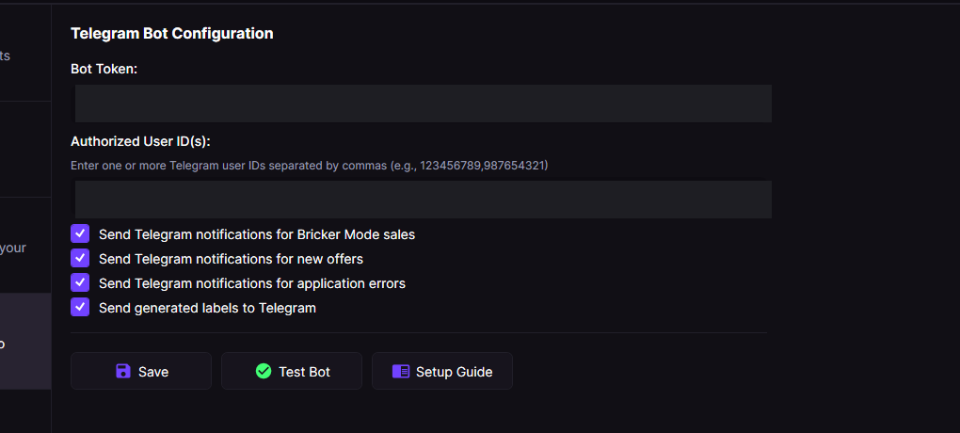
The Telegram Bot panel in Settings. Paste your BotFather token and authorized user IDs, then choose which event types notify you.
RestocksAIO has a Telegram bot. Use it to receive notifications and control your instance with Telegram commands.
Getting Started
Step 1: Create a Telegram Bot
- Open Telegram and search for @BotFather
- Start a conversation with BotFather and send
/newbot - Follow the prompts to choose a name and username for your bot
- BotFather gives you a bot token (e.g.,
123456789:ABCdefGHIjklMNOpqrsTUVwxyz) - Save this token - you'll need it in the next step
Step 2: Get Your Telegram User ID
- Search for @userinfobot on Telegram
- Start a conversation with @userinfobot
- The bot replies immediately with your User ID (a numeric value like
123456789) - Save this User ID - you'll need it to authorize yourself
You must add your User ID to the authorized list. If you do not, the bot ignores your messages for security reasons.
Step 3: Configure in RestocksAIO
- Open RestocksAIO and go to Settings
- Click on Telegram Bot in the settings sidebar
- Enter your Bot Token in the "Bot Token" field
- Enter your User ID (or multiple IDs separated by commas) in the "Authorized User ID(s)" field
- Set your notification preferences:
- Send Telegram notifications for Bricker Mode sales: Enable to receive sale notifications
- Send Telegram notifications for new offers: Enable to receive offer detection notifications
- Send generated labels to Telegram: Enable to receive shipping labels as PDF attachments when labels are generated
- Send Telegram notifications for application errors: Enable to forward application errors to Telegram (disabled by default)
- Click Save to save your settings
- Click Test Bot to check the connection
If the test succeeds, you receive a confirmation message in Telegram. The bot is then ready to use.
Available Commands
After setup, you can control your RestocksAIO instance with these commands:
/help
Shows a list of all available commands.
Example:
/helpResponse:
Available commands:

/info - Instance information
/notifications - Notification toggles
/notify_bricker_sales - Toggle Bricker Mode sales notifications
/notify_offers - Toggle offer detection notifications
/bricker_stats - Bricker stats snapshot
/bricker_start_all - Start all Bricker tasks
/bricker_stop_all - Stop all Bricker tasks
/labels - Single labels — paged, multi-select + Generate (with site & status filters)
/bulk_labels - Bulks — one bulk per page with its contents + Generate (with site & status filters)
/scan - Open a scannable view (UPS rows with tracking) and submit to USS
/label <id> - Look up a single label by OrderID with Generate / Scan actions
/help - Show this help message
/info
Shows detailed information about your RestocksAIO instance, including:
- License Key: Your current license key
- Subscription: Your subscription type (Trial, Standard or Premium)
- Server Connection: Whether the instance is connected to the RestocksAIO server
- Database Status: Status of the database connection
- Last Sync: Time since last synchronization
Example:
/infoResponse:
📊 RestocksAIO Instance Information

🔑 License Key: ABC123XYZ789
💳 Subscription: Premium
🌐 Server Connection: ✅ Connected
💾 Database Status: ✅ Online
🔄 Last Sync: Sync: Just now
/notifications
Shows the current notification settings for your RestocksAIO instance, with buttons to toggle each setting:
- Bricker Mode Sales: Whether notifications for Bricker Mode sales are enabled or disabled
- Offer Detections: Whether notifications for offer detections are enabled or disabled
- Label Notifications: Whether generated shipping labels are sent as PDF attachments
- Error Forwarding: Whether application errors are forwarded to Telegram (disabled by default)
Example:
/notificationsResponse:
🔔 Notification Settings

Bricker Mode Sales: ✅ Enabled
Offer Detections: ✅ Enabled
Error Forwarding: ❌ Disabled

Tap a button to change the setting.
The response includes On/Off buttons for each notification type. Tap the button to toggle the setting. You do not need to type commands.
Notification settings are saved immediately when you tap a button. The bot confirms your change with a message like "✅ Bricker Mode sales notifications enabled."
/notify_bricker_sales
Shows the current status of Bricker Mode sales notifications, with On/Off buttons to toggle the setting. When enabled, you receive a notification whenever a sale is made through Bricker Mode.
Example:
/notify_bricker_salesResponse:
Bricker Mode sales notifications are currently ✅ On.The response includes On/Off buttons - tap the button to change the setting.
/notify_offers
Shows the current status of offer detection notifications, with On/Off buttons to toggle the setting. When enabled, you receive a notification when an offer is detected on your listings.
Example:
/notify_offersResponse:
Offer detection notifications are currently ✅ On.The response includes On/Off buttons - tap the button to change the setting.
Notification settings are saved immediately when you tap a button and apply to all future notifications. You can check your current settings at any time with /notifications.
/bricker_stats
Shows statistics about your Bricker Mode tasks, including:
- Controllers: Running, stopped, and total controller counts
- Tasks: Running, stopped, sold, and error task counts
- Session Sales: Total sales during the current session
- Session Errors: Total errors encountered
- Queue: Items currently in queue
- Lowest Ask: Items with lowest ask vs. not lowest ask
- Price Changes: Price changes in the last 24 hours
The response includes Start All and Stop All buttons for quick control.
Example:
/bricker_statsResponse:
📈 Bricker Mode Stats

Controllers: 5 running / 2 stopped / 7 total
Tasks: 12 running / 3 stopped / 8 sold / 1 errors

Session Sales: 8
Session Errors: 1
Queue: 5
Lowest Ask: 10 | Not Lowest: 5
Price Changes (24h): 15
/bricker_start_all
Starts all Bricker Mode tasks. This command starts all stopped tasks across all controllers.
Example:
/bricker_start_allResponse:
▶️ Started all Bricker tasks./bricker_stop_all
Stops all Bricker Mode tasks. This command stops all running tasks across all controllers.
Example:
/bricker_stop_allResponse:
⏹ Stopped all Bricker tasks.You can also use the Start All and Stop All buttons that appear when you run /bricker_stats.
Label Dialog Commands
The Telegram bot gives you the desktop Label Dialog on your phone, so you can refresh, generate, scan, and check labels there. All four commands use the same label set as the desktop (WPF) app. A selection in Telegram belongs to that chat only. When Telegram generates labels, the desktop selection changes to the generated rows.
For the PDF to arrive in the chat after 🏷️ Generate, label notifications must be enabled. Enable them with the Send generated labels to Telegram toggle in Settings → Telegram Bot, or with /notifications from the bot. The chat shown by these commands is interactive in both cases.
/labels
Opens the singles view. It shows every non-bulk label across all your configured sites, 5 per page. Each row shows the marketplace, SKU, product name, and size. Tap rows to multi-select, then use the action buttons at the bottom.
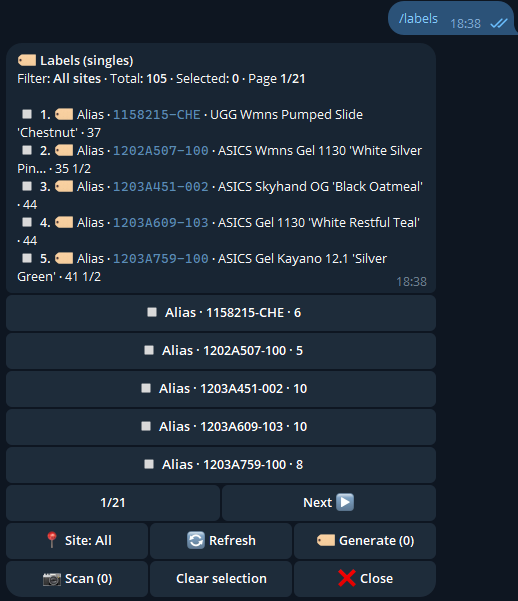
/labels — singles view with multi-select, site + status filters, and the Generate / Scan action buttons.
Filters (cycle buttons):
- 📍 Site — cycles
All → Alias → StockX → …(only sites with currently-loaded singles appear). - 📋 Status — cycles
All → ToFullfill → Inhand → Arriving → Packed → InTransit. Only statuses present in the data appear.
The default sort is by status priority, so ToFullfill and Inhand rows appear first, even when no status filter is set.
Actions:
- 🔄 Refresh — loads sales/bulks again from every configured marketplace (StockX, Alias, KLEKT, Laced, HypeBoost, WeTheNew, LimitedResell, NordicSneakers, KICKS CREW, Onfeet).
- 🏷️ Generate (N) — generates label PDFs for the N selected rows. With "Send generated labels to Telegram" enabled, the PDFs arrive in this chat right after.
- 📷 Scan (N) — submits the selected UPS rows with tracking to Scanuss (USS). Non-UPS rows are reported as ineligible. See
/scanbelow. - Clear selection / ❌ Close.
/bulk_labels
Opens the bulks view. It shows one bulk per page with its full contents (SKU · product name · size for every item). Use the pager to go through your bulks.
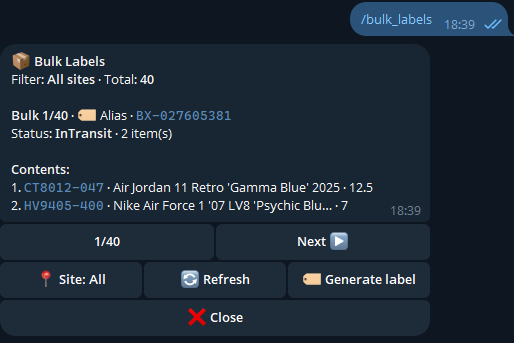
/bulk_labels — one bulk per page, all the contained items listed, with the same Site + Status filters as /labels.
It has the same Site and Status filter cycles as /labels. The Generate button generates the displayed bulk's label in one tap. You do not need to select anything, because each page is a single bulk.
/scan
Opens the same view as /labels, filtered to scannable rows only: UPS carrier with valid tracking, no untrackable placeholders. This is the same UPS + tracking rule as the desktop "Send to USS" pill.
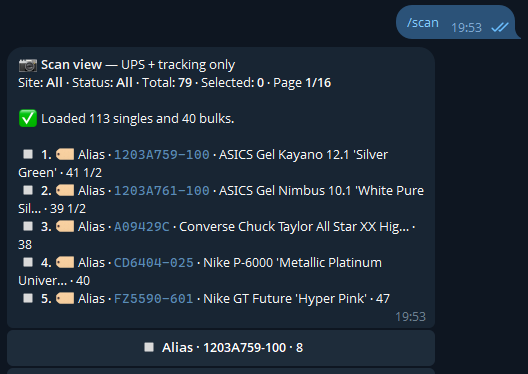
/scan — scannable view filtered to UPS rows with tracking. Multi-select rows, then 📷 Scan submits them to USS.
Select the rows you want to submit, then tap 📷 Scan (N). Each row uses 1 USS credit. The status line then reports submitted / failed / ineligible counts. On failure, it also reports the rejection reason (e.g. insufficient credits, label URL missing).
USS must be linked to your Discord account first. If it isn't, the bot replies with the OAuth link.
/label <id>
Look up a single label by its OrderID and act on it directly. You do not need to scroll through pages.
/label 58887372The bot replies with a card showing site, status, SKU, product name, size, tracking, and carrier. For bulks, the contents list is included. The action row at the bottom has 🏷️ Generate label, 📷 Scan (only when the row is UPS + tracking eligible), 🔄 Refresh, and ❌ Close.
Site & Status filters in detail
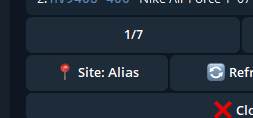
Both filters are cycle buttons. One tap moves to the next value, and after the last value returns to All. The total row above updates to show the filtered count.
The filter buttons only include values actually present in the current data, so a filter never gives an empty list. A filter change on /labels returns you to page 1. A filter change on /bulk_labels returns you to bulk 1.
Notification Features
Bricker Mode Sales Notifications
When enabled, you receive a detailed notification whenever a sale is made through Bricker Mode. It includes:
- Product name and image
- Site where the sale occurred
- Style code (SKU)
- Size
- Category (
Resale,Direct, orConsign) — shows which Bricker category the sale came from - Store price and payout information
- Order ID
- Sale timestamp
Offer Detection Notifications
When enabled, you'll receive notifications when offers are detected on your listings, including:
- Product name and image
- Site where the offer was made
- Style code (SKU)
- Size
- Offer amount and payout
- Profit if accepted
- Accept Offer button - Tap to accept the offer directly from Telegram
Label Notifications
When enabled, you receive each generated shipping label as a PDF attachment in Telegram when the label is created. The message includes:
- Site where the label was generated
- File name
- The label file as a PDF attachment
Use this to get your labels on your phone without opening the application or the labels folder.
Error Forwarding
When enabled (disabled by default), application errors are forwarded to Telegram automatically. Each message includes:
- Error type and function
- Alert level (Warning or Important)
- Error description
- Solution description (if available)
- Stack trace (truncated if too long)
Error forwarding is disabled by default to prevent notification spam. Enable it only if you want to monitor application errors remotely.
Multiple User IDs
To authorize several Telegram users to use your bot, enter their User IDs separated by commas:
Example:
123456789,987654321,555666777Each authorized user can use all bot commands and receive notifications.
Troubleshooting
Bot Not Responding
- Check your Bot Token: Make sure you copied the complete token from BotFather
- Verify User ID: Make sure your User ID is entered correctly in the authorized list
- Test Connection: Use the "Test Bot" button in settings to check the connection
- Check Bot Status: Make sure the bot is running (it should start automatically when you save valid settings)
"Unauthorized" Messages
If you receive no response from the bot, your User ID is not in the authorized list:
- Check your User ID again with @userinfobot
- Make sure the User ID is entered correctly in settings (no extra spaces)
- Save settings and test again
Connection Errors
If you see connection errors:
- Check your internet connection
- Check that you can reach Telegram from your network
- Make sure the bot token is valid and hasn't been revoked
- Try to stop and restart the bot with the Test button
Security Notes
- Keep your Bot Token secret: Never share your bot token publicly
- Authorized Users Only: Only users whose IDs are in the authorized list can interact with your bot
- Regular Updates: Keep RestocksAIO updated to receive the latest security improvements
Next Steps
After your Telegram bot is set up, you can:
- Check your instance status remotely with
/info - Receive real-time notifications for sales, offers, and errors
- Control Bricker Mode tasks remotely with
/bricker_stats,/bricker_start_all, and/bricker_stop_all - Use the Label Dialog from your phone with
/labels,/bulk_labels,/scan, and/label <id>. You can refresh sales, view existing bulks, generate their label PDFs, and submit UPS labels to USS without opening the desktop app. You cannot create new bulks through Telegram - Toggle notification settings with buttons
- Accept offers directly from Telegram notifications
- Use your RestocksAIO instance from anywhere