 RestocksAIO Docs
Sourcing
Upcoming sneaker releases, the shops that list each pair, every shop's price per size, deals, and alerts for restocks, price drops, new listings and release dates.
The Sourcing tab helps you plan what to buy. It has four parts:
- Releases shows the releases of the next 120 days and the public shops that list each pair.
- Search finds a product by name, style code or barcode.
- Deals shows price drops at public shops, largest discount first.
- Alerts holds your watched products, the alerts that fired, and the delivery channels.
A click on a row in Releases, Search or Deals opens the product panel. It shows each shop's price and stock, and the best price for every size.
Sourcing is included in Premium. A Premium trial counts. It is part of the macOS app and the new Windows app. On another plan, the Sourcing button stays in the sidebar, and the tab shows Sourcing is a Premium feature.
Releases, shops, prices, stock and Buy links come from HYPEIBIZA (hypeibiza.com). RestocksAIO or HYPEIBIZA may earn a commission when you buy through a Buy link. The tab shows this note at the bottom of each list.
Open Sourcing
Click Sourcing in the sidebar, below Marketplace. The tab opens on Releases. The buttons at the top switch between Releases, Search, Deals and Alerts.
Releases
Releases lists the releases of the next 120 days, grouped by day. The group names read Today, Tomorrow, the weekday, or the date. The count beside Releases shows how many releases the list holds.
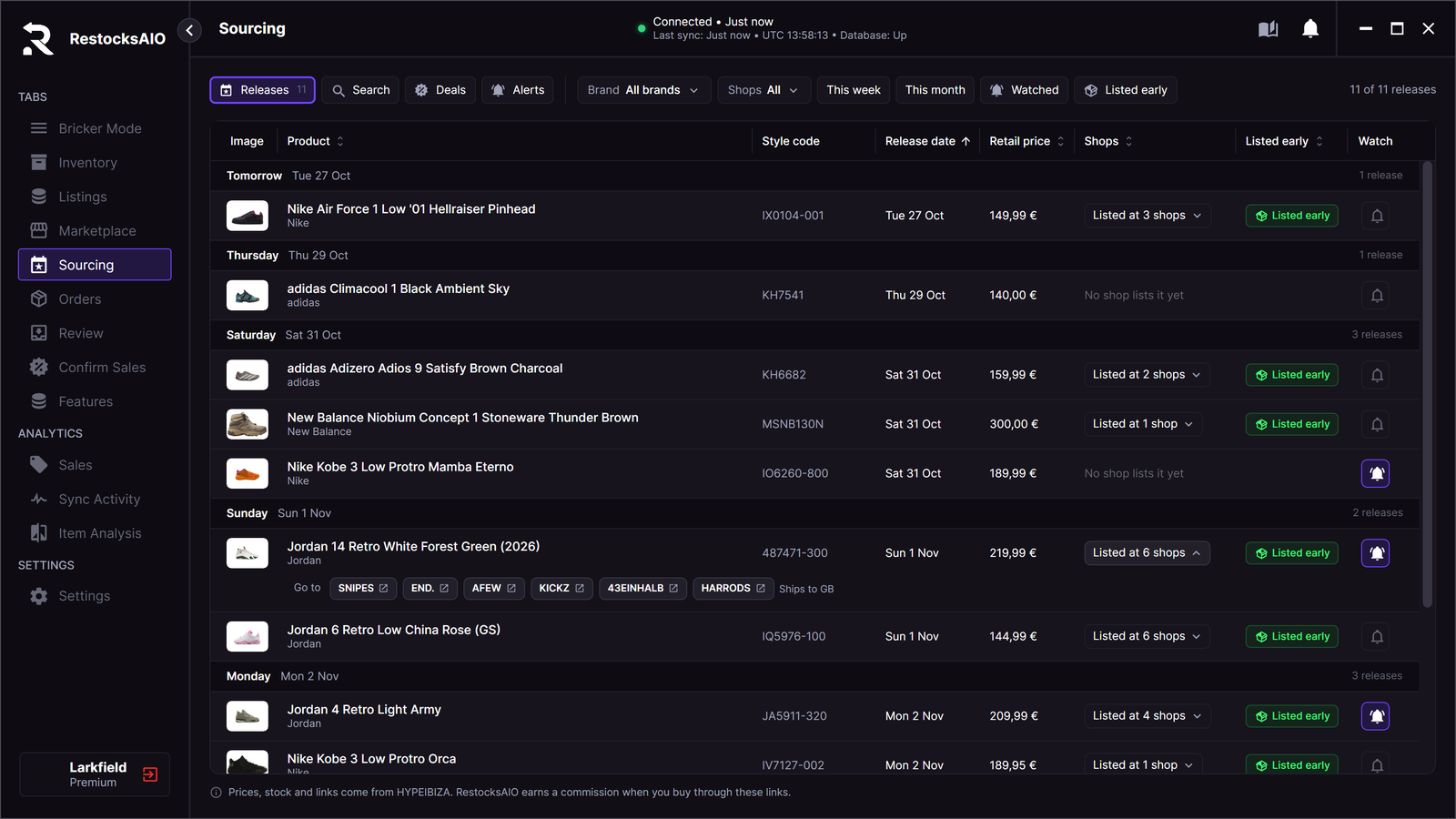
Releases, grouped by day. The shops of one release are open. (Sample data.)
Each row shows these columns:
| Column | What it shows |
|---|---|
| Image | The product picture. |
| Product | The name and the brand. |
| Style code | Click it to copy the style code. |
| Release date | The release day. |
| Retail price | The brand's retail price. |
| Shops | Listed at N shops, or No shop lists it yet. |
| Listed early | The Listed early badge: a shop lists the product before its release date. |
| Watch | The bell. See Watch a product. |
Click Listed at N shops to show the shop names under the row. A shop that ships only to some countries shows its countries, for example Ships to GB. Click again to hide the names.
Filter the releases
- Brand shows one brand only. All brands shows every brand.
- This week shows the releases until Sunday.
- This month shows the releases until the end of the month.
- Watched shows the releases you watch.
- Listed early shows the releases that a shop already lists.
The text at the right shows how many releases match, for example 11 of 11 releases · next 120 days. When no release matches, click Clear filters.
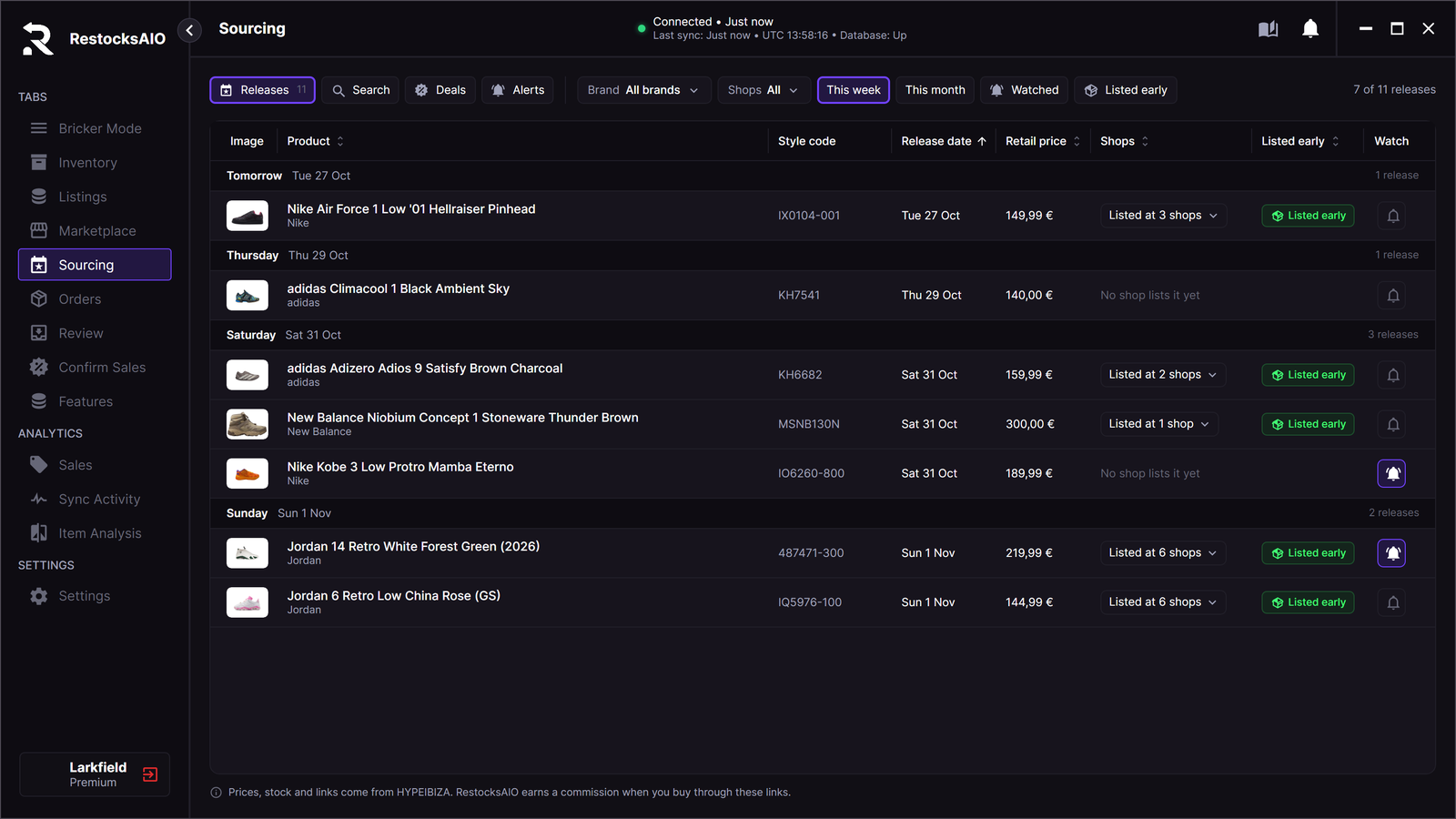
This week shows the releases until Sunday. (Sample data.)
Search
- Click Search.
- Type a style code, a product name or a barcode in Search SKU, name or barcode. You can also scan a box with a barcode scanner.
- Press Enter, or wait. The search starts by itself when you stop typing.
Each result shows the product, the style code, the Lowest retail price at a public shop and the number of Shops with the product in stock. A crossed-out price is the price before a drop. When nothing matches, try the style code or the barcode.
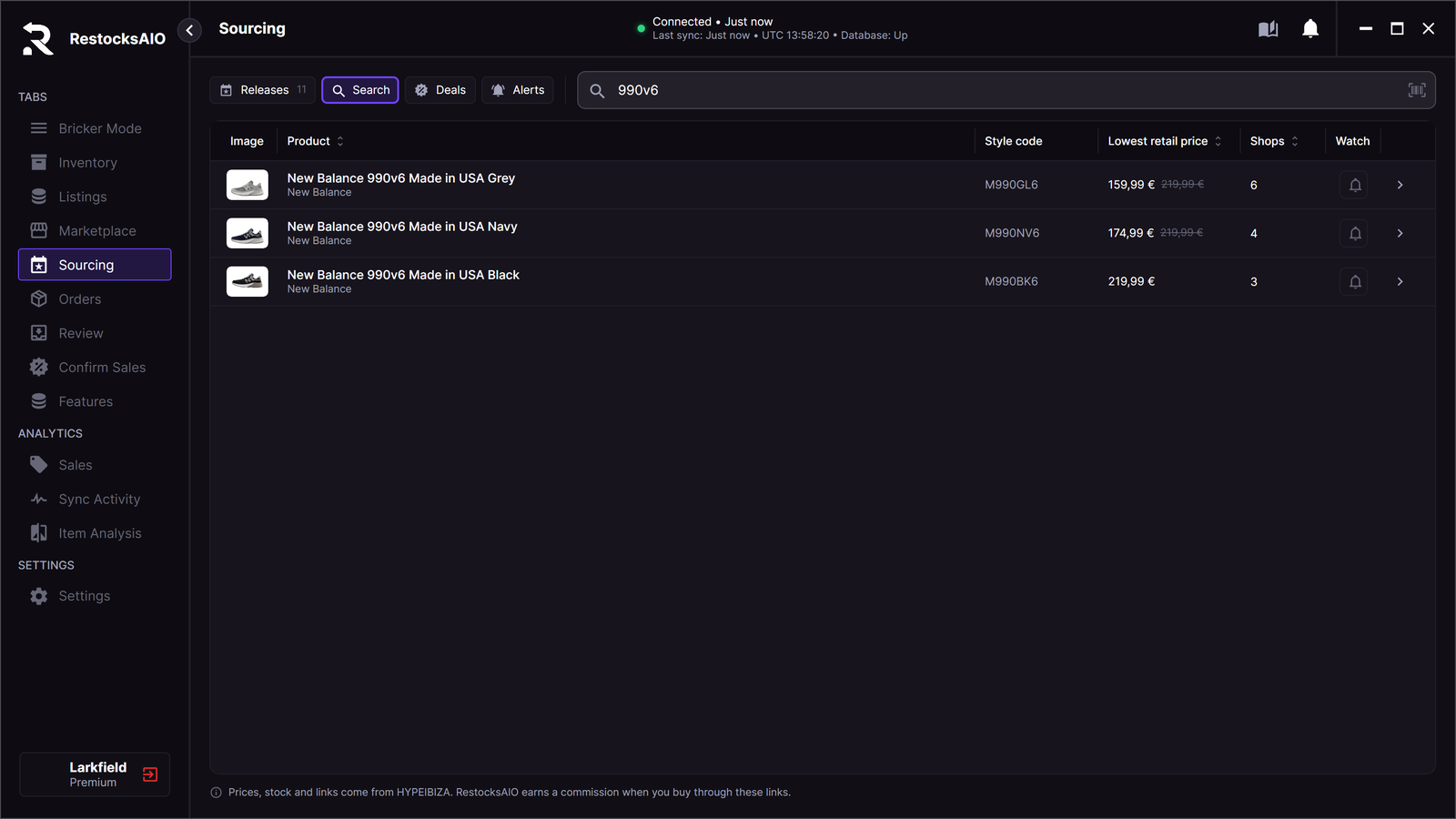
Search results with the lowest retail price and the number of shops. (Sample data.)
The product panel
Click a row in Releases, Search or Deals to open the product. The header shows the picture, the name, the style code, the colourway, the release date, the retail price and the number of shops. Back returns to the list.
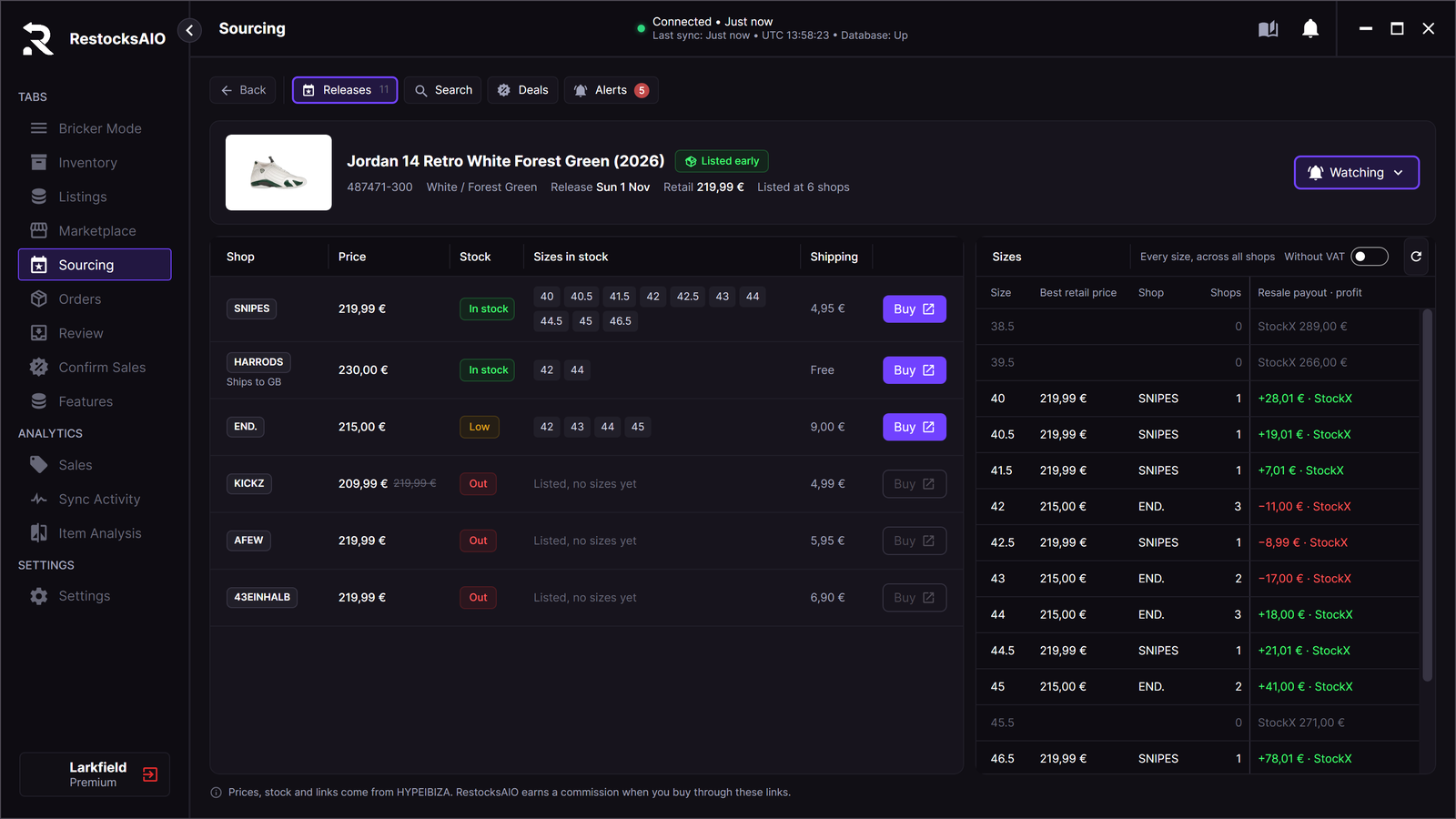
The product panel: the shops on the left, every size on the right. (Sample data.)
The shop list shows one row for each shop:
- Shop is the shop name. A shop that ships only to some countries shows Ships to, for example Ships to GB.
- Price is the shop's price. A crossed-out price is the price before a drop.
- Stock is In stock, Low or Out.
- Sizes in stock lists the sizes the shop has. Listed, no sizes yet means that the shop lists an upcoming product without sizes.
- Shipping is the shop's shipping cost, or Free.
- Buy opens the shop's product page in your browser. You buy on the shop's site. Buy is off when the shop has no size in stock.
The Sizes list shows every size of the product, across all shops:
- Best retail price is the lowest price for the size at any shop.
- Shop is the shop with that price.
- Shops is the number of shops with the size in stock.
A size that no shop has stays in the list with 0 shops. If no public shop lists the product, the panel shows No public shop lists it yet. Watch the product to get the Listed early at a new shop alert when a shop lists it.
Resale payout and profit
The column Resale payout · profit shows, for each size, what the pair pays when you sell it:
- The payout is the better of the StockX lowest ask and the Alias ask for the size, paid out after the fees of your own StockX or Alias account.
- The profit is that payout minus the best retail price of the size. A gain is green, a loss is red, for example +28,01 € · StockX.
- A size that no shop has shows the payout only, for example StockX 289,00 €. These are the missing sizes that you can look for elsewhere.
- Without fees loaded for a connected account, the ask itself counts. The tooltip says before fees.
- Hover a cell to see the ask, the payout, the retail price and the time of the price.
Turn on Without VAT to take your country's VAT off the retail price. The column title changes to Best retail ex VAT, and the profit uses the price without VAT. Use it when you are VAT-registered and reclaim the VAT on your buys. The refresh button next to the switch reads the resale prices again.
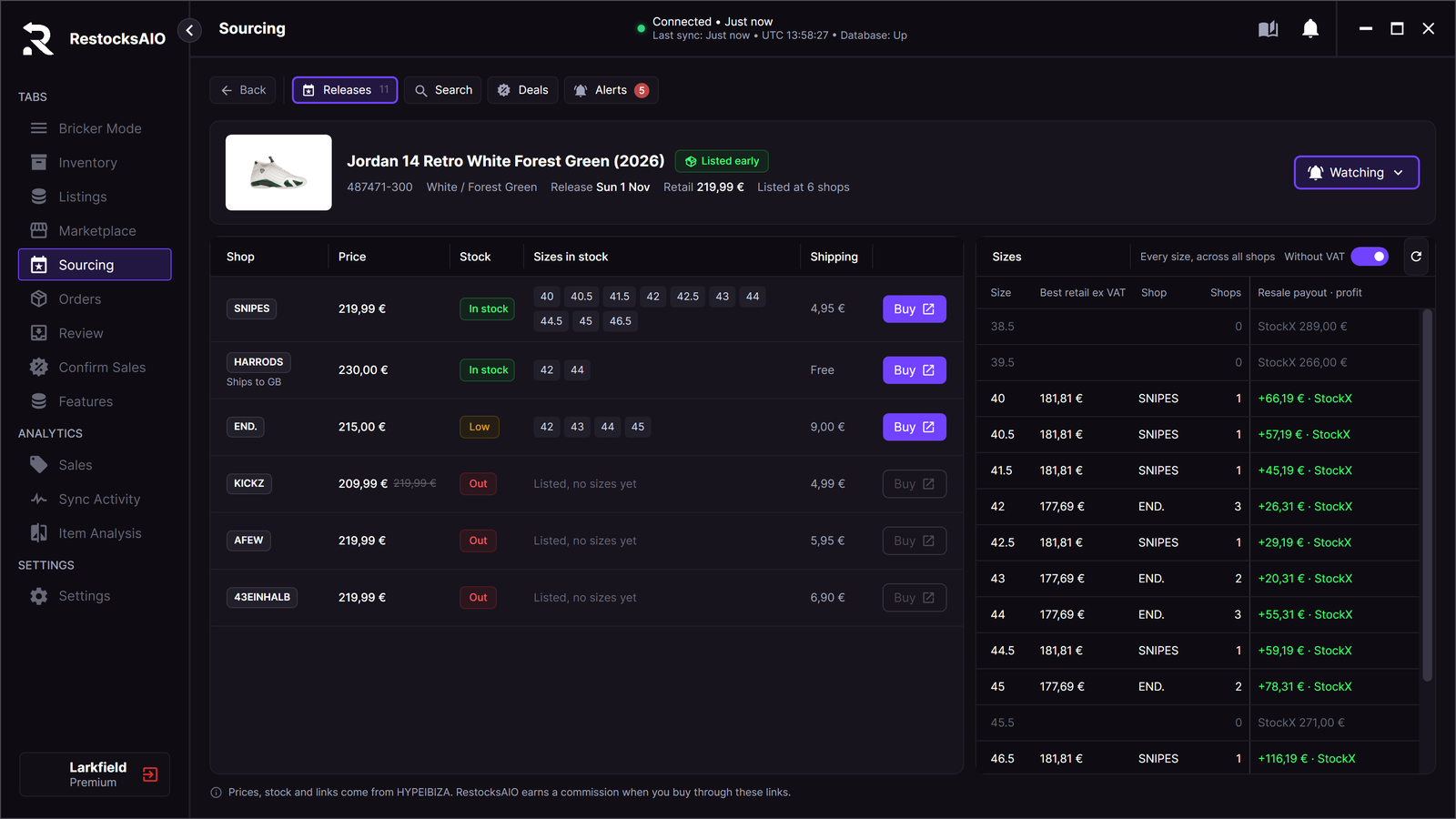
Without VAT on: the retail price without VAT and the profit per size. Sample data.
Deals
Deals lists price drops at public shops, largest discount first. Each row shows the product, the shop, the price with the old price crossed out, the Discount, the Kind, the Stock, the bell and Buy.
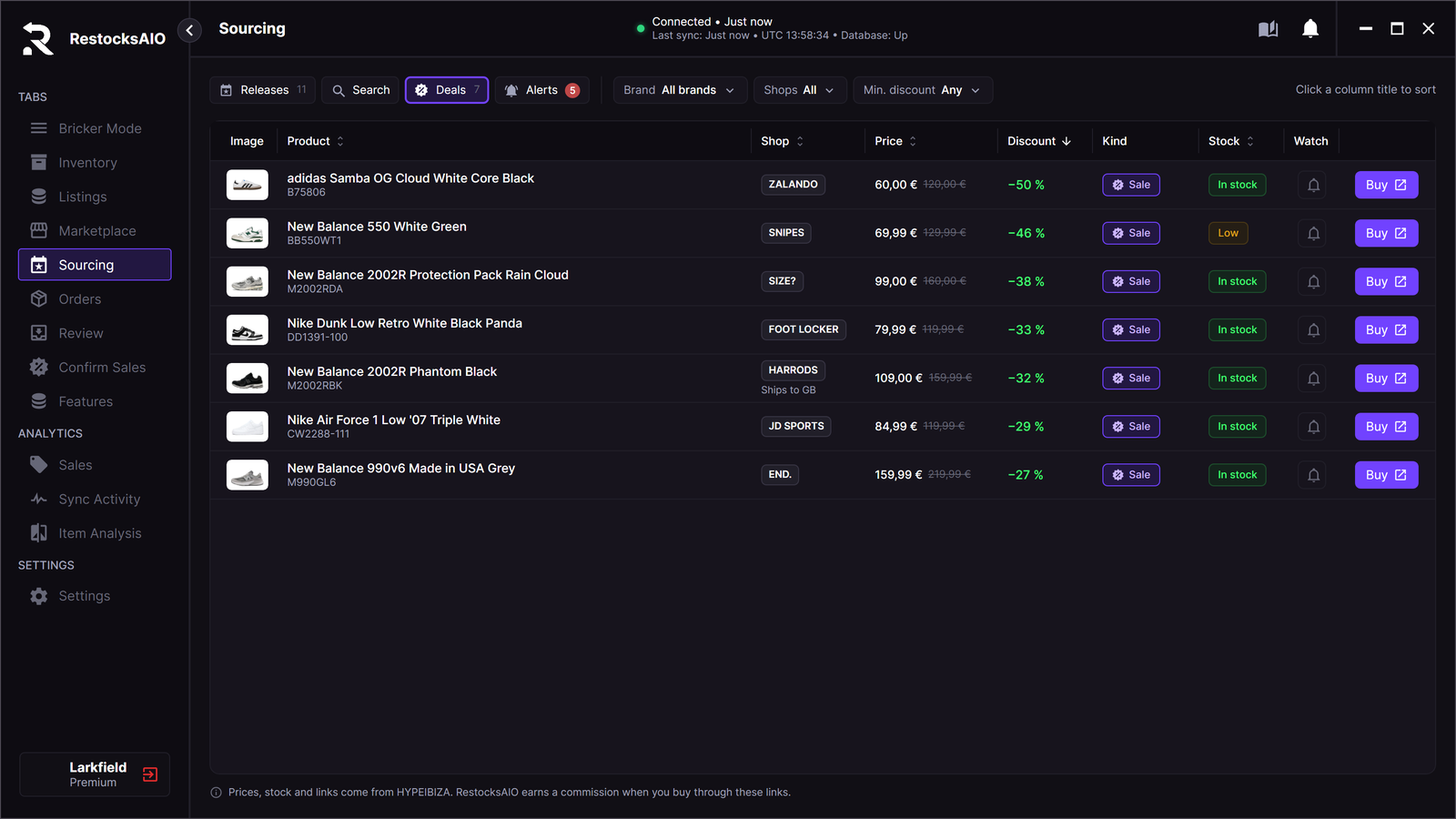
Deals, largest discount first. (Sample data.)
- Brand shows one brand only.
- Min. discount hides the deals below the discount you choose.
- Buy opens the deal at the shop.
- A click on the row opens the product panel, where you compare the other shops.
New deals arrive after the nightly check.
Watch a product
The bell
Press the bell on a row in Releases, Search or Deals. The product is now watched, and the bell turns purple. A new watch starts with these alerts:
- Restock for any size.
- Listed early at a new shop.
- Release reminder 7 days before, 1 day before and on the release morning, when the release date is today or later.
The new watch sends a phone push. It also uses the desktop and Telegram channels when they are on in Alerts → Delivery. Press the bell again to turn the alert off. The rule stays in Alerts, switched off.
The Watch menu
Open the product, then click Watch (or Watching) in the header. The menu Alert me about this product opens. Choose one or more kinds:
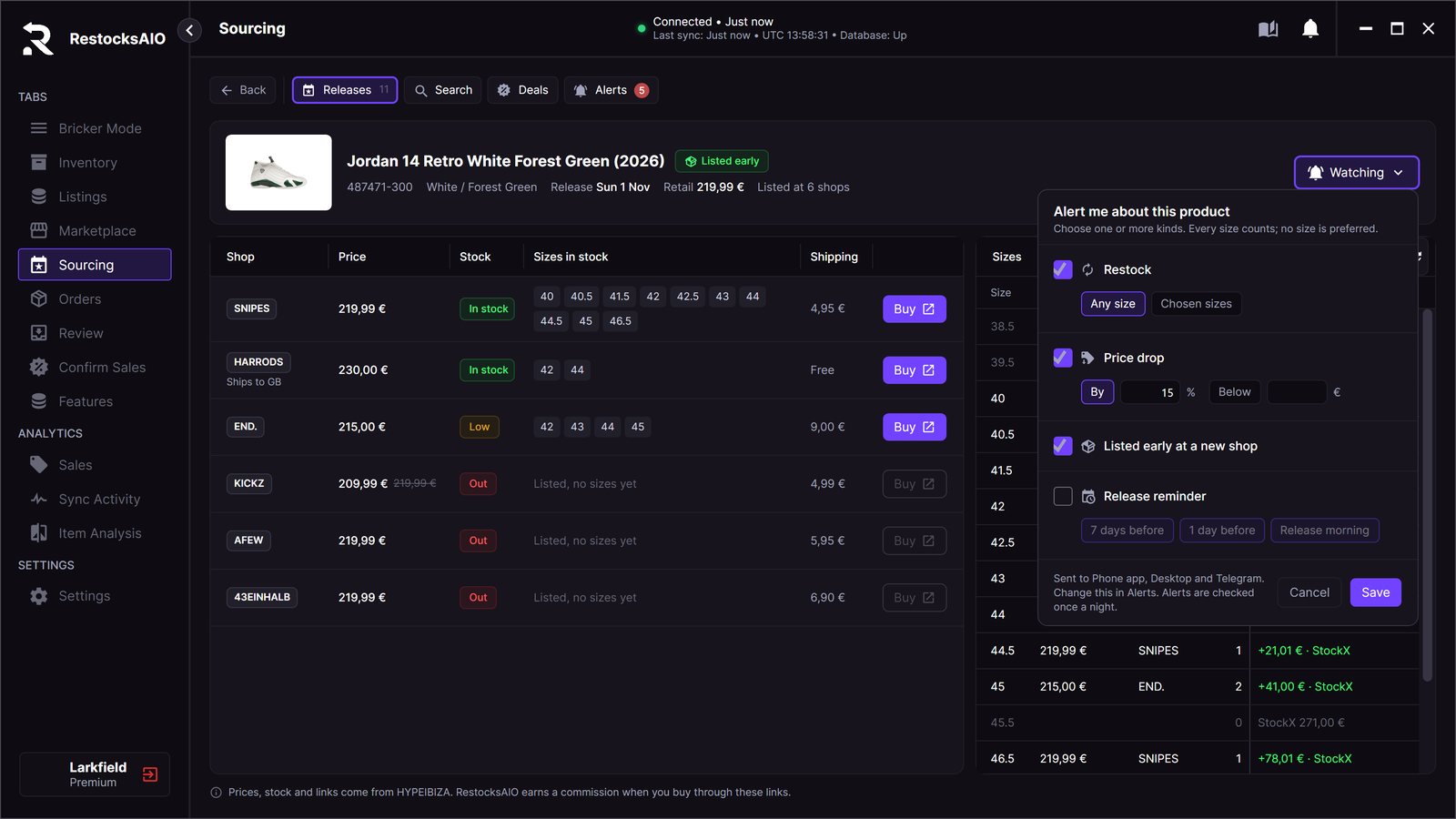
The Watch menu of one product. (Sample data.)
| Kind | Options | Fires when |
|---|---|---|
| Restock | Any size, or Chosen sizes and the sizes you tick | A public shop has a size back in stock. |
| Price drop | By a percentage, or Below a price | A shop price falls by your percentage, or below your price. |
| Listed early at a new shop | — | A public shop lists the product for the first time before its release date. |
| Release reminder | 7 days before, 1 day before, Release morning | The release date comes near. |
Click Save. The menu checks the values first:
- Chosen sizes needs at least one size.
- Price drop needs the percentage or the price.
- Release reminder needs at least one day.
Every size counts the same. Sourcing does not take a size from your settings.
You can watch up to 200 products. At the limit, delete a rule in Alerts first.
Alerts
Click Alerts. The tab has three parts: your rules, the fired alerts and Delivery.
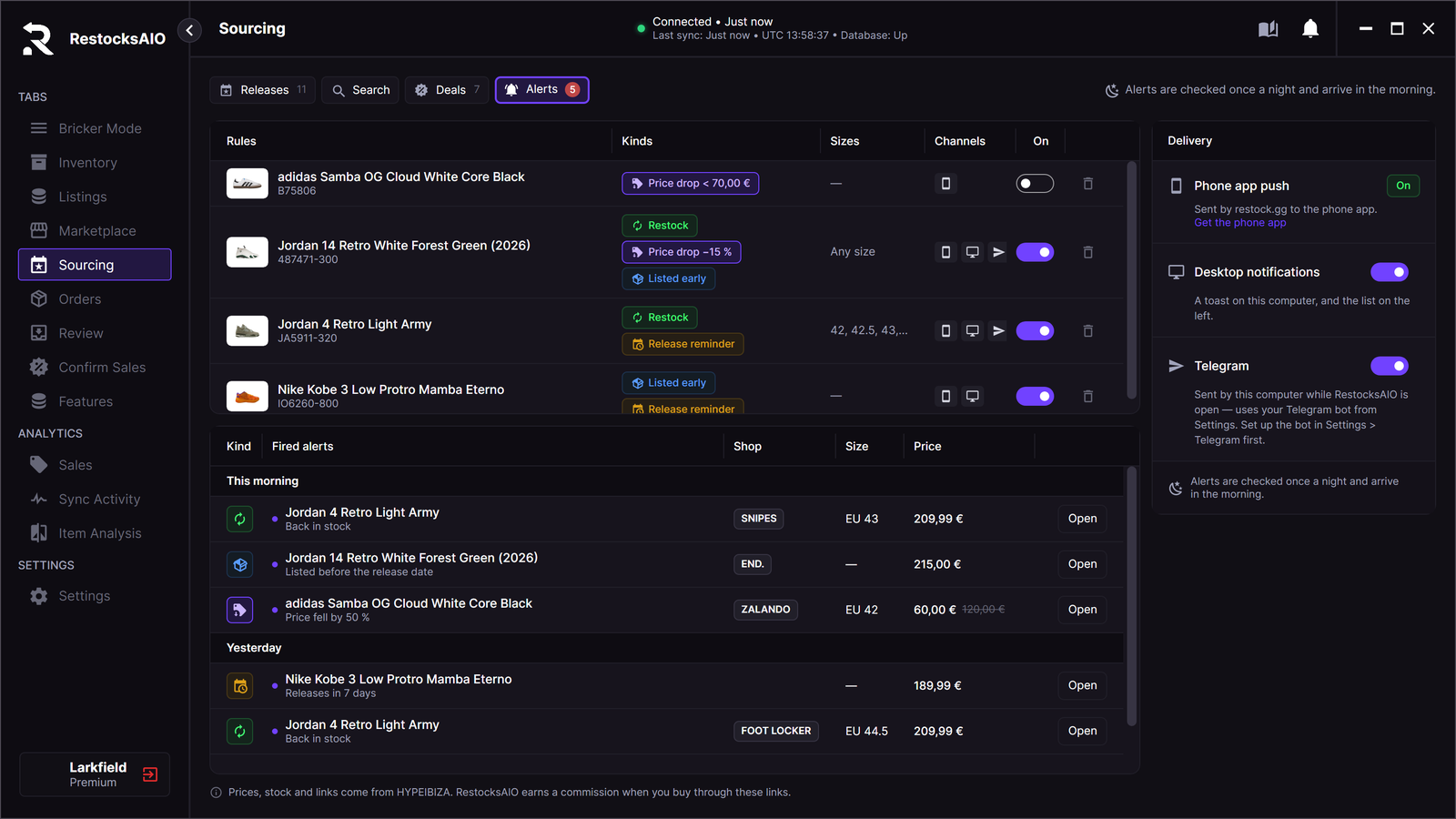
Rules at the top, fired alerts below, delivery at the right. (Sample data.)
Rules
Each row is one watched product. It shows the alert Kinds, the Sizes, the Channels and an On switch.
- Click a row to open its Watch menu and change the rule.
- The On switch turns the rule off or on. A rule that is off keeps its settings.
- The bin button deletes the rule.
Fired alerts
The list shows the alerts that fired, grouped by day, for example This morning and Yesterday. Each row shows the kind, the product, what happened (for example Back in stock or Price fell by 50 %), the shop, the size and the price. A dot marks a new alert. Open opens the product panel.
When new alerts arrive while another part of the tab is open, a red count shows on Alerts.
When alerts arrive
Alerts are checked once a night, so they arrive in the morning. A restock, a price drop or a new listing shows up the morning after it happens.
Delivery
| Channel | How it works |
|---|---|
| Phone app push | restock.gg sends the push to the phone app. It works when RestocksAIO is closed. When several alerts fire, the phone gets one push with the count. |
| Desktop notifications | A notification on this computer, and the list in Alerts. The switch turns it on or off. |
| Telegram | Your own Telegram bot sends the alert. This computer sends it, so it works only while RestocksAIO is open. Set up the bot in Settings → Telegram first. |
The desktop app asks restock.gg for new alerts while it is open, but only when a rule uses the desktop or Telegram channel. The first time, the app fills the Alerts list without a notification for each old alert.
Sourcing has no Discord channel. For Discord alerts about your sales, see Notifications and logs.
What Sourcing does not do
- It does not buy for you. Buy opens the shop in your browser.
- It does not change your inventory, listings or prices.