 RestocksAIO Docs
Seller Assistant
A chat panel on every tab. It answers questions about your sales, prices and problems, and writes AI listing text. It uses RestocksAIO AI (included) or your own AI provider.
The Seller Assistant is a chat panel you can open from any tab. It helps you understand your business and the app:
- Ask your business answers questions about your sales and inventory.
- Why this price explains a price Bricker Mode recorded.
- Problem inbox lists things that need your attention.
- How do I… answers questions about the app from this user guide.
- Generate title & description drafts the listing text in the Marketplace Workspace.
- Telegram gives you
/ask,/whyand/inboxon your phone.
RestocksAIO calculates every figure from the data loaded in the app and shows the rows it used. The assistant only reads and explains. It never sets a price, deletes a listing, accepts an offer or starts or stops a task.
The Seller Assistant is included in Premium. A Premium trial counts. It is part of the macOS app and the new Windows app. The current Windows app does not have it.
Plan
The Seller Assistant needs Premium. On another plan:
- The assistant button stays on every tab. Its tip reads Seller Assistant is a Premium feature. Upgrade to Premium to ask the assistant and to write listing text with AI. A click answers Your membership doesn't allow using this feature, upgrade to Premium! and the chat does not open.
- Why this price, Why this recommendation, a question and the Problem inbox give the same answer. No answer is made, with AI or from the help pages.
- On Telegram,
/ask,/whyand/inboxanswer Seller Assistant is a Premium feature. - Settings → AI opens and keeps its values. Load models, Connect Claude and Connect Codex (ChatGPT) show the membership message.
- No AI request leaves the app. Your saved key, your sign-ins, the remembered chat and your writing style are not deleted.
Open the assistant
Click the round purple button with the robot icon at the bottom-right of the window. It is there on every tab.
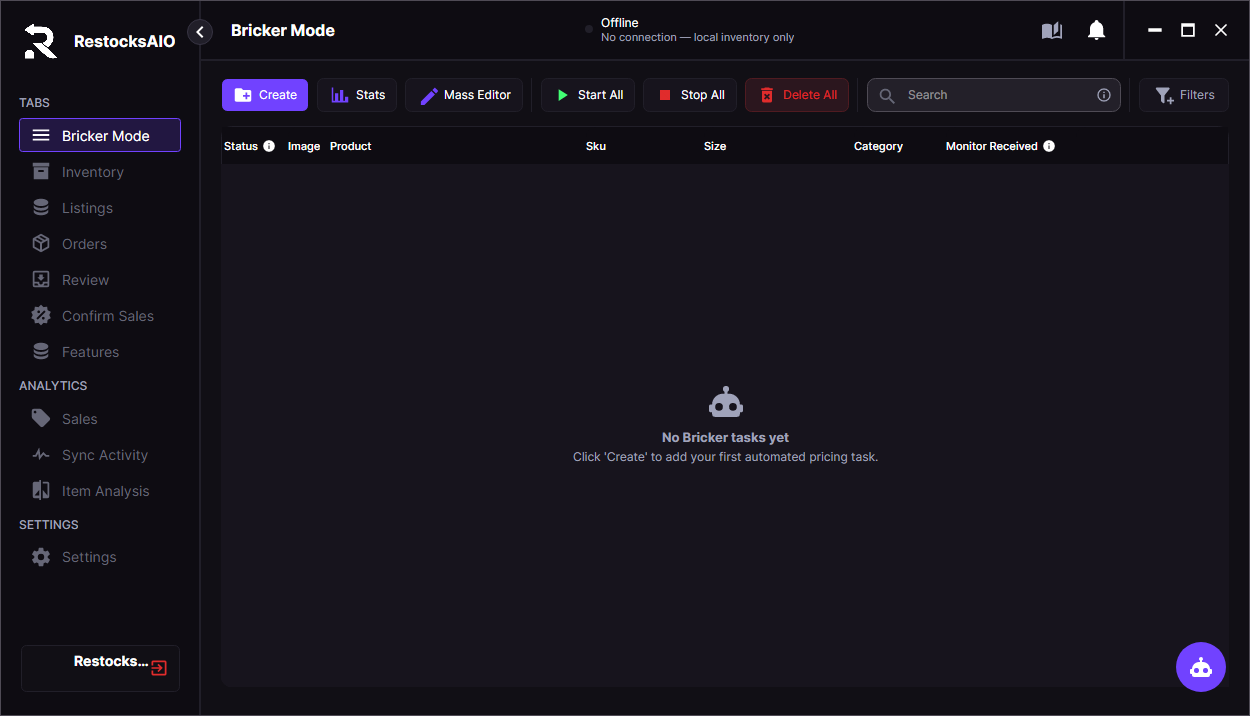
The assistant button sits at the bottom-right of every tab. (Synthetic test data.)
The chat opens as a panel on the right side of the window. The tab behind it stays usable.
- The header shows Assistant and the tab you are on, for example On Bricker Mode. If you have a Bricker controller, an Inventory item or a Listings group selected, it is named too (· DD1391-100 selected). The assistant uses this to understand what "this" means.
- The conversation is kept when you switch tabs, click a Review or Open button, or hide the panel with ×.
- Clear chat (bin icon) empties the conversation and stops a running answer.
- While a feature dialog is open, the assistant button steps aside so it does not cover the dialog's buttons.
The chat
Type in Ask anything… and press Enter or click the arrow button. Messages can be up to 1,000 characters.
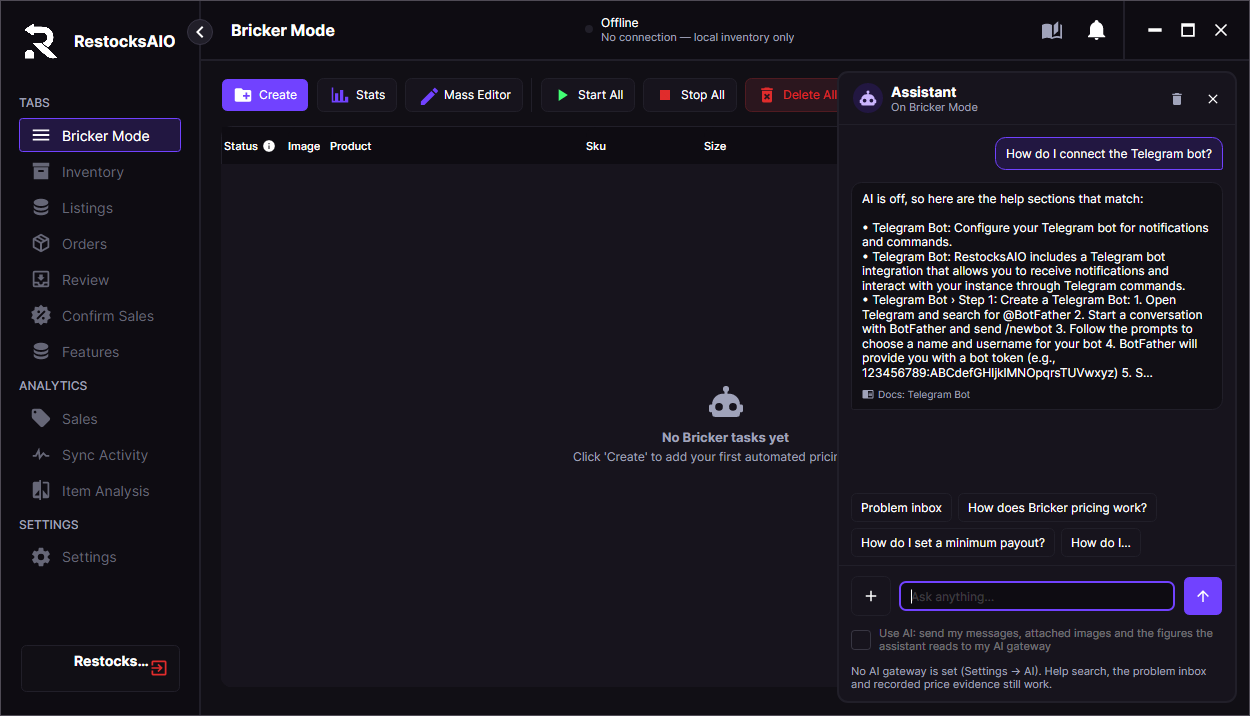
With AI off, a how-to question is answered from the help pages, which are named under the answer. The chips above the input change with the tab. (Synthetic test data.)
- Answers stream in as the model writes them. While it works, the arrow button becomes Stop. A stopped answer keeps what was written so far and is marked (stopped).
- Under each answer you see the model that wrote it, or Local figures · no AI when no model was used. Hover over that line to see the data snapshot time and coverage.
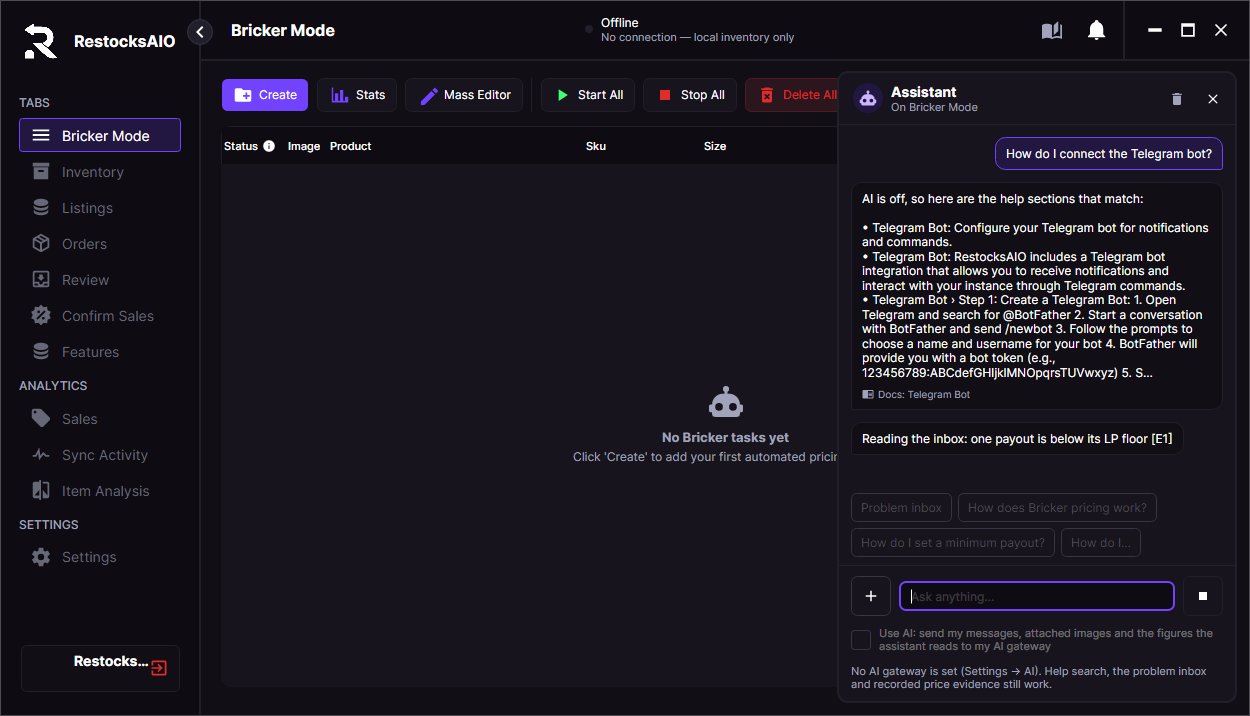
While an answer streams in, Stop replaces the send button and the suggestions wait. (Synthetic test data.)
Suggestions. The buttons above the input change with the tab and your selection:
| Tab | Suggestions |
|---|---|
| Bricker Mode | Why this price? (SKU) when a controller is selected, Problem inbox, How does Bricker pricing work?, How do I set a minimum payout? |
| Inventory | Sales of (SKU) when an item is selected, Stock by site, How do I import a CSV? |
| Listings | Listings of (SKU) when a group is selected, Stale or duplicate listings, How do I bulk list? |
| Sales | Best sellers this month, Payout by site, last 30 days, Pending sales |
| Settings | Connect the Telegram bot, Set up proxies, Connect an AI gateway |
| Other tabs | Best sellers this month, Problem inbox |
Every tab also has How do I…, which puts "How do I " in the input for you to finish.
The + button next to the input opens the quick actions: Ask about sales, Why this price (selection), Problem inbox, How do I… and, when your model accepts images, Attach image….
Evidence rows and buttons
When an answer uses your figures, the rows it used appear under it: the product, then the kind of row, site, size and count, and the amount in its own currency. Hover over a row to see its row number (E1, E2…) and where the figure came from. The answer refers to rows by these numbers.
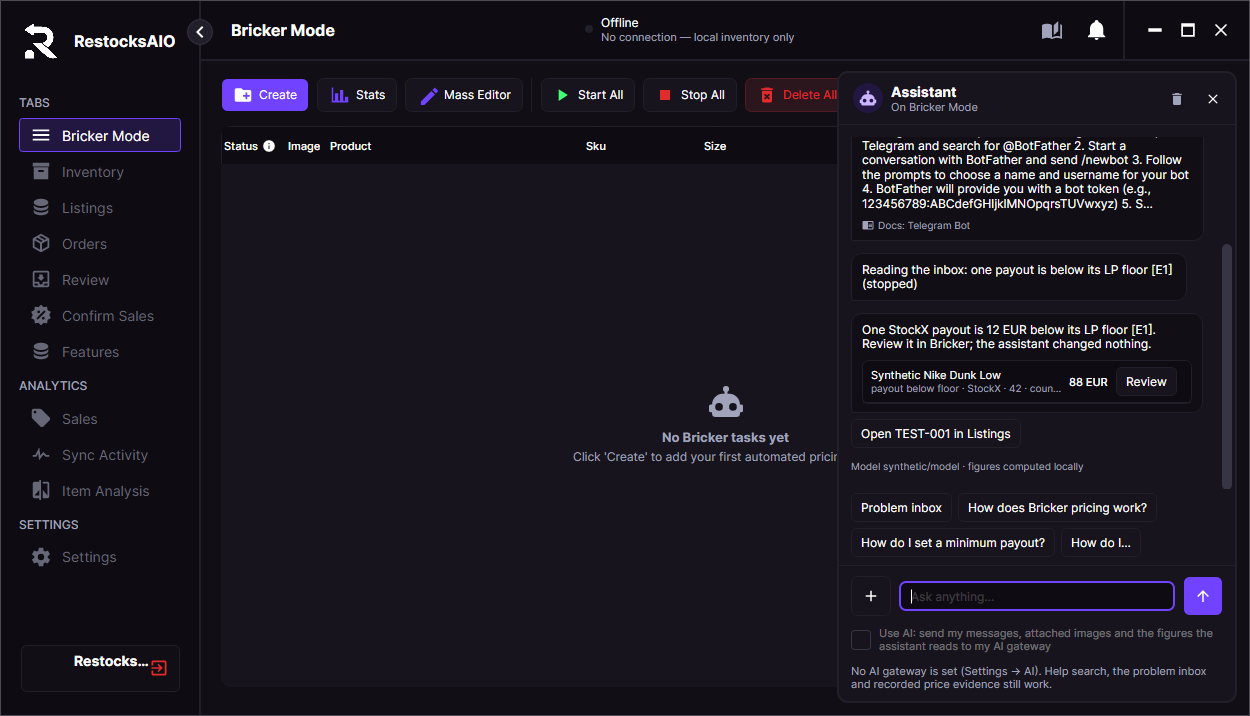
An answer with its evidence row. Review and Open only take you to a screen. (Synthetic test data.)
- Review opens the screen that owns the row (for example Bricker Mode, Listings, Sales or Inventory) and searches for it there.
- The assistant can also offer buttons such as Open DD1391-100 in Bricker.
- These buttons only navigate. Nothing changes until you make the change yourself on that screen, where changes still ask for confirmation.
Use AI
Under the input is the checkbox Use AI (sends this chat to my AI gateway). The checkbox has the same text when you use a Claude or Codex subscription.
- It starts unticked every time you open the app. Tick it when you want an AI answer.
- Without an AI provider it is disabled, with the note AI is not set up (Settings → AI). Help search, the problem inbox and recorded price evidence still work. RestocksAIO AI (included) counts as a provider. See Setup.
With Use AI unticked, nothing leaves your computer:
- A typed question is answered from the help pages bundled with the app. You get the three best-matching sections, with their page names under the answer. Questions about your figures need Use AI.
- Problem inbox shows its findings as they are.
- Why this price and Why this recommendation show the recorded evidence without an AI explanation.
With Use AI ticked, your message, the tab and selected product, the recent conversation, an attached image and the figures the assistant reads are sent to your AI provider.
What the AI can do
The model cannot change anything. It can only use these read-only tools, and RestocksAIO checks every request before running it:
- run a report over your loaded sales, inventory sales, inventory and listings (Ask your business);
- read the recorded Bricker price decisions for a SKU (Why this price);
- read the Problem inbox;
- search this user guide (How do I…);
- offer a button that opens a screen.
If you tell it to change something, for example "change the price of DD1391-100 to 100", the request is not sent. You get I only read and explain, so nothing was changed… and a button to the screen where you can make that change. A question about how to change something is answered normally.
Per message, the model can work for up to 4 rounds and 8 tool uses, and it sees the last 12 messages of the conversation. Answers are limited to 4,000 characters. Links in answers are removed, and an answer that contains contact details or something that looks like a password or key is withheld.
Limits
On the desktop you can make one AI request every 3 seconds and 200 per day (UTC). One message counts once, however many tools it uses. Over the limit you see Please wait 3 seconds between AI requests. or Daily AI request limit reached (200). Help search, the inbox and recorded figures still work without AI. Telegram has its own limits (see Telegram).
Images
Attach image… appears in the + menu only when your gateway's model list says the chosen model accepts images. If the gateway does not say, the option stays hidden.
- PNG, JPEG or WebP, up to 4 MB.
- The image is sent once, with your next message, and only with Use AI ticked.
- The assistant can describe what it sees. It does nothing else with the image.
How do I…
The assistant knows this user guide. The pages are bundled with the app, so they match the version you run and nothing is fetched from the internet. Answers name the pages they used (Docs: Telegram Bot), so you can read the full page here.
- Without AI, you get the three best-matching sections.
- With AI, the model searches the guide and answers in its own words.
Setup: connect an AI provider
Choose a provider in Settings → AI. The Provider list has four options:
| Provider | What you need |
|---|---|
| RestocksAIO AI (included) | Nothing. It needs no key and no sign-in. See RestocksAIO AI (included). |
| Gateway (OpenAI-compatible URL) | A base URL and an API key of a gateway: a hosted provider, a router such as OpenRouter or LiteLLM, or a server on your own network. You pay for usage through your own key. |
| Claude subscription | Your Claude account. Requests go directly to Anthropic and use the limits of your plan. |
| Codex (ChatGPT) subscription | Your ChatGPT account. Requests go directly to OpenAI and use the limits of your plan. |
The line at the top of the page shows the state: Using RestocksAIO AI (included) · no key needed · a daily allowance, Using the gateway · (model), Using Claude subscription · (model), Using Codex (ChatGPT) subscription · (model) or Not configured · Suggest is absent everywhere.
Sign in with a Claude or Codex subscription
- Open Settings → AI and choose the provider.
- Click Connect Claude or Connect Codex (ChatGPT). A browser tab opens.
- Allow RestocksAIO in the browser tab.
- Claude: paste the code Claude shows into Paste the code, then click Finish sign-in.
- Codex: the sign-in finishes by itself. If the tab shows an error page, paste its address into the same field.
- Pick a model in Pick a model.
The row then reads, for example, Claude · Connected · (account) · (plan). Disconnect deletes the sign-in from this device. If the row reads Sign-in unreadable on this device, reconnect, click Reconnect.
RestocksAIO AI (included)
RestocksAIO AI is part of the Premium plan. You need no key and no AI account of your own. The RestocksAIO server chooses the model.
It is the default when you set up nothing else. When you choose another provider, RestocksAIO uses that provider. RestocksAIO AI takes over in these cases:
- Your chosen Claude or Codex subscription is not connected, or your gateway has no key. The status line then starts with, for example, Claude subscription is not connected · Using RestocksAIO AI (included).
- Your own provider fails a request: it refuses the key, has no credit, hits a rate limit, or does not answer. The answer then shows the model name RestocksAIO AI.
- Your own Photos key fails a photo check.
RestocksAIO AI does not take over after the chat already showed part of an answer. Save and test always tests only your own key.
- The status line reads Using RestocksAIO AI (included) · no key needed · a daily allowance.
- The Model field shows RestocksAIO AI. You cannot change it.
- It answers the chat, Suggest, the listing text and the item specifics.
- It also does the photo AI check when you set no Photos key. See Photos.
- Each user has a daily allowance of 300 text requests and 300 photo requests. The allowance starts again at midnight, Spanish time. A request that gets no answer does not count.
- One request holds at most 12 photos and 12 MB.
- Your messages and photos go through the RestocksAIO server to the AI model. Your API keys and marketplace logins never go there.
| Message | What to do |
|---|---|
| RestocksAIO AI needs the Premium plan. You can also connect your own AI provider in Settings → AI. | Upgrade to Premium, or choose another provider. |
| Today's RestocksAIO AI requests are used up. They start again tomorrow, or connect your own AI provider in Settings → AI. | Wait until tomorrow, or choose another provider. |
| Today's RestocksAIO AI photo checks are used up. They start again tomorrow, or connect your own AI provider in Settings → AI. | Wait until tomorrow, or add your own Photos key. |
| RestocksAIO AI is busy right now. Try again in a minute. | Wait one minute, then try again. |
| RestocksAIO AI failed. Try again in a minute. | Wait one minute, then try again. |
Connect a gateway
- Open Settings → AI and choose Gateway (OpenAI-compatible URL).
- Enter the gateway's Base URL, for example
https://api.example.com/v1orhttp://your-gateway:20128. If you enter only the address (no path), RestocksAIO adds/v1. - Paste your API key. Click Show to check it.
- Click Load models. RestocksAIO asks the gateway for its model list. No model is called yet. When this works, the status line reads Connected · N models.
- Pick a model in Model. If your gateway has no model list, type the model id.
Your settings are saved when you click Load models and when you leave the AI page. The top of the page then reads Using the gateway · (model).
If the page shows This model can't use tools; the chat will only answer from help text, pick another model for full chat answers.
Two more options are on the page. Both are off by default: Summarise long chats with AI and Remember the chat after restarts. Forget conversation in the + menu of the chat deletes the remembered chat.
- The key and a subscription sign-in are stored encrypted on this computer: in the login Keychain on macOS and in a file encrypted for your Windows user on Windows. It is never saved in a profile file. Leaving the key field empty keeps the saved key.
- Use
https://. Plainhttp://is accepted only when the gateway runs on this computer or on a private network:localhost, a LAN address (10.x,172.16–31.x,192.168.x), a Tailscale address (100.64.0.0/10or a*.ts.netname), or a single-word host name that resolves only to those addresses. Any other plain-http address is refused. - RestocksAIO does not follow gateway redirects. Enter the final gateway URL.
- The model must support streamed chat completions. For the chat it must also support tool calls, and for Suggest structured JSON output (
response_formatwithjson_schema). A model can appear in the gateway's list and still fail this. If requests fail with "invalid response", try another model.
Photos (image analysis)
Photo features use their own AI route in Settings → AI → Photos (image analysis). These features use it:
- the AI check of Import folder and Create inventory items. See Sell Returned Pairs.
- the eBay item specifics from your photos in Draft from similar listings.
Each pair is one direct request with its photos. Photos never go to a Claude or Codex subscription sign-in.
You do not need a Photos key. Without one, RestocksAIO AI (included) checks the photos. The status line then reads Photos use RestocksAIO AI (included). Add your own key here to use your own model. Add a key only when you want your own model.
- Open Settings → AI and find Photos (image analysis).
- Enter the Base URL, for example
https://openrouter.ai/api/v1. - Enter the Model, for example
google/gemini-3.1-flash-lite. The model must read images. - Paste the API key.
- Choose the Language of the photo notes. The AI writes the place of each flaw and its note in this language. A ticked note goes into the listing description. The default is English.
- Click Save and test.
Save and test saves the whole AI page. Then it sends one small test image to the model. The status line shows the result:
| Status | Meaning |
|---|---|
| Saved. The key works and … reads photos. | The route works. |
| Saved, but … did not read the test photo … Use a model that takes images. | Choose a model that reads images. |
| Saved, but the test failed: … | The key or the address is wrong, or the gateway did not answer. |
| No key: the photo checklist and the specifics from photos are off. Nothing is sent. | Add a key. |
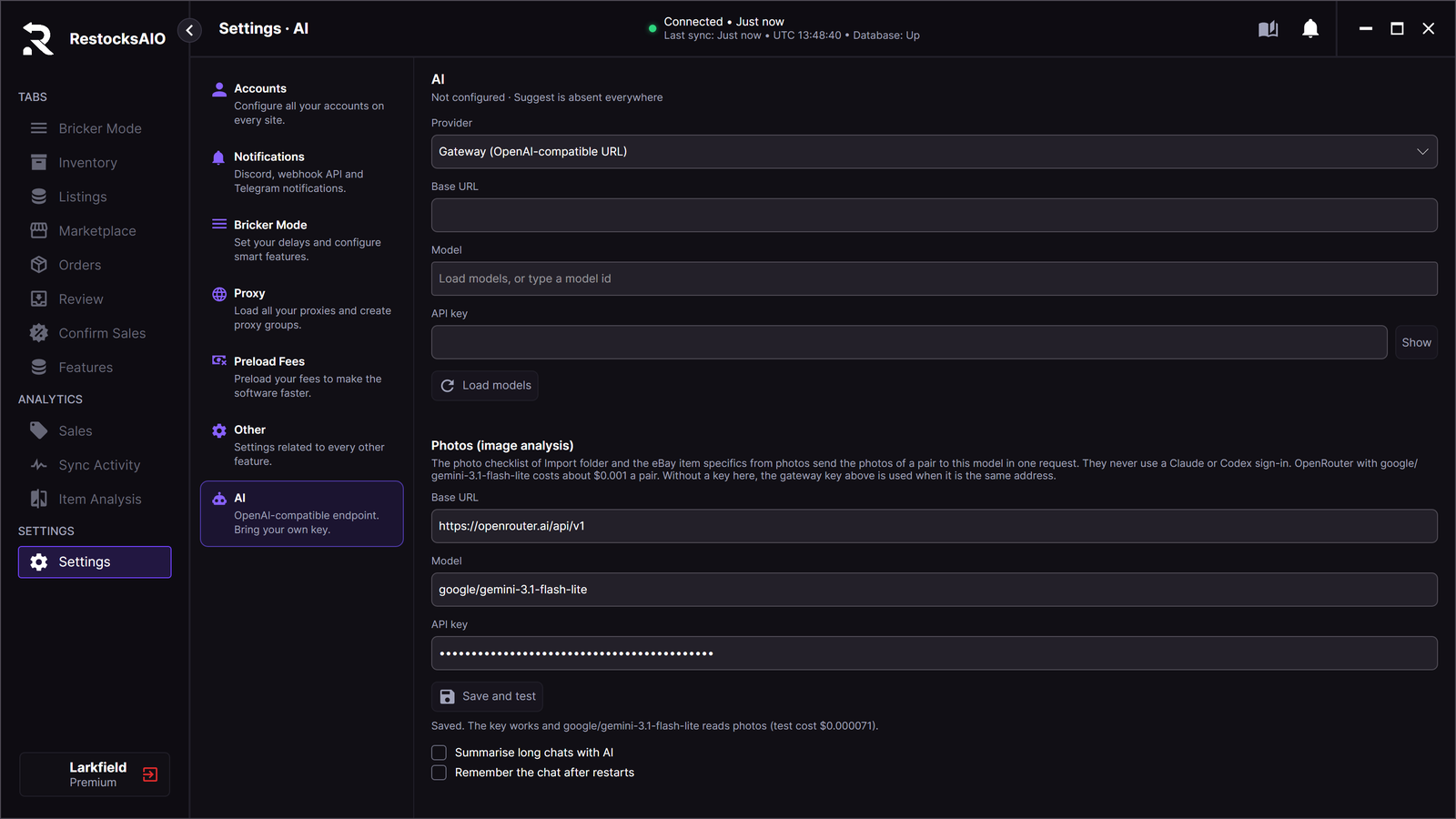
Save and test checks the key and the model in one click.
- With OpenRouter and
google/gemini-3.1-flash-lite, the AI check costs about $0.001 a pair. You pay through your own key. - Without a Photos key, RestocksAIO uses the gateway key above when both fields name the same address. Without either key, RestocksAIO AI (included) checks the photos. When RestocksAIO AI is not available either, nothing is sent.
- The Photos key is stored encrypted on this computer, apart from the gateway key.
Ask your business
Tick Use AI and ask in the chat, or use a suggestion. On Telegram, send /ask <question>.
Examples:
- "Best-selling products this month"
- "Payout on StockX between 2026-09-01 and 2026-09-30"
- "Sales of DD1391-100 by size"
- "Inventory cost by month"
How it works: the model only turns your question into a report plan: the data (marketplace sales, inventory sales, inventory or listings), the dates, product, site, grouping (product, site, size, month or status), metric and sort order. RestocksAIO checks the plan and calculates every figure itself. The figures and the rows under the answer come from your loaded data, not from the model.
What to expect from the figures:
- Payout and sale price are separate. For inventory sales, the payout (after fees) and the sale price (before fees) are separate rows. A missing payout stays unknown. It is never replaced by the sale price.
- Pending sales are separate. Marketplace sales that are not completed yet appear as their own row, outside the sales payout total.
- Marketplace sales and inventory sales are separate. They have no reliable shared order number, so they are never added together.
- No mixed currencies. Each currency has its own row and nothing is converted. Counts can combine currencies. Amount rankings show the top results within each currency.
- No profit and no tax. Payout is not profit. The assistant does not calculate profit or taxes.
- Products are matched by product ID. Records are grouped by product ID, not by style code, so two colourways that share a style code stay apart. A record without a product ID joins the product its style code belongs to. If that style code belongs to several products, the record is not merged and the coverage counts it.
- Your local dates. "Today", "yesterday" and "this month" use your computer's calendar day. A date range can cover up to 366 days.
- Coverage is shown. The assistant reads up to 10,000 rows per source, shows up to 100 rows and sends up to 60 to the model. The coverage (hover over the line under the answer) reports the snapshot time, the number of matching records, unknown dates and costs, and any rows that were left out.
A message containing an email address, phone number or anything that looks like a password or key is not sent to the gateway.
If the provider fails, you see its message followed by No answer was substituted., for example AI timed out. No answer was substituted. No AI answer is made up.
Why this price
Why this price explains the last pricing decision Bricker Mode recorded for a product. It does not calculate a price, recommend a new one or change anything.
Open it from:
- Bricker Mode: right-click a controller and choose Why this price (selected controller). The chat opens and asks Why this price? (SKU) for you. With a controller selected, you can also use the Why this price? (SKU) suggestion or Why this price (selection) in the + menu.
- Bricker Recommendations: right-click a recommendation and choose Why this recommendation. The chat opens on the main window with that recommendation's figures. The recommendations window stays open.
- Telegram: send
/why <SKU>.
Without Use AI, you see the recorded evidence rows. With Use AI, the model also explains them in writing.
What the evidence contains:
- For every Bricker task whose controller has the same style code (
76.98445and76-98445count as the same), there is one row for the ask decision and one for the payout bounds. The ask row shows the chosen indicator and its reason, the candidate price, the undercut, the price before and after, the highest bid, any guard that applied and the outcome (held, blocked, attempted, succeeded or failed). The payout row shows the current and candidate payout and your LP floor and MP ceiling. - Ask prices and payouts each keep their own currency. They are never converted into each other.
- A task with no record shows Price trace unavailable. The assistant says so and does not guess why.
- Up to 48 rows go into one explanation. Any rest are counted in an Omitted evidence row.
Records start with this version. A price decision is recorded when Bricker Mode makes it. Only the latest decision per task is kept, and only while the app is running. After you update or restart, there is nothing to explain until the monitors price again. Past prices are never given an invented reason.
On Telegram, /why needs Premium, as every Seller Assistant command does.
Problem inbox
Click Problem inbox in the suggestions or the + menu, or send /inbox on Telegram. RestocksAIO checks your loaded data against fixed rules:
| Finding | What it means |
|---|---|
payout_below_floor | A running Bricker task's current payout is below its LP. The amount is the shortfall. Tasks without an LP, stopped or sold tasks, and tasks whose payout and LP are in different currencies are skipped. |
delete_failed_after_sale | An item sold, but deleting its other listings is still pending. The amount is the possible exposure, not a realised loss. |
duplicate_listing | The same physical inventory unit is linked to more than one active offer on the same site. Listings on different sites are not flagged. Only listings linked to inventory units (Marketplace Workspace) can be checked. |
stale_listing | An active listing has had no successful update for more than 30 minutes. This is about the listing's last check, not about how long ago you bought the item. |
Sites that are "not covered". The stale-listing rule needs a per-listing check time. StockX, Alias and the other existing marketplaces keep only an account-level sync time, so their listings are not checked. The coverage lists them as not covered. It does not mean they are fine.
- Without AI (Use AI unticked, or
/inboxon Telegram), the findings are shown as they are. Nothing leaves your computer. - With AI (Use AI ticked, or
/inbox ai), the findings are also sent to your gateway, which summarises them and ranks them by known money exposure within each currency. Findings with an unknown amount stay listed. - Up to 100 findings are shown, shared across currencies. The coverage says how many were left out per currency.
Click Review on a row to open the screen where it can be fixed. The assistant never fixes anything itself.
Suggest: listing title and description
In the Marketplace Workspace, Listing quality shows the button Generate title & description in the Title and Description sections. It writes the title and the description together, in your writing style, from the data of this product only. It appears only after you set up an AI provider. Other sections, such as Attributes, do not have it.
Writing style next to the button opens your own instructions for titles and descriptions, with Learn my style and Reset to default.
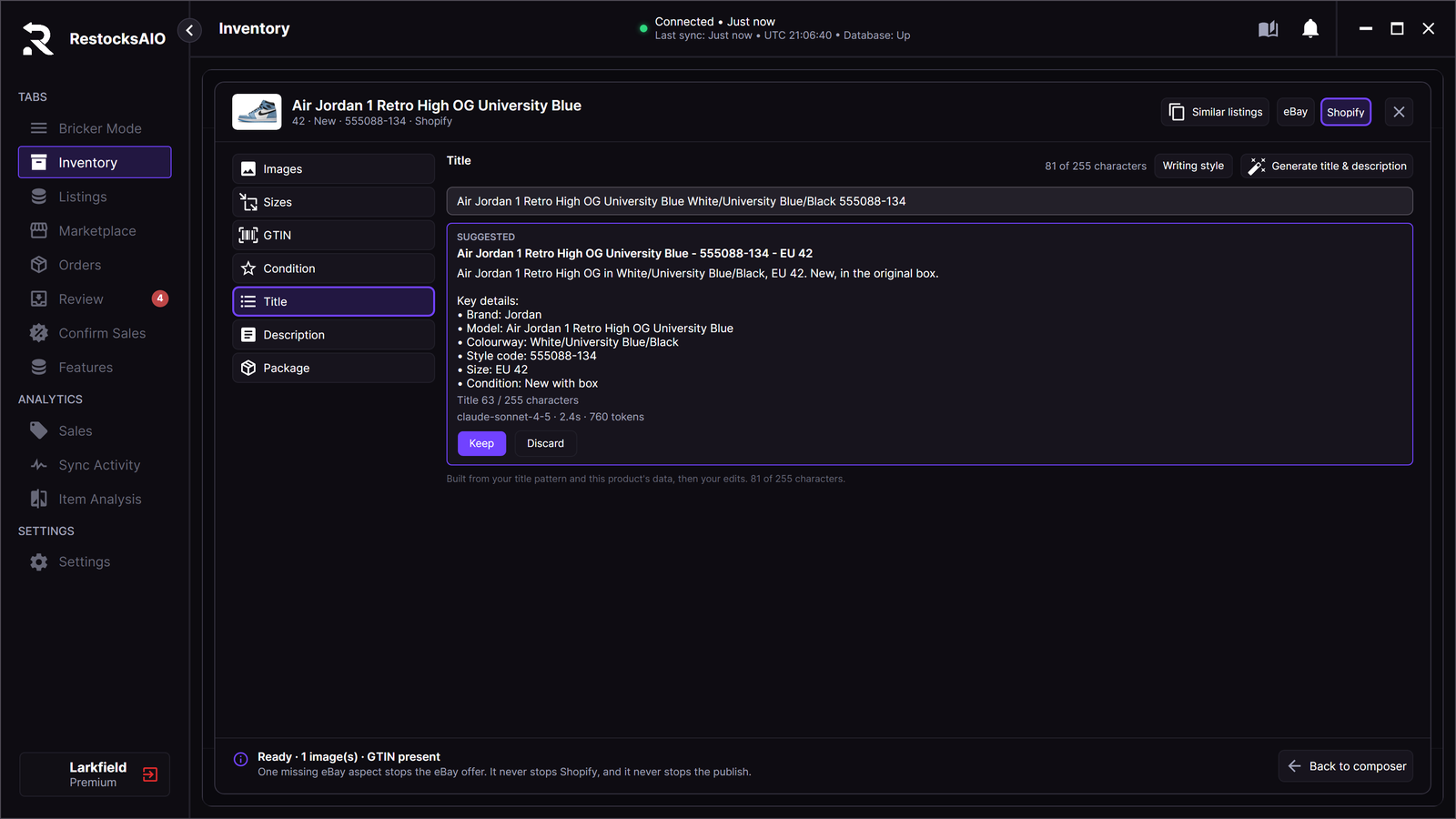
A suggested title waits in a preview box with its character count and the model that wrote it. Nothing changes until you click Keep. (Synthetic test data.)
- What is sent: the product facts (brand, name, colourway, style code, department, category), this item's size and condition, the item specifics the listing holds as facts, a shipping line, your writing style guide, the title and description the app built without AI and, if you applied the Keywords row of Similar listings, up to 8 words that similar eBay listings use in their titles. A name or style code you typed yourself is sent when the catalogue has none. No photo is sent. Descriptions, photos, prices and seller names of other sellers' listings are not sent. Title words from similar eBay listings are sent as hints only, and a word that comes only from them is not allowed in the title. If the product has no name and no brand, you see AI request needs catalogue facts.
- The result is a preview marked SUGGESTED. Click Keep to use it or Discard to drop it. The preview shows the model that answered, how long it took and the tokens used.
- For a title, the preview shows its length against the channel limit. A title over the limit cannot be kept. Generate again or edit the title yourself.
- Leaving the product, channel or section cancels the request and throws the result away.
- If the request fails, you see the error. RestocksAIO never puts catalogue text in its place and calls it AI.
Generate on the publish screen
On the Publish screen, each ticked channel row shows its Title, with the character count of the site, and its Description. You can edit both fields there. Listing quality keeps its larger editors for the same fields.
After you set up AI in Settings → AI, the channel header shows Generate title & description. Click it to write the title and the description of every ticked channel. Each channel gets text in its own length limit and your writing style. The text goes into the fields at once. Nothing is published before you click Publish. When one channel fails, it keeps its text and its line says why.
Telegram
If you use the Telegram Bot, these commands use the same evidence as the desktop:
| Command | What it does |
|---|---|
/ask <question> | Ask your business. Sends the question to your gateway. |
/why <SKU> | Explain the recorded Bricker prices for a SKU. Sends the evidence to your gateway. |
/inbox | Problem inbox, worked out locally. Nothing is sent to the gateway. |
/inbox ai | Problem inbox with an AI summary. Sends the findings to your gateway. |
- Plan. Every command in this table needs Premium. On another plan the bot answers Seller Assistant is a Premium feature.
- Private chat only. In a group, the bot replies "Use a private chat with this bot for business figures." Only user IDs in your authorised list can use the commands.
- Rate limits. Each user can make one AI request every 10 seconds and 50 per day (UTC). Over the limit, the bot replies Please wait 10 seconds between AI requests. or Daily AI request limit reached (50). /inbox still works without AI.
- Replies contain the answer, snapshot time, coverage, model and up to 30 evidence rows. Open the desktop assistant to see more.
- No links. Links in replies are replaced with
[link removed]and link previews are off. Anything that looks like a key or token is replaced with[redacted]. Links in model-written answers on the desktop are removed the same way.
Confirm cards
Accepting an offer, and Start All / Stop All in Bricker Mode, ask for confirmation first. This applies to the Accept Offer button on offer notifications, /bricker_start_all, /bricker_stop_all and the buttons under /bricker_stats.
The bot sends a card with Before and After lines (for example Before: 3 of 7 controllers running) and Confirm / Cancel buttons. Nothing changes until you tap Confirm.
- One use. A card works once.
- Expires in 2 minutes. An old card replies "Confirmation expired, already used or belongs to another chat. Request a fresh card."
- Owner-bound. Only the user the card was sent to, in that chat, can use it. A new card replaces your previous one.
- One accept per offer. When one user confirms, every other user's card for the same offer or Bricker action stops working, and an offer can only be accepted by one card at a time.
- Changes void the card. If the offer or listing price changed, you get "The listing or offer changed. Request a fresh confirmation." For Start All, a change in the number of controllers, running controllers, tasks or sold tasks needs a new card. Stop All always runs on confirmation, because stopping is the safe direction.
- An offer without a marketplace listing ID has no Accept Offer button.
Privacy: what is sent
Nothing goes to your AI provider unless you ask for an AI result: on the desktop you tick Use AI, and on Telegram you send an AI command. With a gateway, the data goes to the gateway you configured. With a Claude or Codex subscription, the same data goes directly to Anthropic or OpenAI. One exception: when the Photos route has a key, the AI check of photo intake starts by itself when the size rows open. The Photos route never uses a Claude or Codex subscription.
| Feature | Sent to your AI provider |
|---|---|
| Chat with Use AI ticked | Your message, the last 12 messages of the conversation, the tab name, the selected SKU and product name, today's date, an attached image, and up to 60 evidence rows and help sections the assistant reads for that message. |
| Chat with Use AI unticked | Nothing. Help, the inbox and price evidence are worked out on your computer. |
| Generate title & description | The product facts, this item's size and condition, the item specifics held as facts, a shipping line, your writing style guide, the title and description the app built without AI, search terms from similar eBay listings if you applied them, and the language of the listing. Never the description, the photos, the price or the seller name of another seller's listing, and no photo of yours. |
| Similar listings (eBay, with an AI key stored) | The category's empty item specifics with their allowed values, and up to 60 item specifics (name, value, count) of the similar eBay listings. |
| Photo AI check, item specifics from photos (Photos route) | The photos of one pair, with the SKU, region and size of the row, or the first six listing photos with the open eBay item details. |
| Learn my style | The title and description of 2 to 8 of your own listings on that account. Emails, links, phone numbers and @handles are replaced first. |
/ask | Your question and today's date. The figures are calculated on your computer after the model returns the report plan. |
/why, /inbox ai | Your instruction plus up to 60 evidence rows: product name, site, size, currency, count, amount and the recorded decision text. |
/inbox | Nothing. |
Never sent: your marketplace account logins, tokens and profiles, buyer details, or your licence key. Email addresses, phone numbers and anything that looks like a password, token or key are removed from evidence ([redacted]). A message that contains them is not sent at all. Your API key goes only to the gateway you configured, as its authorisation header.
What it does not do
- It does not change prices, delete listings, accept offers or start and stop Bricker tasks. Those actions stay where they always were, and on Telegram they need a confirm card.
- It does not reply to buyers, source stock or run on its own.
- It does not act on images. It can only describe them.
- It does not calculate profit or taxes, or convert between currencies.
- It does not work while the app is closed. Everything comes from the data loaded in the app.
- It does not invent reasons for past prices. Price records start with this version.
- It has no hidden backup model. If your gateway fails, you see the error and the local figures.
Troubleshooting
Loading models (Settings → AI)
| Message | What to do |
|---|---|
| Base URL and API key are required. | Fill in both fields. |
| Base URL must start with http:// or https://. | Add the scheme, for example https://api.example.com/v1. |
| AI gateway requires https:// unless it is on this device or a private network. | Use https://, or run the gateway on this computer, your LAN or Tailscale. |
| Gateway redirects are not supported. Use the final gateway URL. | Enter the address the gateway redirects to, usually the https:// one. |
| The gateway rejected the key (HTTP 401). / (HTTP 403) | Check or replace the API key. |
| This gateway has no model list. Type the model id. | Type the model id in Model. Requests still work, but Attach image… stays hidden. |
| The gateway listed no models. Type the model id. | Same as above. |
| The gateway model list is too large. Type the model id. | Type the model id. |
| Gateway unavailable (HTTP 5xx). | The gateway is up but returned an error. Try again later. |
| Gateway unreachable. | Check the address, port and your connection. The model list waits 10 seconds. |
In the chat
| Message | What to do |
|---|---|
| Use AI is greyed out. | No AI provider is set. Set one up in Settings → AI. |
| No help section matched. Allow AI below for an answer, or try other words. | Rephrase, or tick Use AI. |
| Tick "Use AI" to ask about this image. | Tick Use AI and send again. |
| Attach a PNG, JPEG or WebP image up to 4 MB. | Use a smaller image or another format. |
| Please wait 3 seconds between AI requests. / Daily AI request limit reached (200)… | Wait, or use the assistant without AI. |
| The message contains contact or credential-like text, so it was not sent to the configured AI gateway. | Remove the email address, phone number or key-like text. |
| (message). No answer was substituted. / AI timed out. No answer was substituted. / AI is unavailable. No answer was substituted. | The provider failed. Check the provider and model as in the table below. |
| Your (provider) plan's usage limit is reached. | Wait until the limit of your plan resets, or pick another model in Settings → AI. |
| This Codex model is not available to your ChatGPT plan (HTTP 400). | Pick another Codex model in Settings → AI. |
| This conversation is too long for the Codex model. Start a new chat. | Click Clear chat and ask again. |
| The assistant used its tool budget without a final answer. The figures it read are shown below. | Ask a narrower question. |
Requests (Suggest, chat, Telegram)
| Message | What to do |
|---|---|
| AI request settings are incomplete. | Set the base URL, API key and model in Settings → AI. |
| AI request needs catalogue facts. | The product has no name and no brand. Add one of them. |
| AI gateway returned HTTP 4xx. | The gateway refused the request: often a wrong model id, no credit or a rate limit. |
| AI request timed out. | The gateway took too long. Try again or pick a faster model. |
| AI gateway returned an invalid response. | The model probably does not support tool calls or structured JSON output. Try another model. |
| AI gateway did not complete the response. | The answer was cut off. Try again or pick another model. |
| AI gateway returned an empty response. / AI gateway refused the request. | The model returned nothing or declined. Try again or pick another model. |
| AI gateway redirects are not supported. | Use the final gateway URL. |
| AI request failed. | The connection failed. Check the gateway is reachable. |
| Over the title limit. Try Suggest again or edit the title manually. | The suggested title is too long to keep. |
If Telegram replies "Use /ask <question> or /why <SKU> (up to 1000 characters)…", add your question or SKU after the command.