 RestocksAIO Docs
Marketplace Workspace (eBay & Shopify)
Sell your inventory on eBay and on your own Shopify store from RestocksAIO. Start here, then open the guide for each step.
The Marketplace Workspace connects your Inventory to eBay and to your Shopify store. You publish the units you hold, RestocksAIO links each listing to its units, and a sale on one channel lowers the quantity on the others.
eBay and Shopify are included in Premium. They are in the macOS app and the new Windows app. You download them from your Dashboard. The current Windows app does not have them.
The parts
| Part | What it is for | Guide |
|---|---|---|
| Settings → Accounts | Connect an eBay account or a Shopify store and set its publishing defaults. | Connect eBay, Connect Shopify |
| Publish Composer | Turn Inventory units into listings, as drafts or live. | Create a listing |
| Listing photos | Add your watermark to the photos a store receives, and choose the picture source that comes first. | Listing photos |
| Marketplace tab | See every product with its sizes, stock and prices. Go live, change prices, set quantities, end listings. | Marketplace tab |
| Price sync | Set eBay and Shopify prices from a source price. | Price sync |
| On-demand sizes | Sell sizes on Shopify without stock and buy the pair after the sale. | On-demand sizes |
| Review and Sync Activity | Decide what needs a person, and check every write to a store. | Review and Sync Activity |
The short version
- Connect your account in Settings → Accounts → Connect account.
- Set the Publishing defaults of the account. For eBay, choose the business policies and the merchant location. For Shopify, choose the product status, the publication and the inventory location.
- In Inventory, tick the units and click Publish to….
- For each planned offer, tick eBay, Shopify or both. Choose the account and type the price. Check the title and the description of each channel.
- Fix the items the blockers badge counts. Open Listing quality… for the details.
- Click Review & publish. Tick Save as draft if you want to check the listing first.
- Open the Marketplace tab to see the listings, go live with drafts and follow the stock.
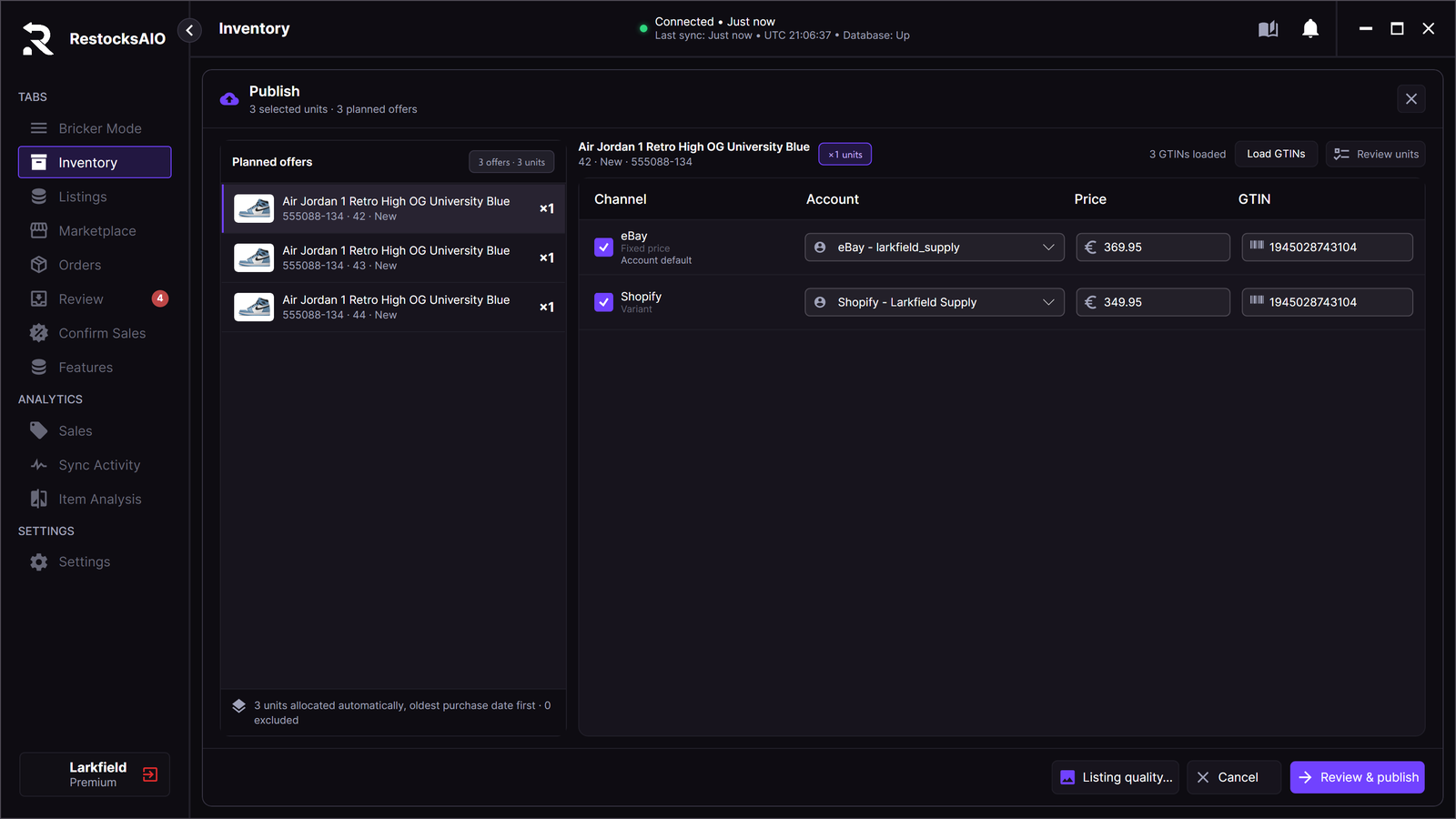
The Publish window: planned offers on the left, then a channel, account, price and GTIN for each offer.
eBay business policies
When the eBay account has no shipping, payment or return policy, Publishing defaults shows a notice and a Set up policies button.
- Click Set up policies.
- In Set up business policies, answer the shipping, payment and return questions.
- Click Create policies.
- RestocksAIO creates only the missing policies. Their names are "Standard shipping", "Standard payment" and "Standard returns", or your own name with the same endings.
- When the account has not joined business policies on eBay yet, RestocksAIO turns them on first.
- Set up never changes or deletes a policy that you already have. When eBay refuses a policy, the message names the policies that RestocksAIO already created.
Publish from Inventory
Steps 3 to 6 of the short version publish your units. The full guide is Create a listing.
Leave a running publish
While a publish runs, click Run in background to go on with your work. A round button with a progress ring shows next to the Seller Assistant button. Its tip shows the progress, for example "Publishing: 2 of 4 done".
- Click the ring to open the running publish.
- When the publish finishes while its view is closed, a notice gives the result. The ring then opens the results one time. After you see the results, the ring goes away.
- Publish to… also opens the running publish, or its unseen results. Start the next publish when the first one finishes.
eBay auctions
Each eBay row in the Publish window has a format list: Fixed price or Auction. Fixed price is the default.
When you choose Auction:
- The row price is the start price.
- Reserve (optional) is the lowest price that the item sells at. It must be above the start price.
- Buy It Now (optional) lets a buyer end the auction at that price. It must be above the start price and above the reserve price.
- The duration list has 1 day, 3 days, 5 days, 7 days and 10 days. The default is 7 days. eBay decides which durations the category takes. RestocksAIO checks this before it publishes.
- With a reserve price, the row shows the reserve price fee before you publish: about 7.5% of the reserve, at least 5.00. eBay charges this fee whether the item sells or not. eBay's fee preview shows the exact fee.
An auction has these limits:
- An auction sells one unit. A listing with more units cannot be an auction.
- eBay has no auctions with size variations. Publish each size as its own auction, or publish the group at a fixed price.
- An auction has no Best Offer.
- RestocksAIO does not change the price or the quantity of a live auction. End the auction, or wait until it ends.
- If nobody wins the auction, eBay lists it again at a fixed price. The listing stays linked to its unit.
The Marketplace tab shows "Auction" on an auction row.
What to know first
- You hold the stock and ship the order. eBay and Shopify are not consignment.
- eBay charges its normal listing fees when a listing goes live. Nothing is on eBay until you go live. RestocksAIO shows no fee amount.
- RestocksAIO must be open to read your stores and to lower quantities after a sale.
- A store sale removes the pair's resale listings. After an eBay or Shopify order, the Bricker Mode tasks of the pair delete its listing on the resale marketplaces. See When a pair sells on eBay or Shopify.
- A missing eBay detail stops only the eBay offer. It never stops Shopify, and it never stops the other offers of the publish.
- RestocksAIO never buys for you. For an on-demand size, you buy the pair yourself after the sale.
- Store listings are in the Marketplace tab. Published eBay, Shopify, Vinted and Wallapop listings show there, and each write shows in Sync Activity. The Listings list shows only the resale sites, for example StockX and Alias.
Listing quality
Listing quality… shows everything a channel needs for one product: Images, Attributes, Sizes, GTIN, Condition, Title, Description and Package.
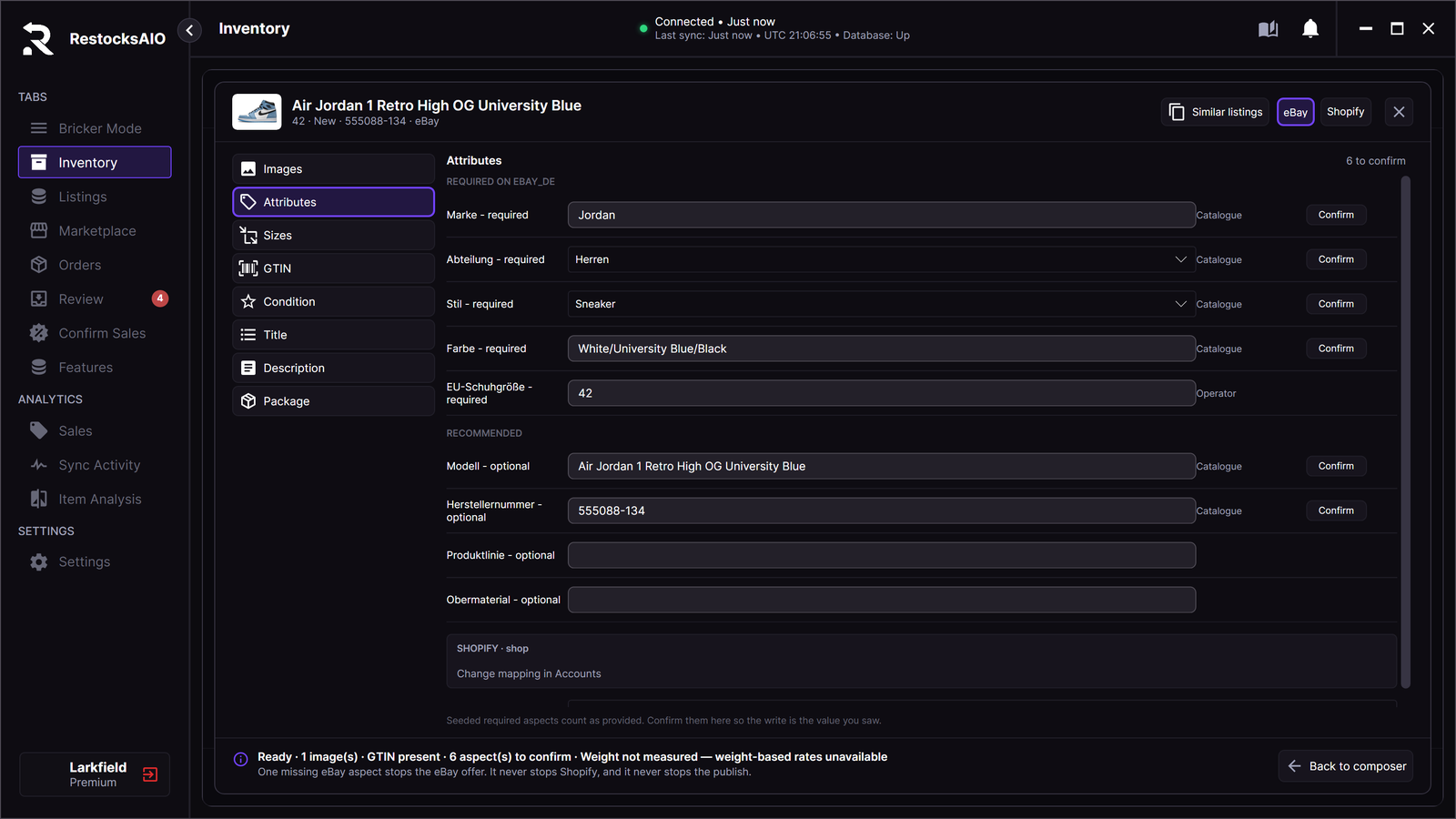
Listing quality → Attributes. Required eBay item details are listed first; filled-in values are marked to confirm.
With an AI provider set up in Settings → AI, the Title and Description tabs show Generate title & description. The draft stays a preview until you click Keep. See Seller Assistant.
With more than one listing in a publish, the footer of Listing quality shows the position, for example "Listing 2 of 4". Use Previous listing (the left arrow) and Next listing to edit each listing without a return to the Publish window. The store tab and the section stay the same.
See Create a listing for each tab.
Edit a listing
In the Marketplace tab, double-click a size row to open Edit listing. A double-click on a product with one size also opens it. When the size has more than one listing, the double-click shows the same menu as the More button, so you can choose the listing.
The photos of the listing show as tiles. Each tile shows its number and its source: on the store or new file.
- The first photo is the cover. Use the arrows on a tile to move a photo earlier or later.
- Click the X on a tile to remove the photo from the listing.
- For eBay and Shopify, paste an HTTPS photo link and click Add photo.
- For Vinted and Wallapop, click Add photo files to add photos from your computer (JPG, PNG or WebP). These sites take only your own photos.
Save listing sends the photos only when you changed them.