 RestocksAIO Docs
Relist Schedule
Relist old Vinted and Wallapop items automatically, account by account. Set the age, a daily number and a time window. Each relist copies the item, checks that the copy is live, then deletes the old item. Off until you turn it on. Premium and the Marketplace plan.
The relist schedule relists your old Vinted and Wallapop items for you. Each account has its own schedule. The schedule uses the same relist as the Relist button. See Relist from a Saved Copy.
The relist schedule is part of the store channels in Premium and the Marketplace plan. It is in the macOS app and the new Windows app. It is off for each account until you turn it on.
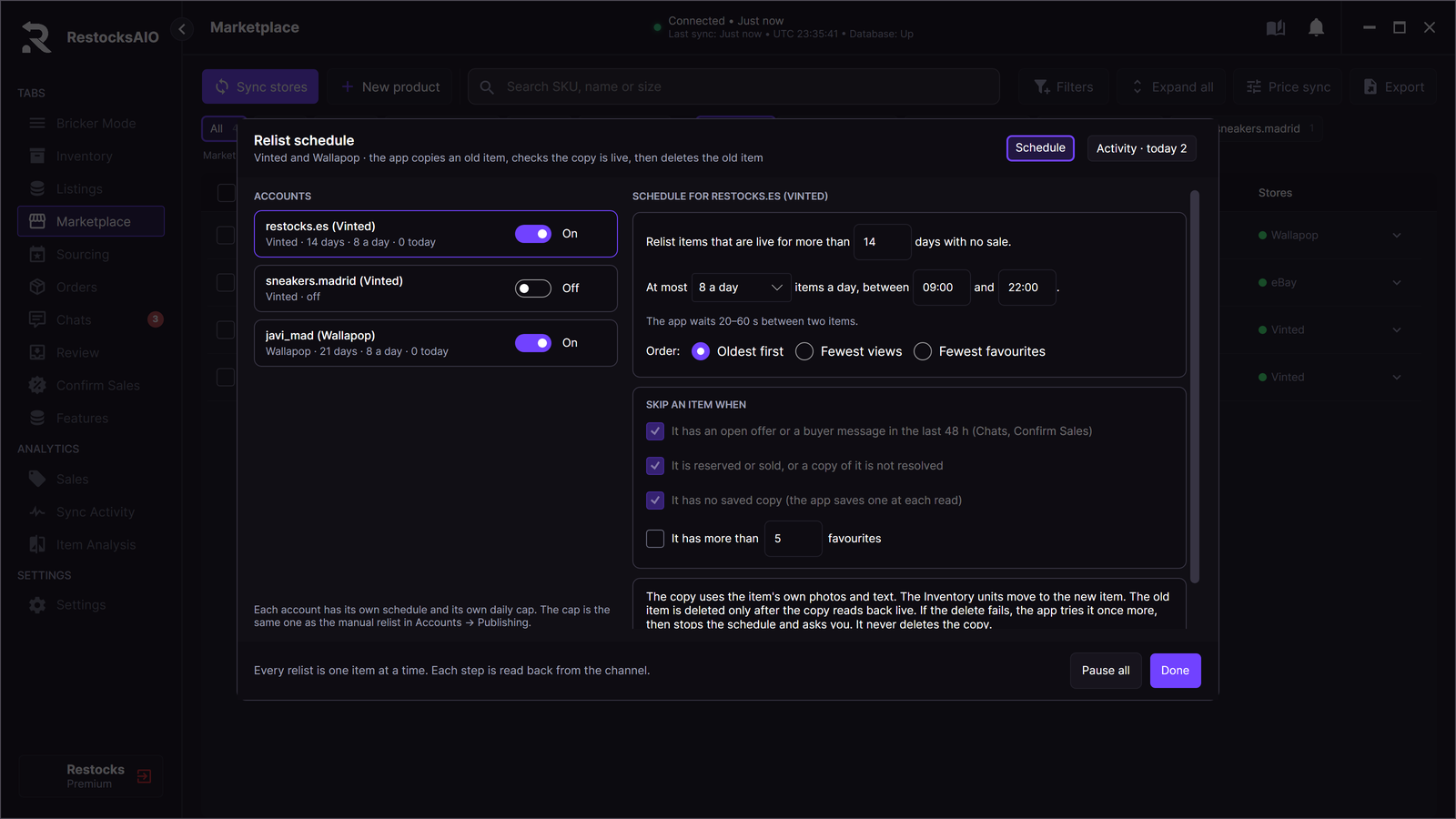
Marketplace → Filters → Relist schedule. Sample data.
Turn on a schedule
- Open the Marketplace tab.
- Click Filters.
- Click Relist schedule.
- Under ACCOUNTS, select a Vinted or Wallapop account.
- Turn on the switch of the account.
- Set the schedule on the right.
- Click Done.
RestocksAIO saves each change when you leave the field.
The schedule of an account
- Relist items that are live for more than N days with no sale. The default is 14 days. The age counts from the time that the app first saw the item on sale.
- At most N a day, between 09:00 and 22:00. The time window is in your local time.
- Order: Oldest first, Fewest views or Fewest favourites.
The daily number is the Relists per day of the account. The manual Relist button uses the same number. A change here also changes it in Settings → Accounts → Publishing defaults. The choices are 1, 2, 3, 5, 8, 10, 15, 20 and 30. The default is 10.
How the schedule runs
While the app is open, RestocksAIO checks the schedules every 30 minutes. In each check, it relists a share of the items that are left for today. This spreads the relists over the time window.
- The app relists one item at a time.
- It waits 20 to 60 seconds between two items.
- Each item gets one try a day.
- Each relist step is read back from the channel.
For each item, the relist follows these steps:
- The app publishes a copy with the item's own photos and text.
- The Inventory units move to the new item.
- After the copy reads back live, the app deletes the old item.
If the delete fails, the app tries it once more. Then it stops the schedule of the account and asks you. It never deletes the copy.
Items that the schedule skips
The schedule always skips an item when:
- it has an open offer, or a buyer message in the last 48 h. The schedule reads this from Chats and Confirm Sales.
- it is reserved or sold, or an earlier copy of it is not resolved.
- it has no saved copy. The app saves a copy at each read.
You can also skip an item when it has more than N favourites. Tick It has more than N favourites. The default is 5.
The schedule also skips an item when the app does not know its age yet.
Pause
- To stop one account, turn off its switch.
- To stop every account, click Pause all. Nothing runs and nothing is queued until you click Resume all.
When the session of an account expires, its schedule pauses. Nothing is queued. The schedule starts again after you reconnect the account in Settings → Accounts.
Activity
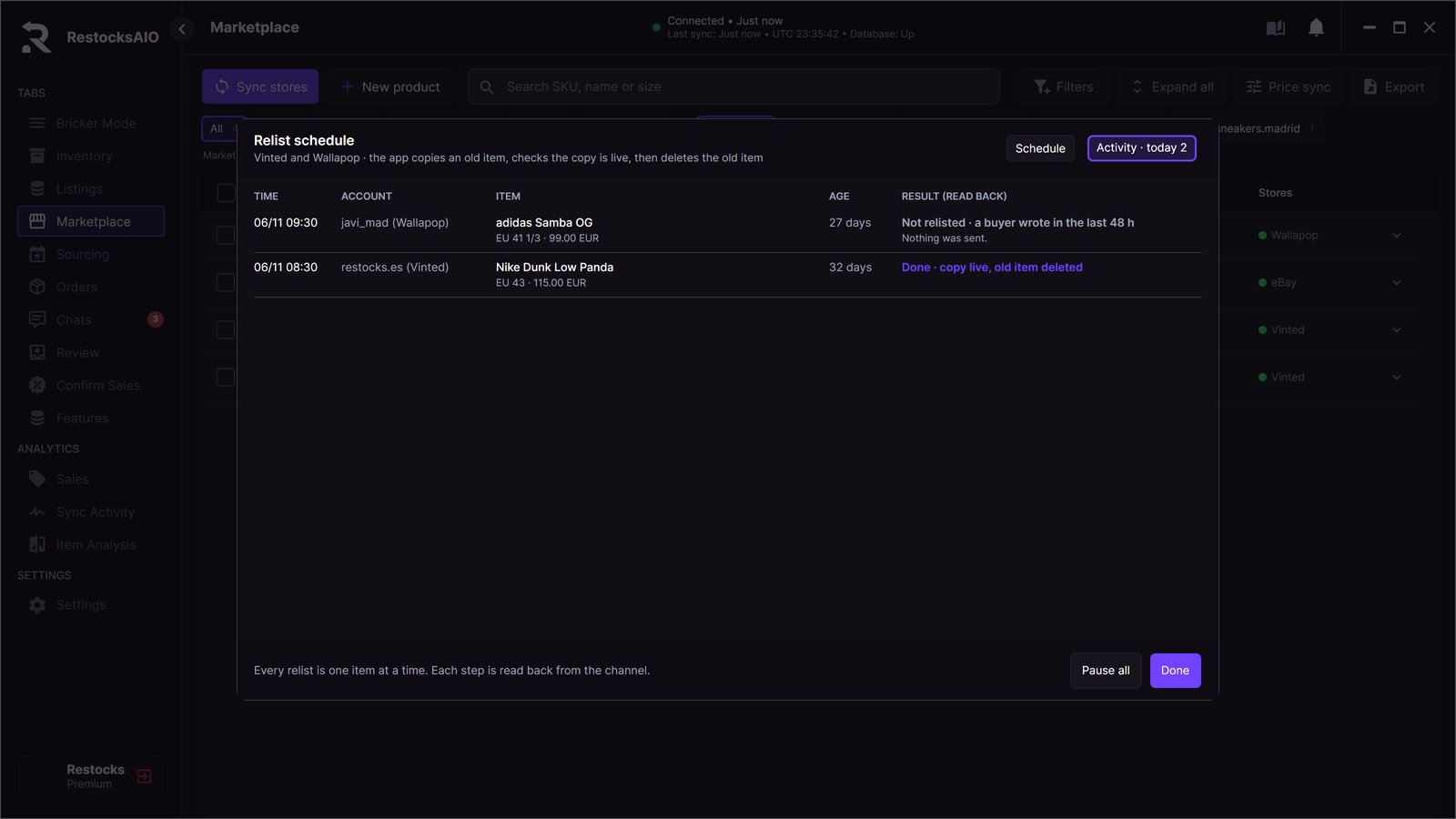
The Activity view. Sample data.
Click Activity to see each scheduled relist: the time, the account, the item, its age and the result.
| Result | What it means | What to do |
|---|---|---|
| Done · copy live, old item deleted | The relist is complete. | Nothing. |
| Not sent: nothing changed | The relist was refused before any change. The row shows the reason. | Read the reason. |
| Failed: the old item stays live | The copy did not go live. The old item is unchanged. | Read the reason. |
| Two copies live: old delete failed | The copy is live, but the old item was not deleted. The schedule of the account stops. | Delete the old item on the site. Then turn the account on again. |
| Stopped: session expired | The session expired during the relist. | Reconnect the account. Check the item on the site before the next run. |
| Stopped: the run failed | The app could not finish the relist. The schedule of the account stops. | Check the item on the site. Then turn the account on again. |
A skipped item gets no row. The schedule panel shows how many items it skipped, and why.