 RestocksAIO Docs
Recreate Bricker Mode Tasks
Rebuild existing Bricker Mode tasks that are outdated or stuck in an error state.
When you need this
Use this flow whenever a Bricker Mode task:
- Shows an error (hover the mouse over the red status indicator to see the exact reason), or
- Doesn't work properly (no price updates, stuck in a bad state), or
- Is outdated after a listing change and needs to be rebuilt.
Editing the task often isn't enough. Recreating it from a fresh import is the reliable fix.
Before you start, make sure your account is working correctly and your listings are reloaded. The tool rebuilds tasks against the current list of listings.
Step-by-step
1. Open the Item Addition Window
Go to Inventory → Add Item to open the Item Addition Window.
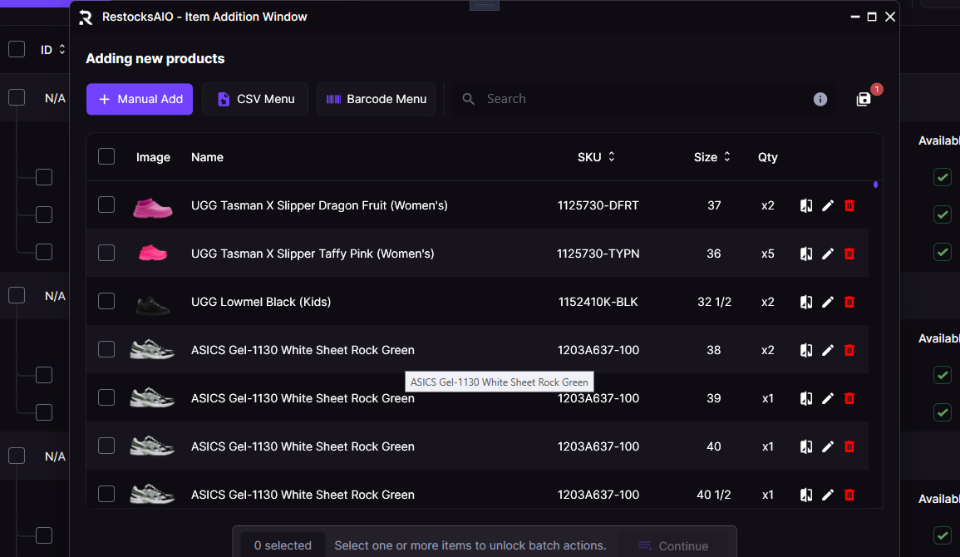
The Item Addition Window. Everything in this flow happens here.
2. Import your existing Bricker tasks
Click Import -> from Bricker Mode. A dialog lets you choose which category to import:
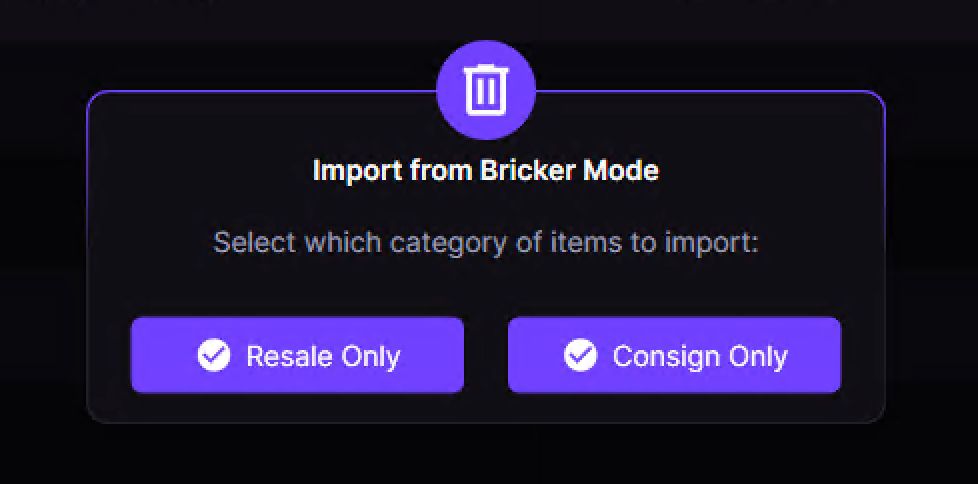
Pick the Bricker category you want to rebuild. Use Resale, Consign, or Direct depending on the task type.
Your Bricker controllers now appear as rows in the Item Addition list. Repeat the import for each category you run. Direct, Resale, and Consign are separate on purpose, because the same SKU and size can exist in more than one StockX selling category.
3. Copy variables from the existing tasks
Right-click any item in the list → Copy Variables. This copies the Lowest Payout, Max Payout, and other per-task settings so the rebuilt tasks keep the same configuration.
The right-click menu only appears when there is at least one item in the list. If you haven't imported yet, do step 2 first.
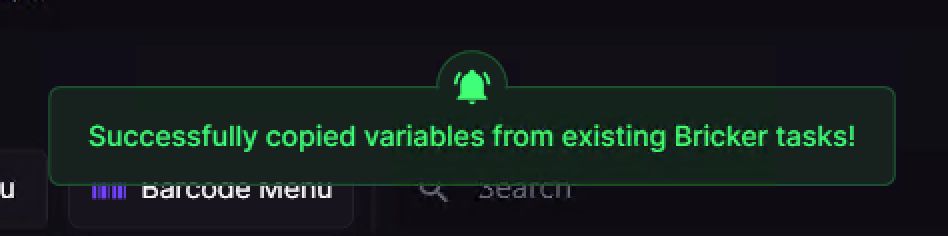
You'll see a green toast confirming the variables were copied from your existing Bricker tasks.
4. Delete the old Bricker tasks
Go to Bricker Mode, select all controllers, and delete them. The imported items stay in the Item Addition Window. You only delete the old (broken / outdated) task objects, so they can be rebuilt cleanly.
5. Create tasks for matching listings
Back in the Item Addition Window, open Create Tasks for Matching Listings and pick the matching scope:
- Create Tasks (Resale, All Sites) for normal resale listings.
- Create Tasks (Consign, All Sites) for consignment / Flex listings.
- Create Tasks (Direct, All Sites) for StockX Direct listings.
The tool matches each item against your loaded listings in that category. It builds new Bricker tasks per site with the variables you copied in step 3. If no tasks are created, reload your listings and make sure you selected the same category you imported.
The app may appear unresponsive while this runs. That's normal. Rebuilding many tasks is heavy work. Wait for it to finish and do not close the window.
After it finishes
Your Bricker Mode controllers are regenerated. Start them and check that the error / stuck state is gone. If a single task still shows an error, hover over the red indicator to see the new reason and fix that task directly. You don't need to repeat the whole flow.