 RestocksAIO Docs
Linking
Check which Inventory units belong to your resale and store listings.
Available from 0.4.41.56, released on 6 November 2026.
The Linking view replaces the Inventory Sync Data popup. It compares your units with listings that the app already loaded. Open Linking from Inventory. Choose the Resale or Store tab. To refresh resale listings first, use Listings > Fetch Listings. Choose Full Reload to read every account again.
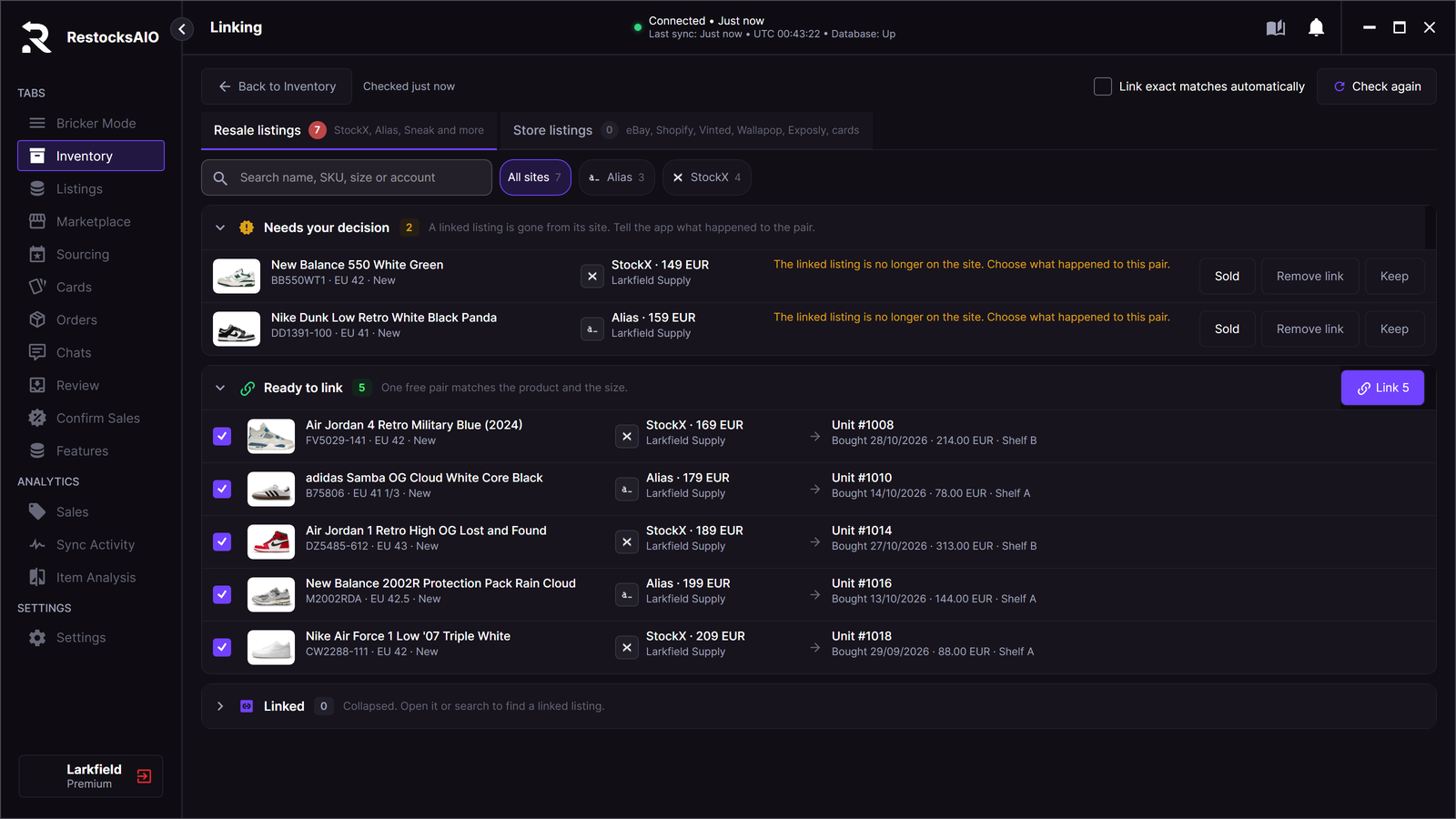
The app separates exact matches from rows that need your decision. Sample data.
Ready to link
Ready to link contains matches that need no choice between units. Store matches check the product, size, condition, required quantity and existing links. Check the proposed units before you link the selected rows.
Needs your decision
Read the reason on each row before you act.
| Reason | What to check |
|---|---|
| More matching units than the listing needs | Use Pick pair to choose the physical units. |
| Too few free units | Check the stock and the quantity on the store. |
| Units already belong to another listing | Check the existing links on that channel. |
| A linked resale listing disappeared | Fetch Listings again, then check whether the item sold or the listing ended. |
| The unit disappeared, sold, shipped or was archived | Check its Inventory status. |
| Product, size or size classification differs | Check the product and the size of the physical pair. |
| The account is disconnected or off | Reconnect or enable it in Settings > Accounts. |
| The listing ID is missing or appears twice | Fetch Listings again. |
Not in Inventory contains listings without a suitable unit. Check the item before you add a unit or ignore the row. Publish failed can contain a live store item whose publish did not link its units. Check that item before you retry. Linked shows existing links.
How the app protects a link
The app checks the match again when you apply the link. Changed data can stop a link that previously appeared ready. A resale unit cannot back another listing on the same site. Store links prevent competing allocations on the same channel. The app records the link operation. A refusal keeps its reason visible so you can correct the data.
Auto-link
Select Link exact matches automatically to link Ready rows after a check. The app uses the same checks as a manual link. It tries each row once per listings load or store sync. It never auto-links Needs your decision, Not in Inventory, or Publish failed rows. Clear the option to stop automatic links.