 RestocksAIO Docs
Mailbox
Connect Outlook, Gmail (Google sign-in or app password) or IMAP. Add orders from purchase emails to Inventory and track arrivals.
Updated
Connect a mailbox in the Windows or macOS app. RestocksAIO can prepare stock for review from purchase emails. It can also read a sign-in code for your Klekt account.
Connect a mailbox
- Open Settings, then Accounts.
- Open Mailboxes. If you already have a mailbox, select Connect account.
- Under Who hosts your mail, choose the tile for the mailbox that receives your order emails.
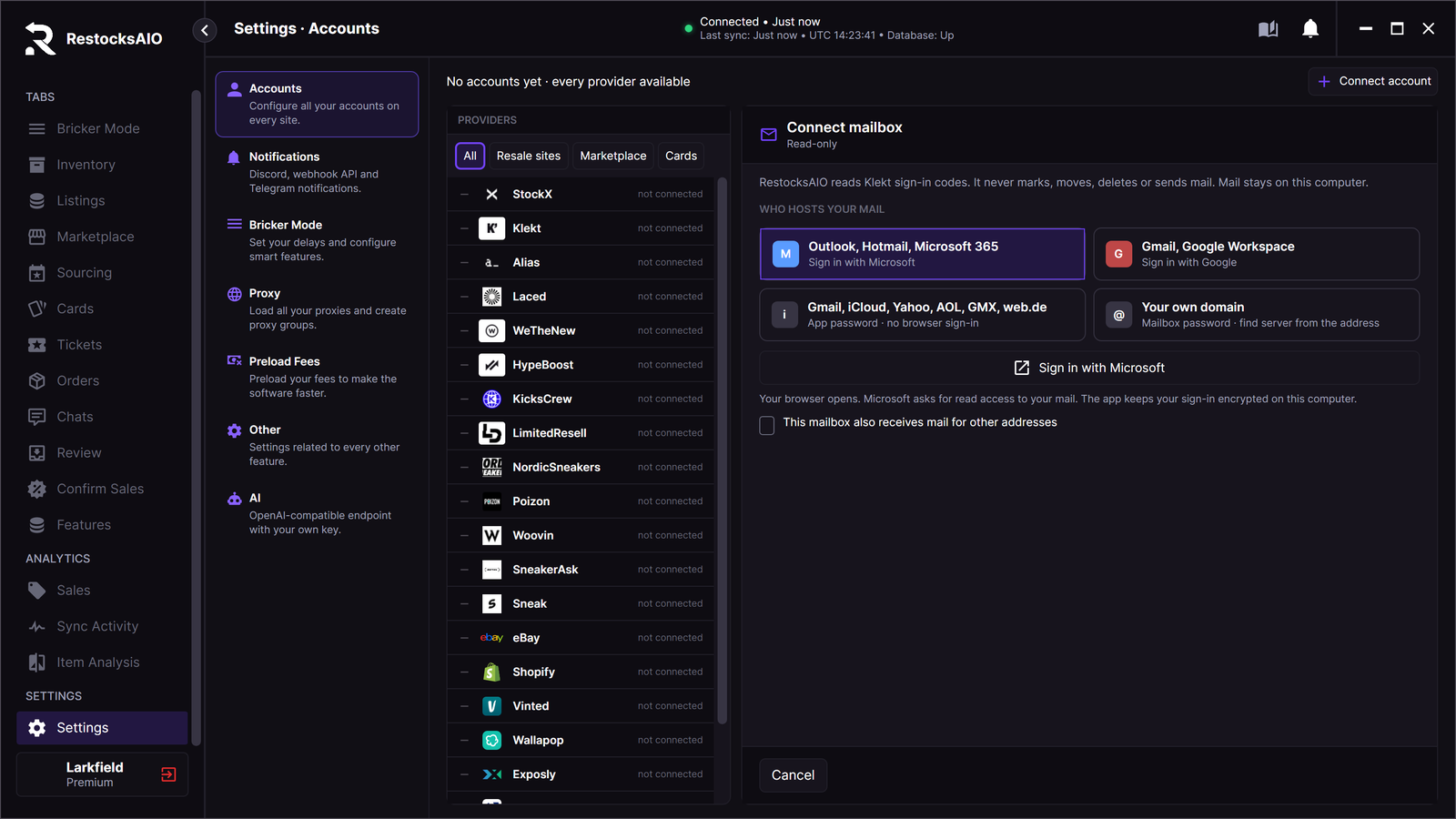
Choose how the app connects to your mailbox. Sample data.
| Tile | Use it for | How it connects |
|---|---|---|
| Outlook, Hotmail, Microsoft 365 | Outlook.com, Hotmail, Live, MSN and work or school Microsoft 365 mail | Sign in with Microsoft in your browser |
| Gmail, Google Workspace | Gmail and Google Workspace mail | Sign in with Google in your browser |
| Gmail, iCloud, Yahoo, AOL, GMX, web.de | Gmail without browser sign-in, and iCloud, Yahoo, AOL, GMX, web.de, Zoho or Fastmail | An app password that you create with your provider |
| Your own domain | A mailbox on your own domain, such as orders@yourshop.com | Your mailbox password. The app finds the IMAP server from the address. |
Gmail has two routes. Google sign-in and a Gmail app password give the same read access, so use the route that works for your account.
If the mailbox receives forwards or serves a catch-all domain, tick This mailbox also receives mail for other addresses. The app checks an exact address first, then mailboxes that serve the domain or all accounts.
Select Check now to test access. If you see Sign in again, reconnect the mailbox.
Outlook and Microsoft 365
- Select Outlook, Hotmail, Microsoft 365.
- Select Sign in with Microsoft. Your browser opens.
- Sign in and allow read access to your mail.
- Return to the app. The mailbox shows Connected.
A work or school account can need approval from its administrator before Microsoft allows the access.
Gmail with Google sign-in
- Select Gmail, Google Workspace.
- Select Sign in with Google. Your browser opens.
- Tick View your email messages when Google asks.
- Return to the app. The mailbox shows Connected.
Until Google finishes its review of the app, Google can show Google hasn’t verified this app. Select Advanced, then Go to RestocksAIO (unsafe) to continue. If you prefer not to continue, use a Gmail app password.
Gmail with an app password
Use this route when you do not want to sign in through the browser, or when Google sign-in does not work for your account.
- Select Gmail, iCloud, Yahoo, AOL, GMX, web.de. Gmail is selected under Mail provider.
- Turn on 2-Step Verification in your Google account. Google allows app passwords only with 2-Step Verification.
- Select Open Google account page. Open App passwords and create one named RestocksAIO.
- Copy the 16-letter password. Paste it into App password in RestocksAIO.
- Enter your Gmail address under Email. The app shows the server imap.gmail.com on port 993.
- Select Connect.
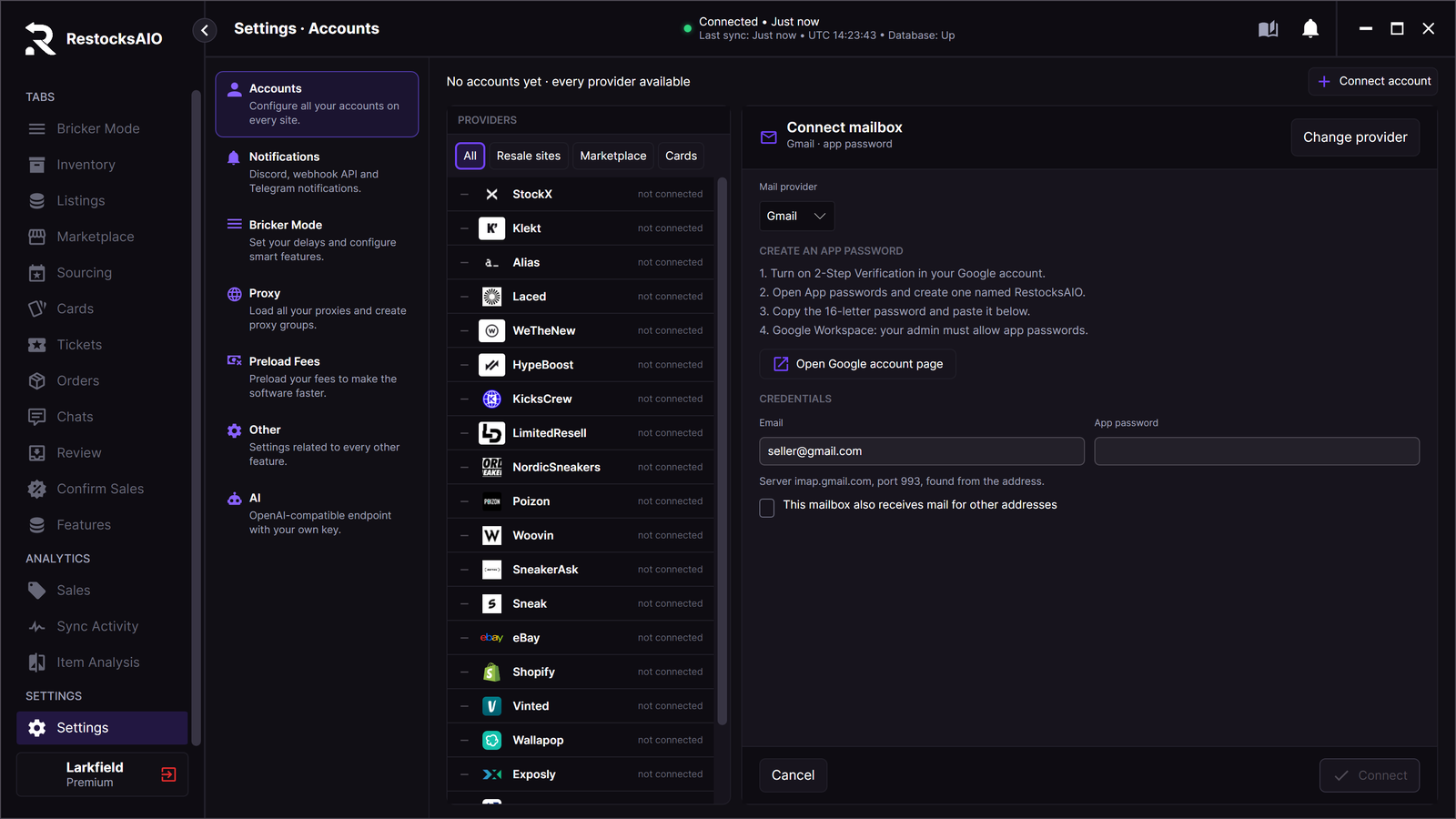
The app lists the Gmail steps beside the password field. Sample data.
On a Google Workspace account, your administrator must allow app passwords. If App passwords is missing from your Google account, ask the administrator or use Sign in with Google. See Google's app password steps.
iCloud, Yahoo, AOL, GMX, web.de, Zoho and Fastmail
- Select Gmail, iCloud, Yahoo, AOL, GMX, web.de.
- Choose your provider under Mail provider. Zoho and Fastmail are in the same list.
- Follow the numbered steps in the app. Select the help button to open the provider page.
- Paste the app password, enter your address and select Connect.
GMX, web.de and Zoho also need IMAP turned on in their mail settings. If you enter an Outlook or Hotmail address here, the app offers Sign in with Microsoft instead.
Your own domain
- Select Your own domain.
- Enter the mailbox address and its password.
- The app looks up the IMAP server for the domain. If it finds one, it shows the server and port.
- If the app cannot find the server, enter the IMAP host and TLS port from your mail provider.
- Select Connect.
If the domain uses Google Workspace or Microsoft 365, the app offers the browser sign-in for that provider instead.
Use a Klekt sign-in code
Open your Klekt account in Accounts. The account shows which mailbox supplies its codes. After Klekt sends a code, RestocksAIO checks for a matching email for up to 90 seconds. You can enter the code yourself at any time.
Add orders to Inventory
- Open Inventory, then Add Item.
- Select From your mailbox.
- Check the shop, order number, size, quantity and cost.
- Select the lines you want.
- Select Add N units.
The first check reads up to 45 days of purchase mail. The app checks for new mail every 15 minutes while it runs. The cost per unit includes its share of shipping and discounts.
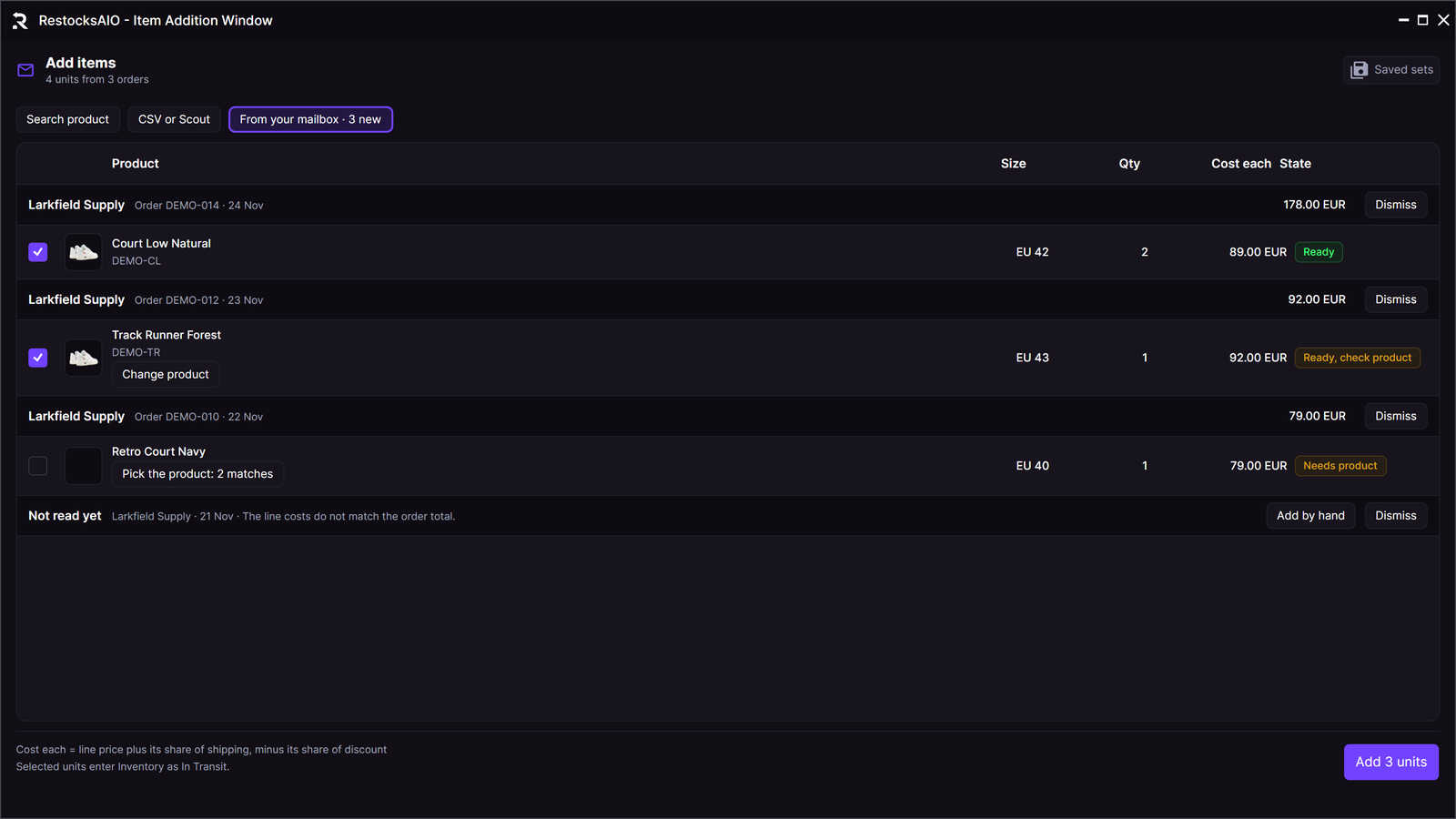
Check the product and size before you add units. Sample data.
| What the app shows | What to do |
|---|---|
| Ready | The app found a product by style code. Check the size and quantity. |
| Ready, check product | The app found a likely match by name and size. Select Change product if the match is wrong. |
| Pick the product | Open the picker. If the app found likely matches, they appear first. |
| Not read yet | Read the reason on the row. Select Add by hand to open product search with the shop and purchase date filled in. |
Select Dismiss to hide an order from this review.
Track arrivals in Inventory
Open In Transit to see units that you added from a mailbox. Each unit can show Ordered, Shipped or Arrived. Select the tracking link to open the carrier page.
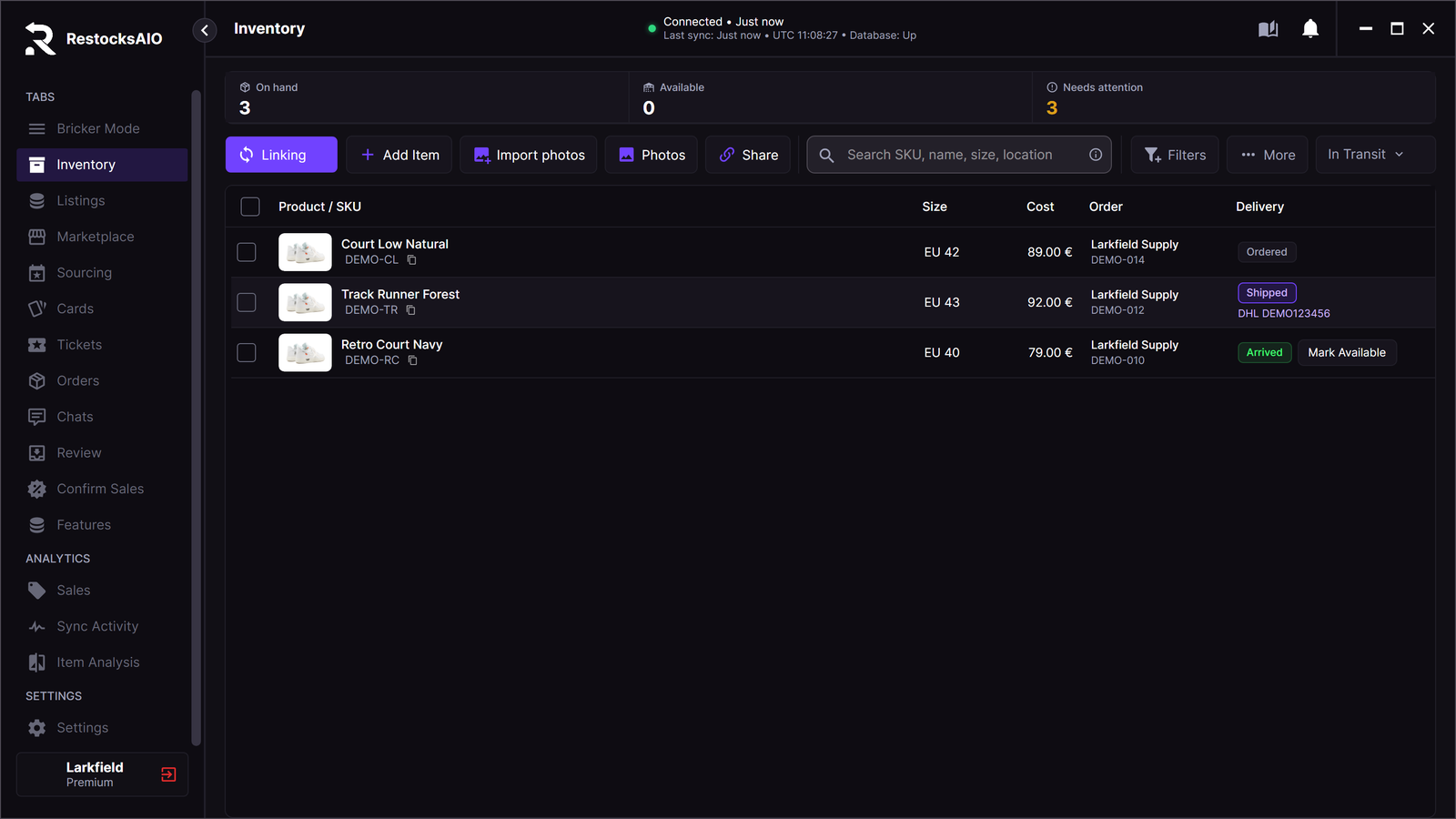
Confirm receipt with Mark Available. Sample data.
Select Mark Available after you receive a unit. For several arrivals, select their rows and use the same action in the selection bar. If a shop cancels an order, the app removes it from Add Item. Units that you already added show the cancellation.
Follow a Sourcing purchase
When you select Buy on a Sourcing deal, the app saves the shop, product, price and time on your computer. The deal can show Waiting for the order mail for up to three days. When the app matches one order line, it shows Order read: in Add items. Open From your mailbox in Add Item to check and add those units.
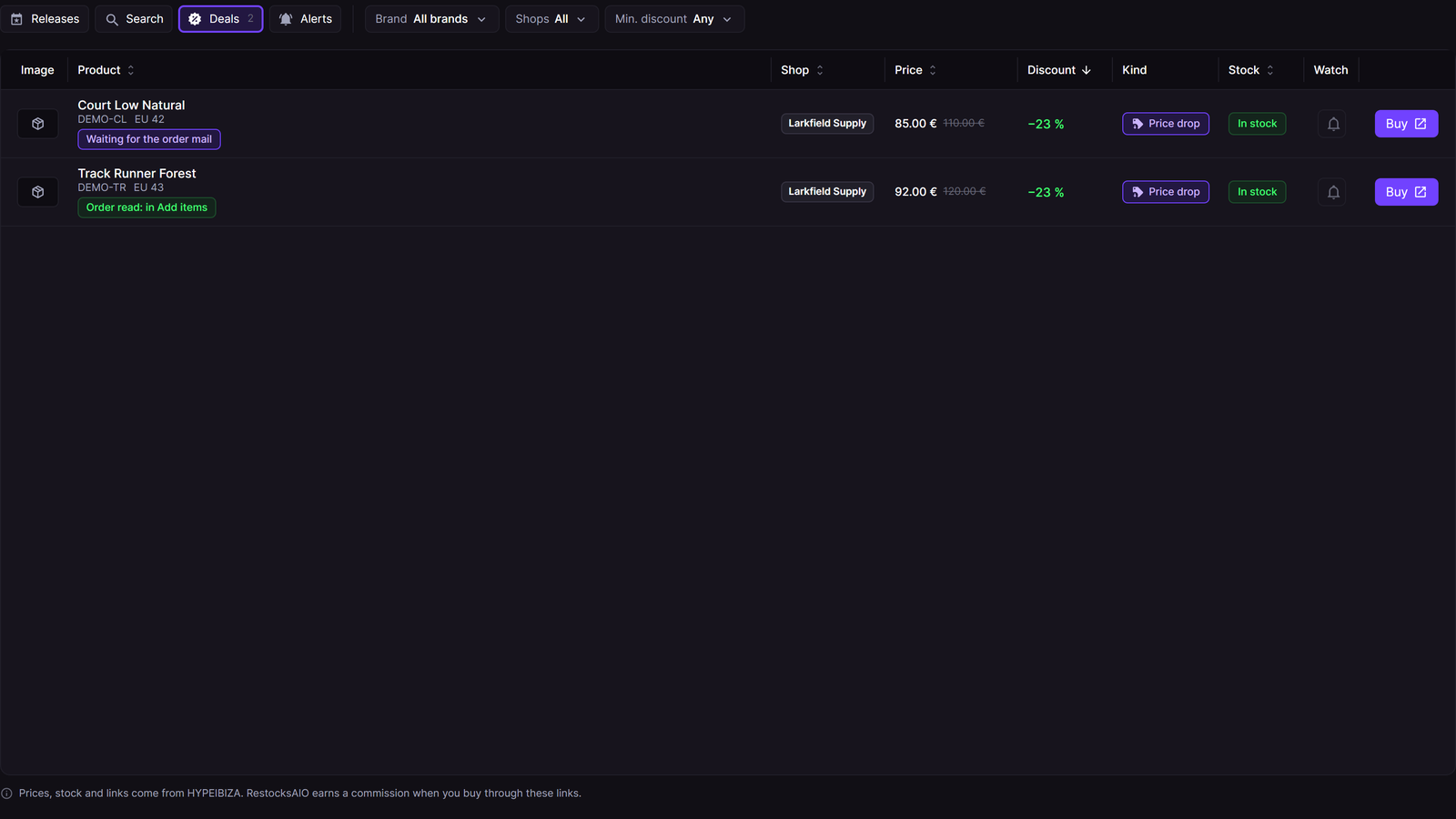
Sourcing shows when the app finds a confirmation for a deal. Sample data.
Check a sale in Review
If a StockX account needs sign-in, a sale email can show Sale seen in your mailbox in Review. The row shows the product, size and payout. Select Sign in so the app can check the sale through StockX.
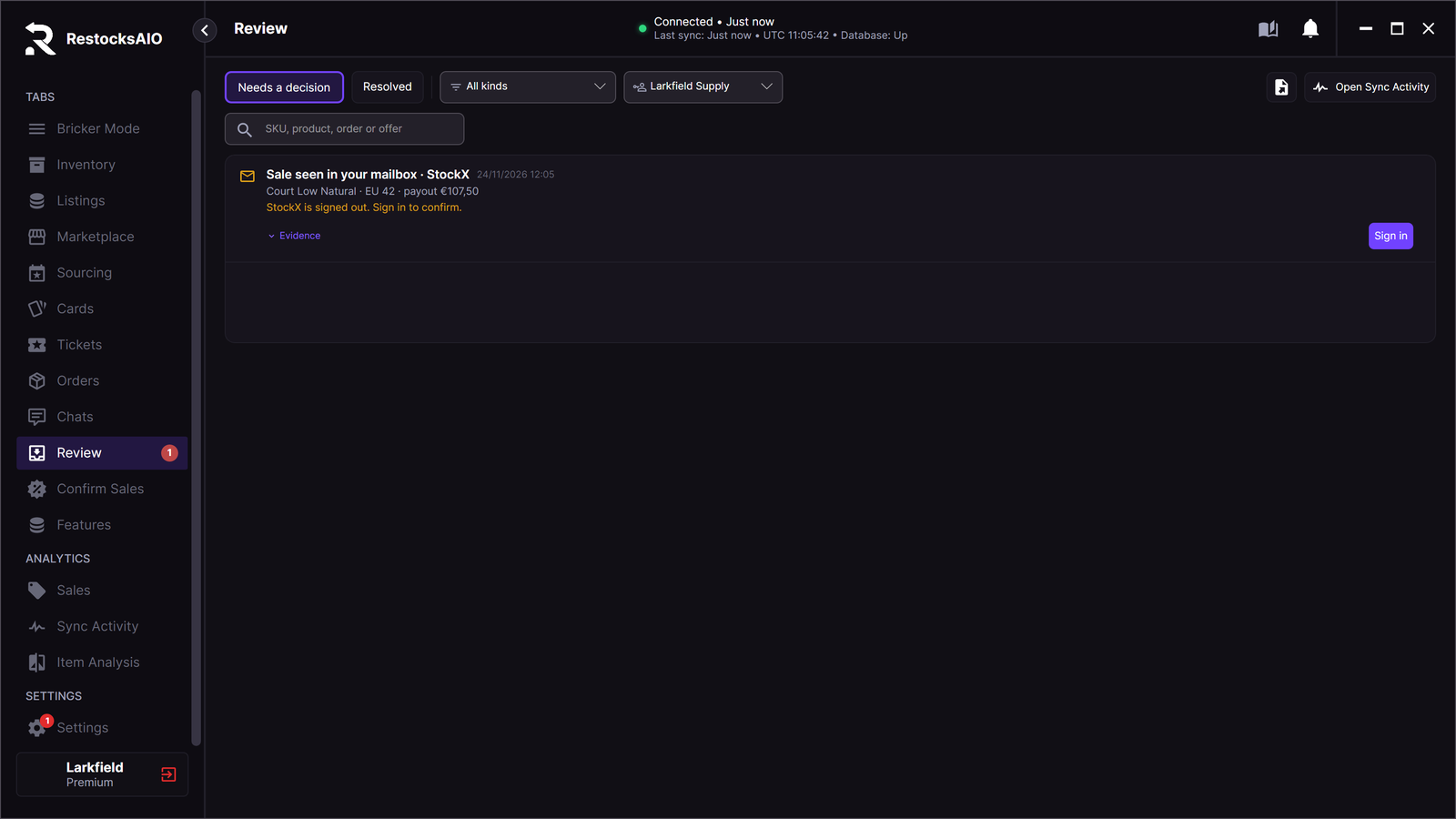
Sign in to the StockX account to check the sale. Sample data.
Learn new shops and mail access
Learn new shops starts off. It needs Premium or the Marketplace plan. When you turn it on, RestocksAIO AI can write a rule for a shop the app cannot read yet. The app sends only the layout and field labels of the mail. It replaces names, addresses, links, numbers, prices and codes with placeholders. The app checks the new rule against the original mail on your computer and keeps it only if the order passes every check. When the switch is off, the app sends nothing and still uses the rules it has saved.
Mail access is read-only. The app never sends, marks, moves or deletes emails. Email alone cannot add stock, mark a unit Sold, change a listing. The app keeps the mail on your computer and sends product names and style codes to the catalogue for matches.
To disconnect, open the mailbox in Accounts and select Remove mailbox. This deletes the saved credential from your computer. Use the provider's account settings to revoke its access as well. See the Privacy Policy.
Fix a mailbox problem
| What you see | What to do |
|---|---|
| Google shows Google hasn’t verified this app | Select Advanced, then Go to RestocksAIO (unsafe). Or connect Gmail with an app password. See Google's explanation of the warning. |
| You signed in with Google but mail access failed | Select Sign in again. Tick View your email messages on the Google consent page. |
| The provider rejects the app password | Create a new app password and paste it again. Copy all 16 letters of a Gmail app password. Your normal Google password does not work here. |
| App passwords is missing in your Google account | Turn on 2-Step Verification first. On Google Workspace, ask your administrator to allow app passwords, or use Sign in with Google. |
| Microsoft refuses access to a work account | Ask your Microsoft 365 administrator to approve RestocksAIO, then select Sign in again. |
| The app cannot find the server for your domain | Enter the IMAP host and TLS port from your mail provider. Port 993 is the usual TLS port. |
| Gmail is busy | Wait for the next scheduled check or select Check now later. A busy response does not require a new sign-in. |
| An order is missing | Check that the confirmation reached the connected mailbox. Select From your mailbox again to check for new mail. If the app reports a mail problem, open Errors. |