 RestocksAIO Docs
Connect Cardmarket
Read Cardmarket stock and orders in Cards.
Updated
Open Accounts and choose Cardmarket. Complete the sign-in in the Cardmarket window. If Cardmarket shows a security check, complete it there.
Open Cards, then Stock. Click Sync. Check the account and the imported stock before any change.
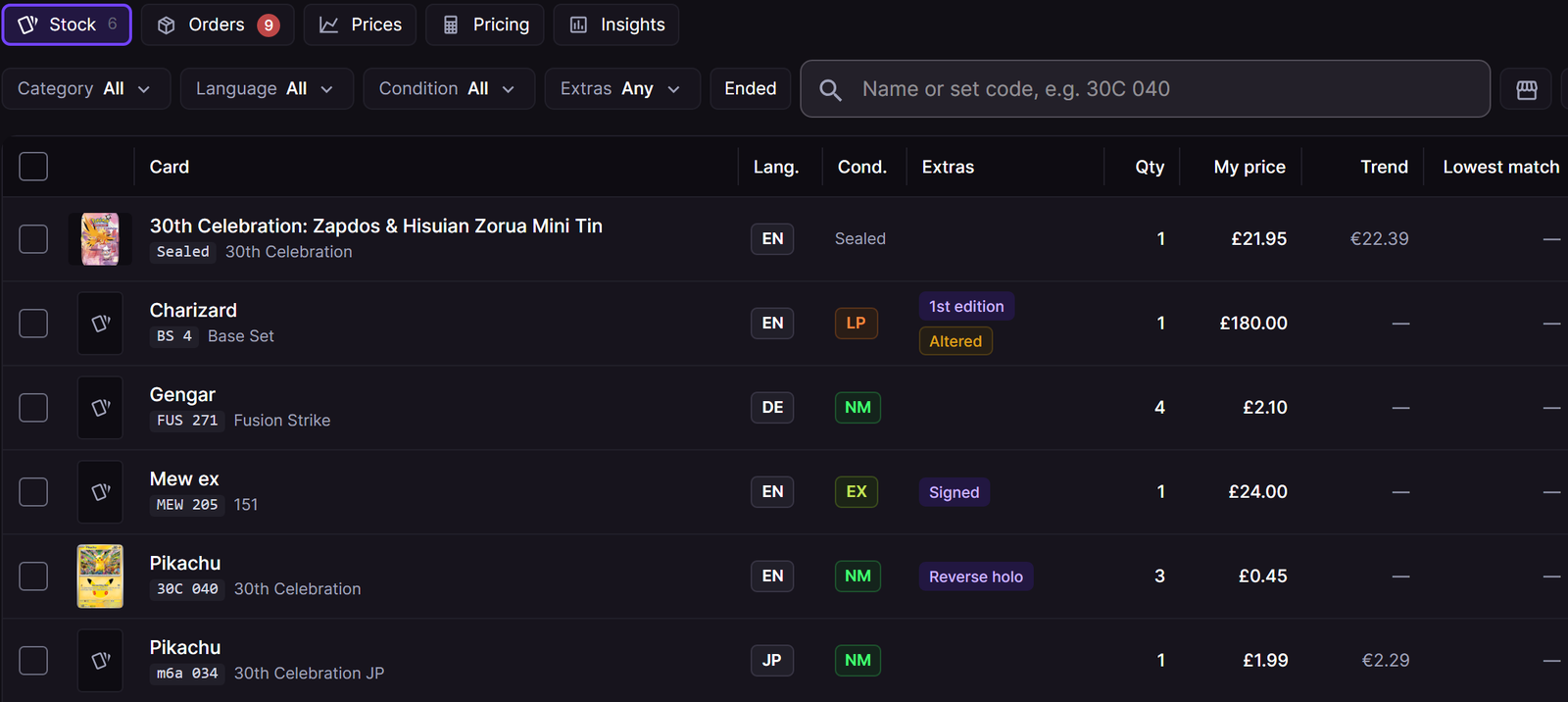
The Stock view after Sync. Sample stock.
Sync reads the stock of every game that you have on Cardmarket, for example Pokémon, One Piece, Magic, Yu-Gi-Oh!, Lorcana and Riftbound. Price and quantity changes work for the cards of every game.
The first Sync after the app starts checks about 10 games one time. This takes 10 to 15 seconds. After that, Sync reads only the games with stock or sales.
Sync only reads. When Cardmarket has copies that your stock does not track, the Stock footer shows the button Add N copies to stock. Click it to add those copies to your stock. Nothing is added until you click it. The untracked copies stay on sale on Cardmarket either way.
If the session expires, reconnect Cardmarket in Accounts. Run Sync again.