 RestocksAIO Docs
Mobile Barcode Scanner (Scan to Desktop)
Scan shoebox barcodes from your phone, review a persistent queue, and add confirmed items to RestocksAIO desktop.
Your phone camera can scan EAN and UPC labels without a separate laser scanner. Camera support and permission behavior depend on the mobile browser.
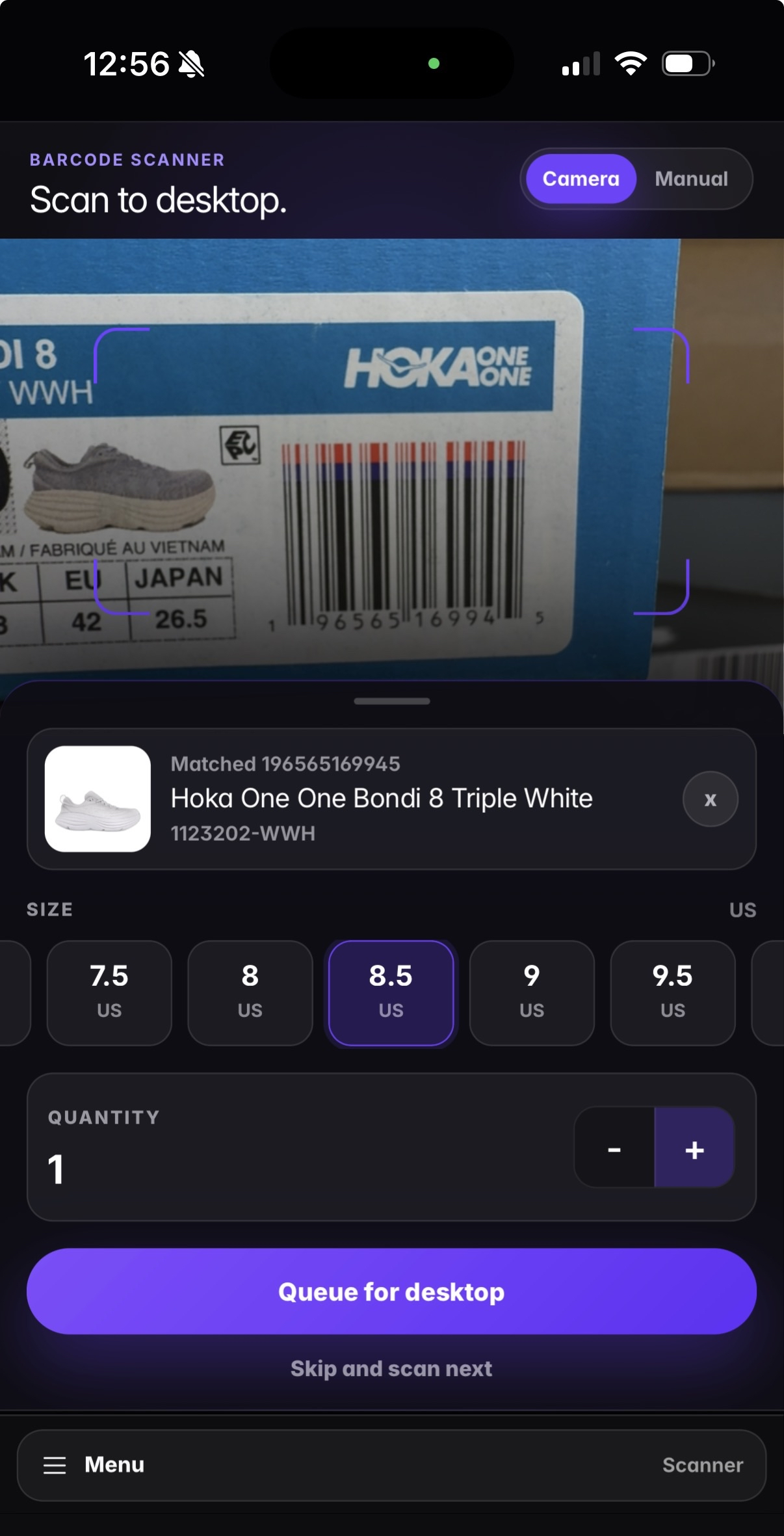
Scan on your phone, confirm the match, and queue the item for RestocksAIO desktop.
The mobile scanner lets you add stock with your phone while RestocksAIO is open on your computer. The website stores queued items on the phone. It removes an item only after the desktop confirms that it was added to the Item Addition collection.
Before you start
- Update and open RestocksAIO V4 on your computer, then sign in.
- On your phone, go to restock.gg/scanner and sign in with the same account.
- Check the connection banner. It must say Desktop connected before you send the queue.
If the banner says Desktop offline, the account is signed in on the website but no desktop instance is connected. Open RestocksAIO V4, confirm that it is signed in, and tap Check again.
If the banner says that an update is required, install the latest desktop version first. Verified remote scans require acknowledgement support in both the bridge and desktop client.
Scanning
The scanner has two input modes:
- Camera (default): Point the phone at the shoebox barcode. The scanner waits for two close reads before it looks the barcode up, which reduces accidental matches. It remembers the selected rear camera when the browser provides camera device information.
- Manual: Type the EAN or UPC into Manual barcode and tap Match. Use this for a damaged label or to check a barcode that another operator gave you.
The camera stops while you use manual entry, review a matched product, or open the queue. This avoids leaving the camera active when it is not needed.
When a barcode is found, the match card shows the barcode, product name, SKU, and product image when available. It also shows the size conversions returned for that exact label.
Picking size and quantity
The barcode's own size is selected first. For example, a women's US label may also show its men's US and EU equivalents.
- Size: Keep the barcode size unless the physical label is incorrect. Tap Choose another size to show the product's other sizes. The scanner warns you when you override the barcode value.
- Quantity: Use the minus and plus controls to set 1 to 999 units.
Tap Queue for desktop when the match is correct. Exact matches for the same product, size region, and size are combined into one item with a higher quantity. Tap Skip and scan next to discard the current match.
The queue and desktop confirmation
Queued items are saved in the phone browser, so a refresh or interrupted session does not lose unsent work. Each item keeps the same scan ID when you retry it. The connected desktop can then recognize an uncertain retry and does not add the item again.
Before you send, open the queue to change quantity, check size, or remove an item. Then tap Send to desktop.
- RestocksAIO confirmed means the desktop accepted the scan and added it to the Item Addition collection.
- A failed or unconfirmed item stays in the queue with its specific error. Reconnect or update the desktop as instructed, then retry it.
- If the connection drops during delivery, do not recreate the item. Retry the existing queued item so it uses the same scan ID.
On the desktop, remotely scanned rows follow the same canonical product and size identity rules as local barcode scans. Processing failures are also recorded under Barcode Scanner in Error Manager. See Barcode Scanning and Adding Items for the desktop workflow.
The phone queue is browser-local. Clearing site storage, using private browsing, or switching browsers can remove or isolate it.
Take photos after a scan
After a match, you can queue the item and take labelled photos of the pair in one step. The photos go to Photo Storage.
Premium includes scan photos. Without Premium, the photo screen shows "Photos need Premium", and the scan works as before.
You can take the photos in two places:
| Place | Button after a match |
|---|---|
| The website scanner at restock.gg/scanner | Queue and take photos |
| The RestocksAIO mobile app (new version) | Add to queue and take photos |
The button shows only when the product has a style code.
- Scan the barcode and pick the size.
- Tap Queue and take photos (website) or Add to queue and take photos (app). The item goes to the queue, and the Product photos screen opens.
- Under Photos go to, choose This item or Product, all sizes.
- Follow the prompts. For each prompt, tap the shutter button to take the photo.
- Tap Skip to go to the next prompt without a photo. After a photo, the button shows Next.
- Tap Retake to take the last photo again.
- Tap Save and scan next, or tap Save at the top.
The prompts come in this order. Each photo gets the label of its prompt:
| Prompt | What to photograph |
|---|---|
| Front | Both shoes, toes toward the camera. |
| Side | Outer side, toe to the left. |
| Back | Both heels. |
| Top | From above, laces and insoles visible. |
| Sole | Both outsoles, flat to the camera. |
| Box | The box lid and the side label. |
| Tag | The size tag inside the tongue. |
| Defect | Close-up of each flaw. Take one photo per flaw. You can take this photo more than one time. |
| Detail | Any other close-up: logo, stitching, materials. |
One item takes at most 24 photos. To remove a photo, tap the x on its thumbnail. Where the phone has a light, tap Light off or Light on to change it.
Upload
The photos upload in the background while you scan the next item. The scanner shows "Uploading photos · N of M". After an upload failure, it shows "N photos not uploaded". Tap Retry to upload them again, or Dismiss to drop them.
The website scanner keeps the photos in the browser memory until they upload. If you reload the page, the photos that are not uploaded are lost. The queue itself stays.
Where the photos go
Every scan photo has a link to the product (its style code), with its preset label.
- Product, all sizes: the photos show for every unit of the style code, in all sizes.
- This item: the photos also go to the desktop with the queued item. When you confirm the item in the Item Addition Window, RestocksAIO links the photos to each unit that it makes from that scan.
If the desktop cannot link the photos, for example when it is offline, it tries again in the background and at each start. After 3 days, it stops and writes a log entry. The desktop app also needs an active Premium plan to link the photos.