 RestocksAIO Docs
Photo Storage
Store the photos of your items in RestocksAIO, link them to a unit, a product or a group, label them, and use them in your eBay, Shopify, Vinted and Wallapop listings.
Photo storage keeps the photos of your items online. You link each photo to a unit, a product or a group. The Publish Composer then uses the photos in your listings.
Premium includes photo storage. Each account has 20 GB. It is in the macOS app and the new Windows app.
Where to find it
| Place | What it shows |
|---|---|
| Inventory → Photos | The Photo library with every stored photo. |
| A unit in Inventory | The Photos card with two strips: This unit and Product photos. |
| Settings → Other → Photo Storage | The storage that you use, and Manage photos. Manage photos opens the Photo library. |
Photos you can upload
RestocksAIO checks each file before the upload:
- The file must be a JPG, PNG or WebP photo.
- The file must be 20 MB or less.
- Each side must have at least 400 px.
- The photo must have 50 megapixels or less.
- HEIC photos (iPhone) work. On macOS, RestocksAIO converts a HEIC photo to JPG. On Windows, the photo storage service converts it.
The service converts each photo to JPEG. The conversion removes the camera and location data (EXIF) from the file. The stored photo has a long side of at most 2,048 px.
Each stored photo has a public address on media.restock.gg. Anyone who has the address can open the photo. The addresses are long and random, and RestocksAIO does not publish a list of them. Do not store photos that show personal data, such as addresses or shipping labels.
Links: unit, product and group
RestocksAIO stores a photo one time. You can link the photo to many targets. Each link has its own position and its own cover.
| Target | Use |
|---|---|
| Unit | Photos of the real pair, for example its condition and its defects. |
| Product | Photos that every unit of the style code shows, in all sizes. |
| Group | Your own collections, for example "Store shots". |
A unit or a product holds at most 24 photos. A group has no photo limit. The storage quota counts each photo one time, also when it has many links.
Add photos to a unit or a product
- Open a unit in Inventory.
- Find the Photos card.
- Click Add photos of this unit, or Add photos of this product.
- Select the files.
The This unit strip shows the number of photos, for example "This unit · 3 of 24". The Product photos strip shows how many units share the product photos. A unit without a style code has no product strip.
On each photo:
- Click Make this the cover to make it the first photo.
- Click Move left or Move right to change the order.
- Click Labels to add or remove labels.
- Click Remove from this unit or Remove from this product. The photo stays in the library.
The Photo library
Open Inventory → Photos.
- Places and groups, on the left, filters the photos: All photos, Not linked, No unit, or one of your groups.
- The Label filter shows Any label, or one label.
- The Product filter shows the photos of one style code.
- Clear filters resets the filters.
- Click Load more to show the next page of photos. Click Load all to show every page. Click Refresh to read the list again.
Select photos
| Action | What it does |
|---|---|
| Click the tick box of a photo | Selects or clears the photo. |
| Ctrl+click (Cmd+click on a Mac) | Selects or clears one photo. The photo does not open. |
| Shift+click | Selects every photo from the last clicked photo to this photo. |
| Select all or Ctrl+A (Cmd+A) | Selects every photo in the current place. RestocksAIO loads the other pages first. |
| Select none or Esc | Clears the selection. |
| Delete key | Deletes the selected photos. RestocksAIO asks first. |
A click on a photo without a key opens the preview.
Actions
The actions are in one bar under the photos. Select one or more photos first.
| Action | What it does |
|---|---|
| Link… | Opens a panel. Type a style code and click Link to this product, or choose a unit and click Link to this unit. Tick Move: also remove their other product and unit links to move the photos instead. |
| Group… | Opens a panel. Choose a group, then click Add to this group or Remove from this group. |
| Labels… | Opens a panel. Type a label, then click Add or Remove. |
| Remove background | Makes a cutout of each selected photo. See Remove the background. |
| Create inventory items | Creates Inventory units from the selected photos. See Sell Returned Pairs. |
| Delete | Deletes the selected photos. See Delete photos. |
Right-click a photo to open its menu: Open, Copy the photo link, Select all, Select none, Add … to group, Remove … from the open group, Remove the background of …, Create inventory items and Delete …. When the photo is not selected, the right-click selects only this photo.
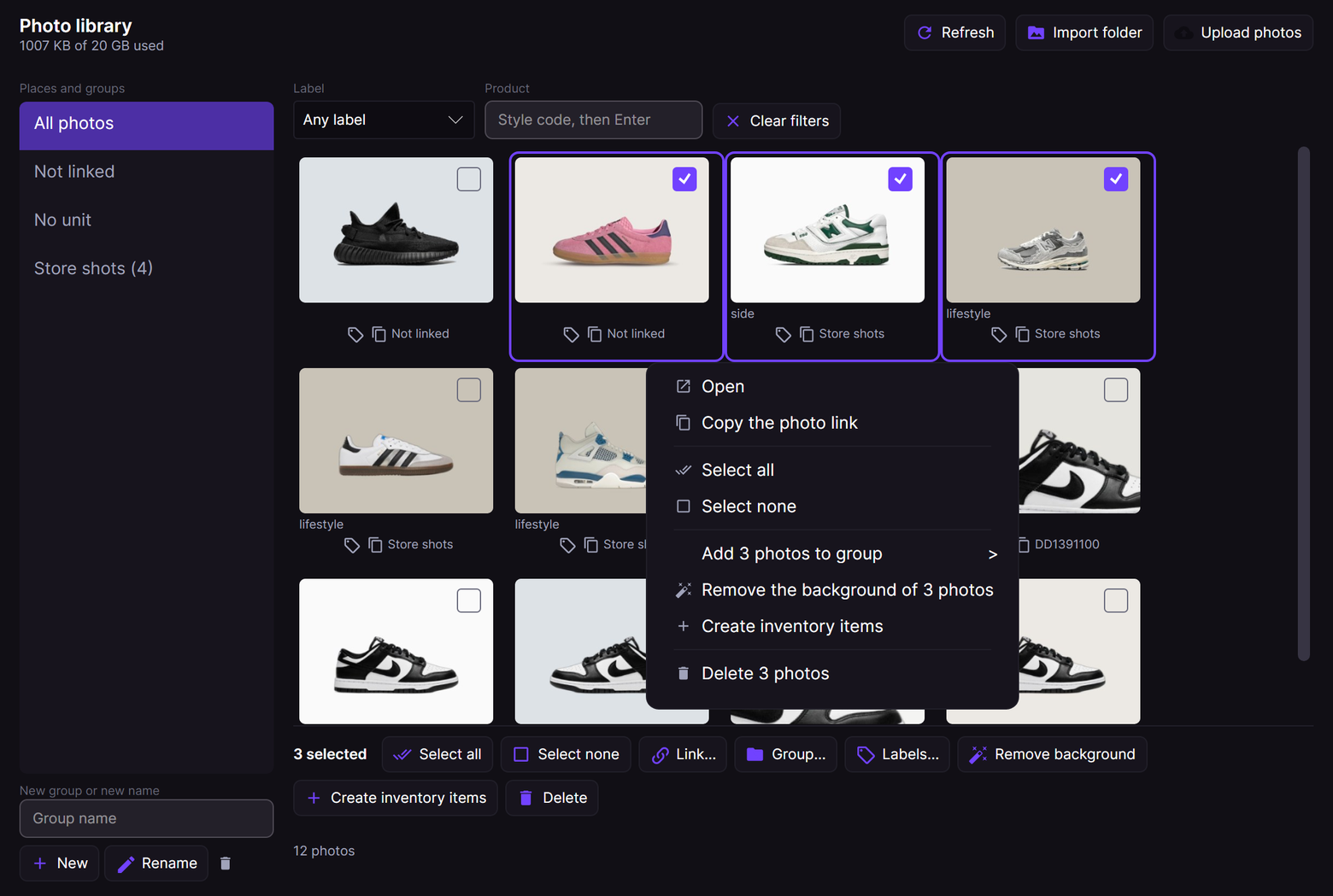
The right-click menu of a ticked photo acts on the whole selection.
Remove the background
Remove background makes a new stored photo of each selected photo, with a white background. This new photo is the cutout.
- The cutout gets the label cutout.
- The cutout joins the products, units and groups of its original photo, and the group that is open on the left.
- The original photo stays in the library.
- After the run, the cutouts are selected. The next action applies to them.
- eBay and Shopify listings show the cutout first. Vinted and Wallapop never get a cutout.
If the service does not answer, RestocksAIO shows "The background removal service is not reachable." Try again later.
Delete photos
RestocksAIO asks before it deletes photos. Then it deletes the photos in parts of 200 and shows the progress. Each part leaves the grid when the service has deleted it. If a part fails, RestocksAIO stops. The parts before it stay deleted.
Delete removes the photos from every unit, product and group. You cannot get them back. Their addresses no longer open after 1 hour or less.
Live eBay, Shopify, Vinted and Wallapop listings keep the copies that these sites already have. A new listing or a share link needs the photos uploaded again.
Groups
- Type a name in Group name.
- Click New. The group shows on the left.
Rename gives the selected group the name in Group name. The delete button beside it deletes the selected group only. Its photos stay in the library.
Upload photos in the library
- Click Upload photos.
- Select the files.
RestocksAIO links the new photos in this order:
- To the group that you selected on the left.
- Else, to the product in the Product filter.
- Else, to the product whose style code is in the file name. For example, "dd1391_100 front.jpg" goes to DD1391-100.
- Else, the photos are not linked.
Import a folder
Click Import folder to upload a folder of product photos. Each subfolder is one product. When a group is open on the left, every uploaded photo and every cutout also goes into that group. To create Inventory units from the folder, see Sell Returned Pairs.
Labels
A photo can have at most 10 labels.
- Preset labels: front, back, side, top, sole, detail, box, tag, defect, receipt, packaging, lifestyle.
- Your own labels: 1 to 32 characters. Use letters, digits, spaces,
_or-.
Photos in your listings
The Publish Composer shows your stored photos first, before every other photo source. For each offer, it uses the photos of the first unit, then the product photos. RestocksAIO uses a photo that is in both strips one time.
In each strip, the photos come in this order:
- The cover.
- The labels front, side, back, sole, top, detail, box, tag and lifestyle, in this order.
- Photos without one of these labels.
- Photos with the defect label.
Photos with the receipt or packaging label are not ticked. Tick them to add them to the listing. A photo with the defect label is always included.
Vinted and Wallapop: own photos only
Vinted and Wallapop receive only your own photos: stored photos and photo files from your computer. RestocksAIO never sends catalogue pictures, marketplace pictures or pasted picture addresses to these sites.
When a unit has no own photo, the Publish Composer blocks the channel. For example, it shows "Vinted needs your own photos. Add photos to this unit or product in Photo storage." The other channels still publish. eBay and Shopify can still use catalogue pictures.
Photos from the phone scanner
After a barcode scan on your phone, you can take labelled photos of the pair. The photos go to photo storage with a preset label and a link to the product. See Mobile Barcode Scanner.
Photos of sold items
When you sell a unit, RestocksAIO tells the photo service about the sale. If RestocksAIO cannot reach the service, it tries again at the next start.
A photo expires 180 days after the last sale when both of these conditions are true:
- You sold every unit that has a link to the photo.
- The photo has no product link and no group link.
Product photos and group photos do not expire.
About 2 minutes after the app starts, RestocksAIO checks for photos that expire in the next 14 days. If it finds some, it shows Photos of sold items expire soon.
- Click Keep 180 more days to renew the photos.
- Click Not now to keep the expiry date.
The service deletes expired photos.
Limits
| Limit | Value |
|---|---|
| Storage | 20 GB for each account |
| Photos for each unit, product or group | 24 |
| Labels for each photo | 10 |
| Uploads | 300 each hour and 2,000 each day |
| Rejected files | After 20 rejected files in one day, uploads stop until a review |
Without an active Premium plan, the Photo library opens in a limited mode. You can see, unlink and delete your stored photos. You cannot upload photos or add links, labels or groups.
What you must not store
Do not upload, store or share content that:
- is illegal, for example child sexual abuse material. RestocksAIO reports this material to the authorities.
- you do not have the right to use, such as photos taken by another person without permission.
- shows personal data of other people, such as names, addresses or shipping labels, without a legal basis.
- is not related to the items that you sell, or is violent, sexual, hateful or false.
Cloudflare checks the images on media.restock.gg against lists of known child sexual abuse material. A match blocks the image.
Report a photo
Anyone can report a stored photo:
- Use the form at restock.gg/report.
- Or send an email to abuse@restock.gg.
The team reviews each report. It can remove a photo or stop photo uploads on an account. The owner of the account gets the reason and the steps to contest the decision.
Messages
| Message | What to do |
|---|---|
| Your photo storage is full. Delete photos that you do not need, then try again. | Delete photos in the Photo library. |
| This item already has 24 photos, the limit. | Remove a photo from the unit or product first. |
| Too many photo requests. Wait a minute, then try again. | Wait one minute. |
| Photo uploads are suspended on this account. Contact abuse@restock.gg. | Send an email to abuse@restock.gg. |