 RestocksAIO Docs
Chats
One inbox for the buyer messages of your eBay, Vinted and Wallapop accounts. Read every conversation, reply from the app with quick replies, and see each reply read back from the channel. Premium and the Marketplace plan.
Chats is a tab after Orders. It shows the buyer conversations of all your eBay, Vinted and Wallapop accounts in one inbox. From the inbox, you reply to buyers and answer their offers.
Chats is part of the store channels in Premium and the Marketplace plan. It is in the macOS app and the new Windows app. The legacy Windows app does not have it.
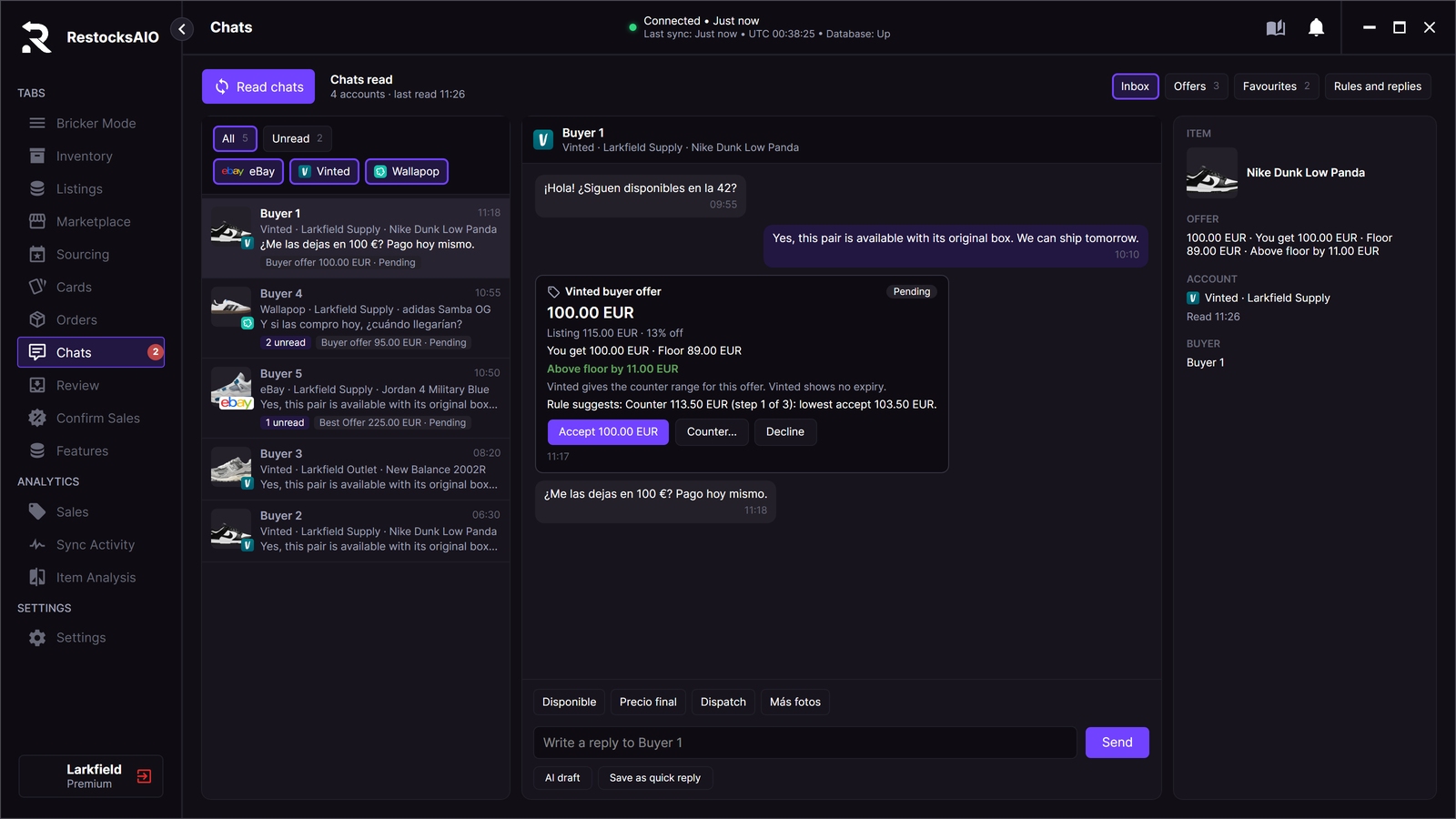
The inbox with a Vinted buyer offer. Sample data.
Chats has four views. The buttons are at the top right:
- Inbox: the conversations. This page explains the inbox.
- Offers: every buyer offer that waits for you, in one table. See Buyer Offers and Offer Rules.
- Favourites: messages and offers to Vinted buyers who favourite an item. See Favourites Follow-up.
- Rules and replies: offer rules, quick replies and AI replies. See Quick replies, offer rules and AI Reply Drafts.
Buyer offers of Vinted and Wallapop are no longer in Confirm Sales. On the first open after the update, Confirm Sales shows "Buyer offers are now in Chats." with an Open Chats button.
Read the chats
- Open the Chats tab.
- Click Read chats.
RestocksAIO reads your accounts one at a time. The header shows the number of accounts and the time of the last read. The red badge on the Chats tab shows the number of unread conversations.
The inbox does not read by itself. Click Read chats to get new messages. When Answer for me is on for a channel, the app also reads the chats of that channel every 15 minutes. See Offer rules.
| Channel | What Chats shows |
|---|---|
| eBay | The member messages of the last 30 days and the Best Offers that wait. One conversation is one buyer and one item. |
| Vinted | The conversations of the inbox, with their messages and buyer offers. |
| Wallapop | The conversations of the inbox, with their messages and purchase requests. |
Chats reads eBay with the permissions that your account already has. You do not have to reconnect an eBay account for Chats.
Shopify has no buyer messages, so Shopify is not in Chats.
An expired account
When the session of an account expires, its conversations stay in the list with the time of the last read: "Stale · last read …". The app sends nothing from that account and queues nothing. Reconnect the account in Settings → Accounts, then click Read chats again.
Find a conversation
Use the buttons above the list:
- All shows every conversation. Unread shows only the conversations with unread messages.
- eBay, Vinted and Wallapop show or hide the conversations of that channel.
Each row shows the buyer, the channel, the account, the item and the last message. A row can also show the number of unread messages and the state of an offer, for example "Buyer offer 100.00 EUR · Pending".
A row with the tag Needs you is a conversation that the AI handed to you. See AI Reply Drafts.
The conversation
Click a row to open the conversation in the middle. Your messages are on the right. The buyer's messages are on the left. A buyer offer shows as a card with Accept, Counter… and Decline. See Buyer Offers and Offer Rules.
The panel on the right shows:
- ITEM: the photo and title of the item.
- OFFER: the offer, your payout and the floor, when an offer waits.
- ACCOUNT: the channel, the account and the time of the last read.
- BUYER: the buyer name.
Reply to a buyer
You can reply on eBay, Vinted and Wallapop.
- Open the conversation.
- Type your text in Write a reply to …. You can also click a quick reply to fill the box.
- Click Send.
On eBay, the box counts to 2000 characters, the eBay limit. Chats sends text only. It does not send photos.
Check before you send
Before the send, RestocksAIO checks your text for a phone number, an e-mail address, a link and payment words. The payment words are Bizum, PayPal, transferencia, IBAN, Revolut, WhatsApp and Telegram. When it finds one, it shows "Check this message before you send it. It holds …".
- Click Edit to change the text.
- Click Send anyway to send it as it is.
The check is a warning. It does not stop the send.
The result of a send
Each reply is one write. After the write, RestocksAIO reads the conversation back from the channel. It then shows one of these results:
| Result | What it means | What to do |
|---|---|---|
| Done · read back | The channel shows your message. | Nothing. |
| Failed: nothing was sent | The channel refused the message, or the app could not save its database first. The reason follows. | Read the reason, then try again. |
| Sent, not confirmed | The app sent the message, but the read-back did not show it. | Click Read chats before you act again. Until then, the conversation takes no new write. |
Before each write, RestocksAIO saves its database. When the save fails, it sends nothing.
Quick replies
Quick replies are short texts that you use often. They show as buttons above the reply box. One list serves all accounts and all channels.
Use a quick reply
- Open the conversation.
- Click a quick reply above the reply box. The text fills the box.
- Check the text, then click Send.
A quick reply never sends by itself.
A quick reply can hold these variables. RestocksAIO fills them for the open conversation:
| Variable | The app puts in |
|---|---|
{item} | The item title. |
{size} | The size of the linked listing. |
{price} | The listing price. |
{buyer} | The buyer name. |
A variable without a known value stays as it is in the box, so you see it before you send.
To keep the text of the reply box as a new quick reply, click Save as quick reply.
Edit the quick replies
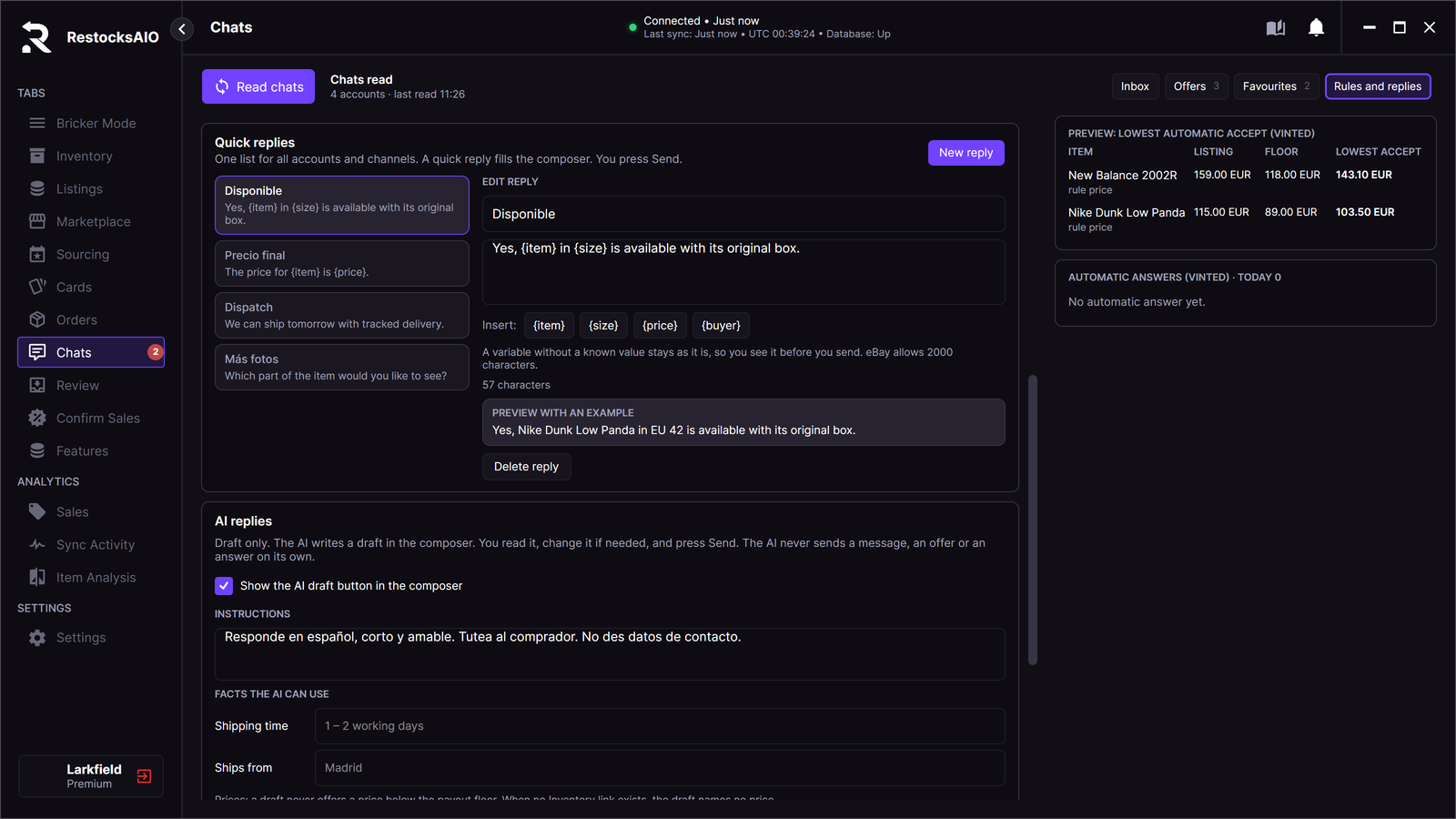
Chats → Rules and replies → Quick replies. Sample data.
- Open Chats → Rules and replies.
- Go to Quick replies.
- Click a quick reply in the list, or click New reply.
- Under EDIT REPLY, type the name and the text.
- To add a variable, click {item}, {size}, {price} or {buyer} next to Insert.
- Read PREVIEW WITH AN EXAMPLE. It shows the text with sample values.
RestocksAIO saves each change when you leave the field. The editor shows the number of characters. eBay allows 2000 characters.
To remove a quick reply, select it and click Delete reply.