 RestocksAIO Docs
Listings
The Listings tab shows your listings on the resale sites, such as StockX, Alias and KLEKT. Fetch them from your accounts, filter them by state, and change their prices. Inventory holds the pairs you own; Listings holds the listings that sell them.
Updated
The Listings tab shows your listings on the resale sites. Each group is one product and size. Open a group to see the listing on each site, with the lowest ask and your listing price.
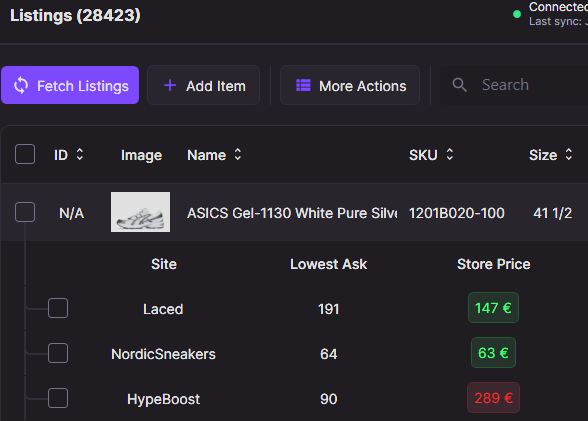
A listing group open in the Listings tab, with the lowest ask and your price on each site.
Listings and Inventory
- Inventory holds the pairs that you own: one row for each unit, with its cost, condition, packaging and location. See Inventory.
- Listings holds your listings on the resale sites: StockX, KLEKT, Alias, Laced, WeTheNew, HypeBoost, KICKS CREW, LimitedResell, NordicSneakers, POIZON, Woovin, SneakerAsk and Sneak.
A listing links to the unit that it sells. Use Linking to check and make those links.
Your eBay, Shopify, Vinted, Wallapop and Exposly listings are not in Listings. They are in the Marketplace tab.
Fetch your listings
The app reads your listings from your accounts when you click Fetch Listings. Choose one of the two modes:
- Sync New Listings adds new and changed listings only. It is fast. It is not available before the first full load, or when incremental sync is off in Settings.
- Full Reload reads every logged-in account again. It is slower. Use it when the data looks wrong. When an account fails, the app keeps the saved rows of that account. You can cancel a full reload.
After a load, the app shows "Successfully loaded on all the logged in sites!" and runs Linking.
Filter the listings
The chips at the top filter the groups by state. A group can count in more than one chip.
| Chip | What it shows |
|---|---|
| All | Every listing group that matches the search and filters. |
| Active | Groups with a listing that is live and that the last successful read confirmed. |
| Inactive | Groups with a listing that exists but is not live, for example a deactivated ask or a consigned pair that is not available. |
| Needs attention | Groups with a listing that needs a check: a price update failed, a linked listing is missing, or the data is stale. |
Filters holds more filters, for example Draft and Unlinked. Use the search box to find a listing by name, style code (SKU), size, order number, location, site, tracking number, or "linked" and "not linked".
A price change that failed
When a site does not confirm a price change, the listing shows "Price change not confirmed: … Fetch Listings before you try again." Click Fetch Listings before you change the price again.
Work on listings
Tick listings to show the selection bar:
- Publish and Change price.
- More: Resolve linking, Fetch Listings, Create Bricker task, Withdraw / Unpublish and Unlink from inventory.
Right-click a listing for more actions, for example Link Inventory, Edit Group, Price Toolbox, Pricing, Delete, Delete + Matching Tasks, Check Prices and Check Bids. Each listing row also has buttons to edit, withdraw and delete that listing.
Use More → Columns to show, hide and add columns. Export saves the current view.