 RestocksAIO Docs
Import Photos
Turn photos of any products into Inventory units. RestocksAIO groups the photos by box barcode and capture time; you check the groups, the units and create them.
Import photos turns photos of your products into Inventory units. The photos can show sneakers, clothing, accessories, food and pet products or any other product. Photos of several products together are fine: RestocksAIO puts them into groups, one group for each product.
This page describes the desktop app version of 16 November 2026 or later. In older versions, the window needed one folder for each product, named with its SKU, and made sneaker units only. Photo storage is in Premium.
Open the window
Open the window in one of these ways:
- Inventory → Import photos in the toolbar.
- Inventory → Photos → Import folder. The folder picker opens.
- Inventory → Photos, select stored photos, then Create inventory units. Nothing is uploaded again.
The window has three steps: 1 Groups, 2 Units and 3 Create. Click a step at the top right to go back to it.
Start: add the photos
Drop photos or folders from your file manager anywhere on the window, or click one of these:
| Button | What it adds |
|---|---|
| Choose photos | Any number of photos, from any folder. |
| Choose a folder | A folder. Each subfolder becomes a group. |
| From the phone | The photos that you sent with the phone app and that no unit uses yet. The tile shows only when there are such photos. See Phone App. |
RestocksAIO then reads the time when each photo was taken and the box barcodes on the photos. Camera and messenger file names, for example IMG_1234 or WhatsApp Image 2026-11-16 at 11.54.41, are never read as a SKU. The line at the bottom shows "Reading capture times and box barcodes · photo N of M". Nothing is uploaded in this step.
Step 1: Groups
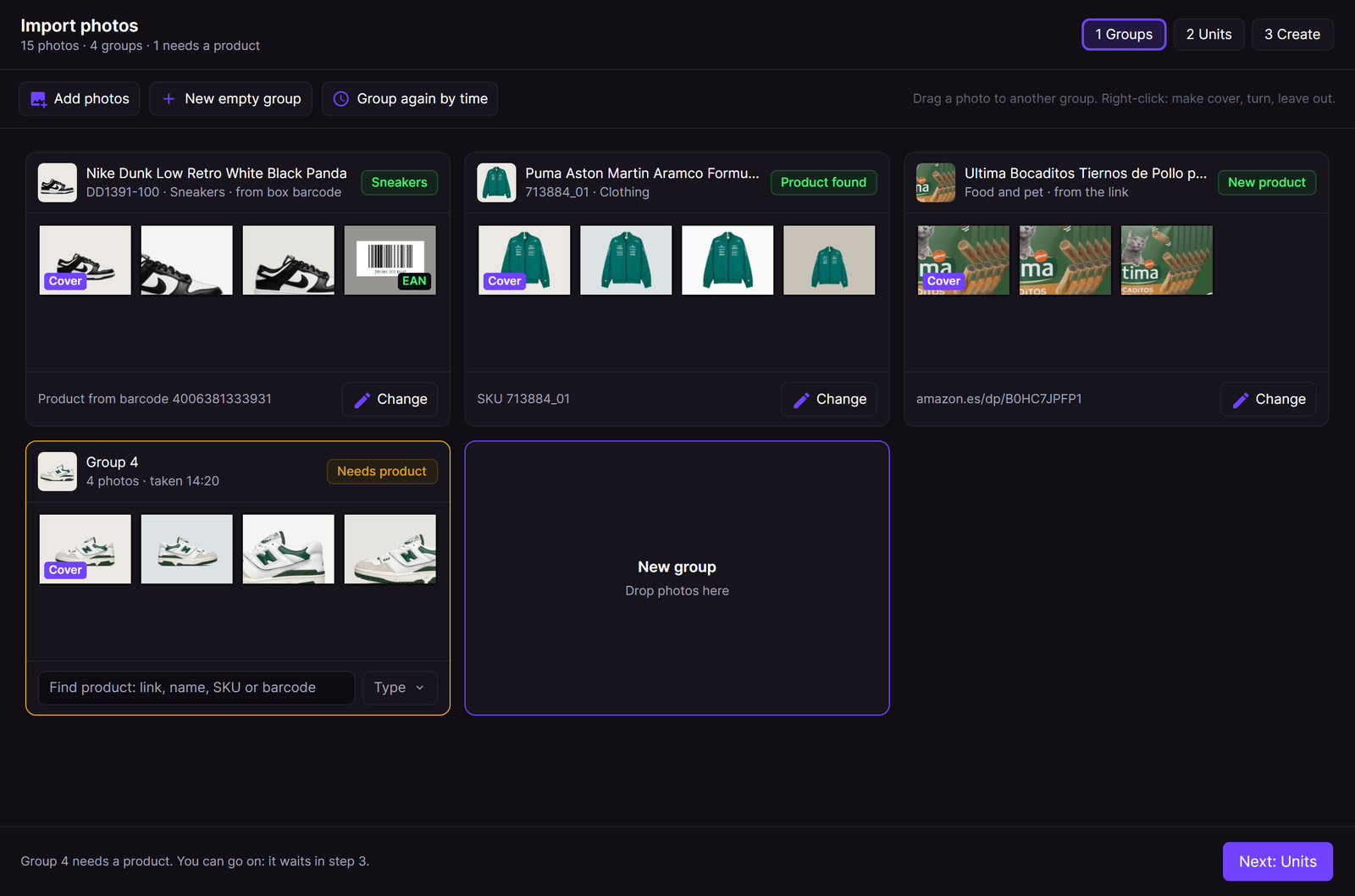
Step 1: one group for each product. Group 4 needs a product; it waits and does not stop the others.
RestocksAIO makes the groups by these rules:
- A subfolder is one group.
- A box barcode starts a new group and names its product at once, for example "Product from barcode 4006381333931".
- The other photos go in the order of the time when they were taken. A gap of more than 2 minutes starts a new group.
Each group shows its photos, its product and a tag:
| Tag | Meaning |
|---|---|
| The type, for example Sneakers | The box barcode named the product. |
| Product found | You chose a catalogue product. |
| New product | You made a product that is not in the catalogue. |
| Needs product | The group has no product yet. |
Give a group its product
- Click Find product: link, name, SKU or barcode on the group.
- Paste a link, or type a name, a SKU or a barcode. See Find Product.
- Choose the product, or create a new product.
- Check the type on the group. The type decides what step 2 asks. See Product Types.
Click Change on a group to choose another product.
Fix the groups
- Drag a photo to another group, or onto New group.
- Drag a group header onto another group to merge the two groups.
- Click photos to select them. The bar at the bottom offers New group from selection, Move to group and Leave out.
- Right-click a photo to make it the cover, turn it, or leave it out of the import.
- Point at a photo to see Turn left and Turn right on it. The photo turns at once. A turned photo stays whole in the viewer.
- New empty group adds an empty group.
- Group again by time applies the time rule again. The photos that you left out stay out.
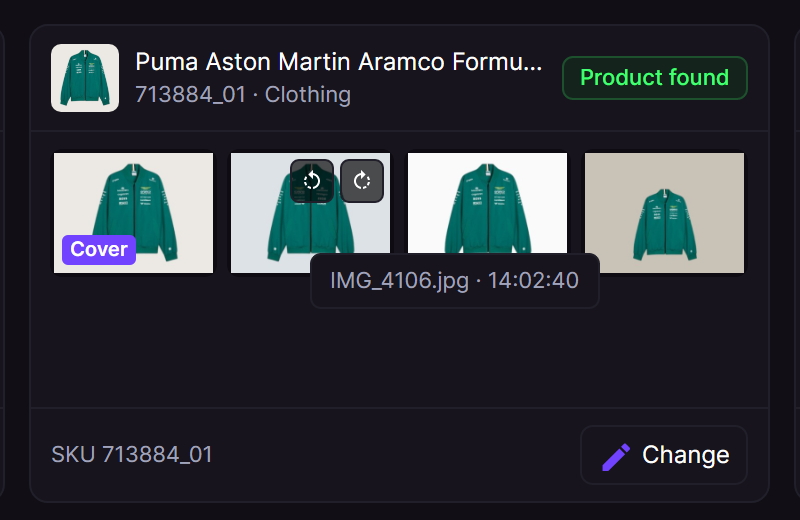
Point at a photo: Turn left and Turn right show on it. Sample data.
A group that needs a product does not stop the other groups. You can go on: it waits in step 3.
Step 2: Units
Each group shows the fields of its product type.
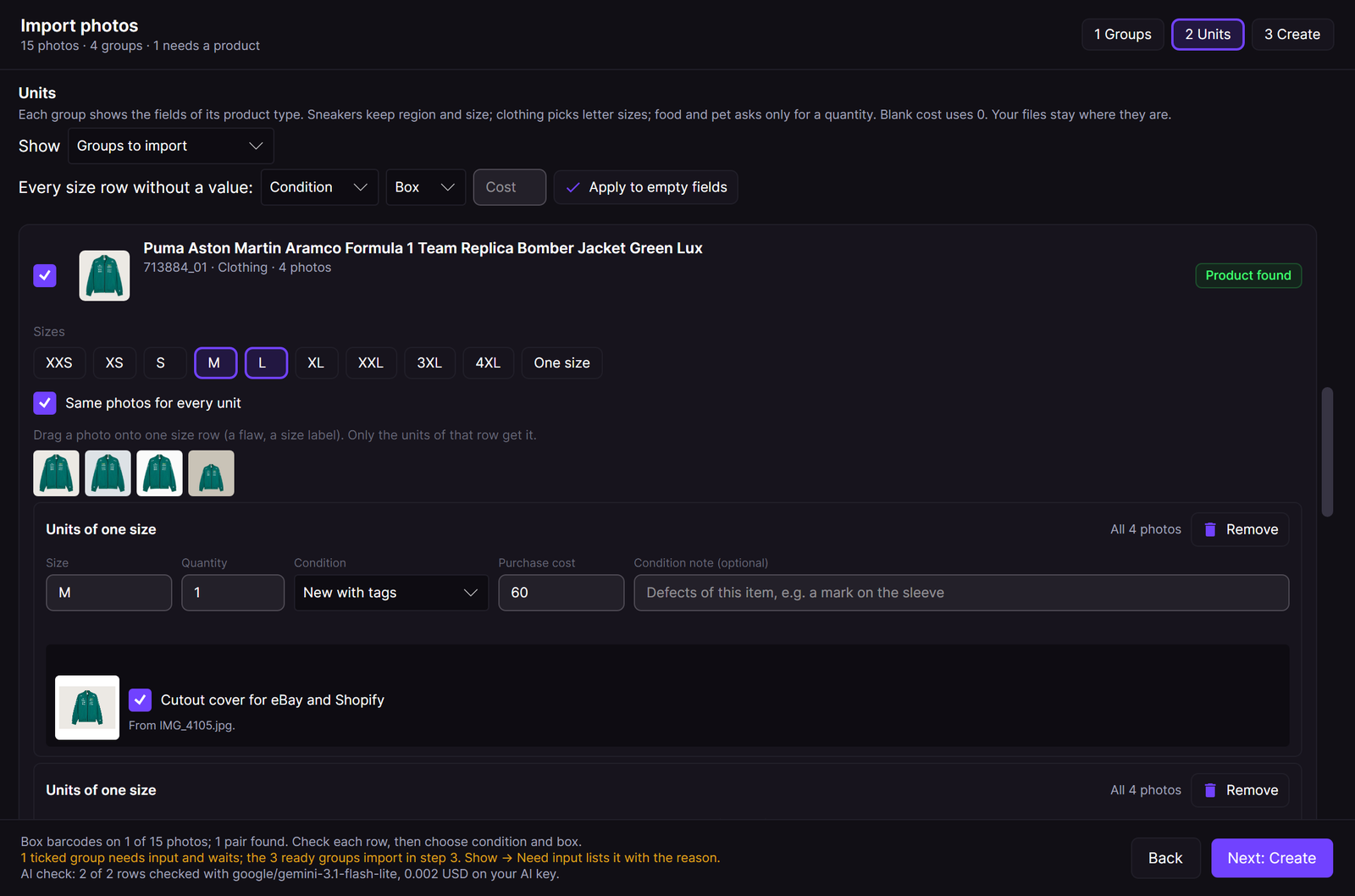
Clothing: click the letter sizes. Each size gets its own row.
| Type | Fields |
|---|---|
| Sneakers | SKU, region (US, EU or UK), size, quantity, condition, box, cost and note. A box barcode fills the SKU and the size. |
| Clothing | Click the size chips. Each size gets a row with Quantity, Condition, Purchase cost and Condition note (optional). |
| Accessories | One size or a size. |
| Collectibles | A quantity with − and +, condition, cost and box. |
| Electronics and Other | A quantity with − and +, condition and cost. |
| Food and pet | A quantity with − and +, condition, cost and an optional Best before date. |
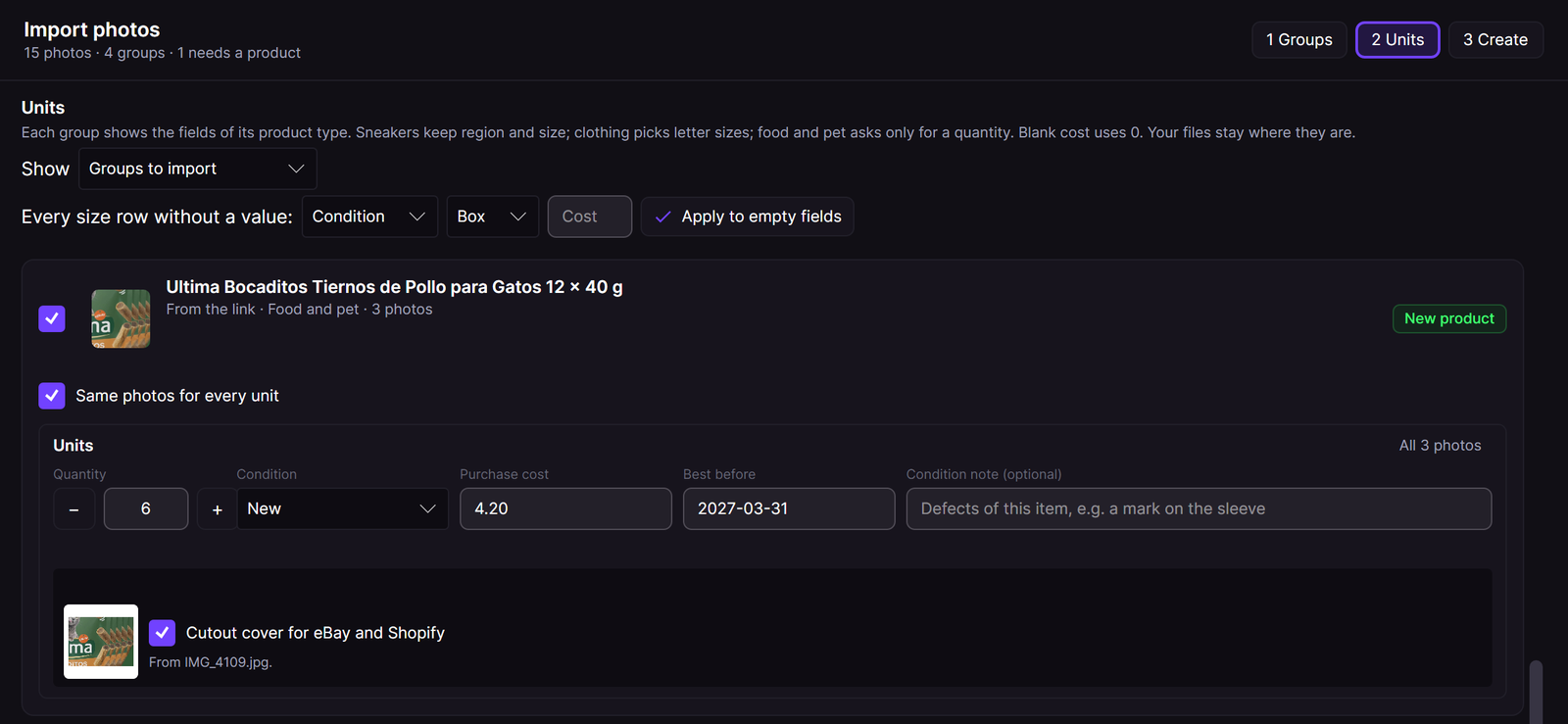
Food and pet: a quantity and an optional best-before date. The size is ONE SIZE.
Same photos for every unit is on by default for a type other than sneakers. Then every photo of the group goes on the product. Untick it when one unit needs its own photos, for example a unit with a flaw.
When a group with Same photos for every unit has two or more size rows, its photos show as a strip. Drag one photo, for example a flaw or a size label, onto one size row. The row shows "Drop: this photo for these units only". Only the units of that row get the photo, with the shared photos, for example "4 shared photos + 1 of its own". Such a row can be New with defects or have a note. Click the photo in the row to give it back to every unit.
For sneakers, RestocksAIO also checks the photos with your AI model and makes a cutout cover. See Sell Returned Pairs. The AI check looks for sneaker flaws, so other types do not get it.
Every size row without a value: fills one condition, box or cost into every empty field. Click Apply to empty fields.
Step 3: Create
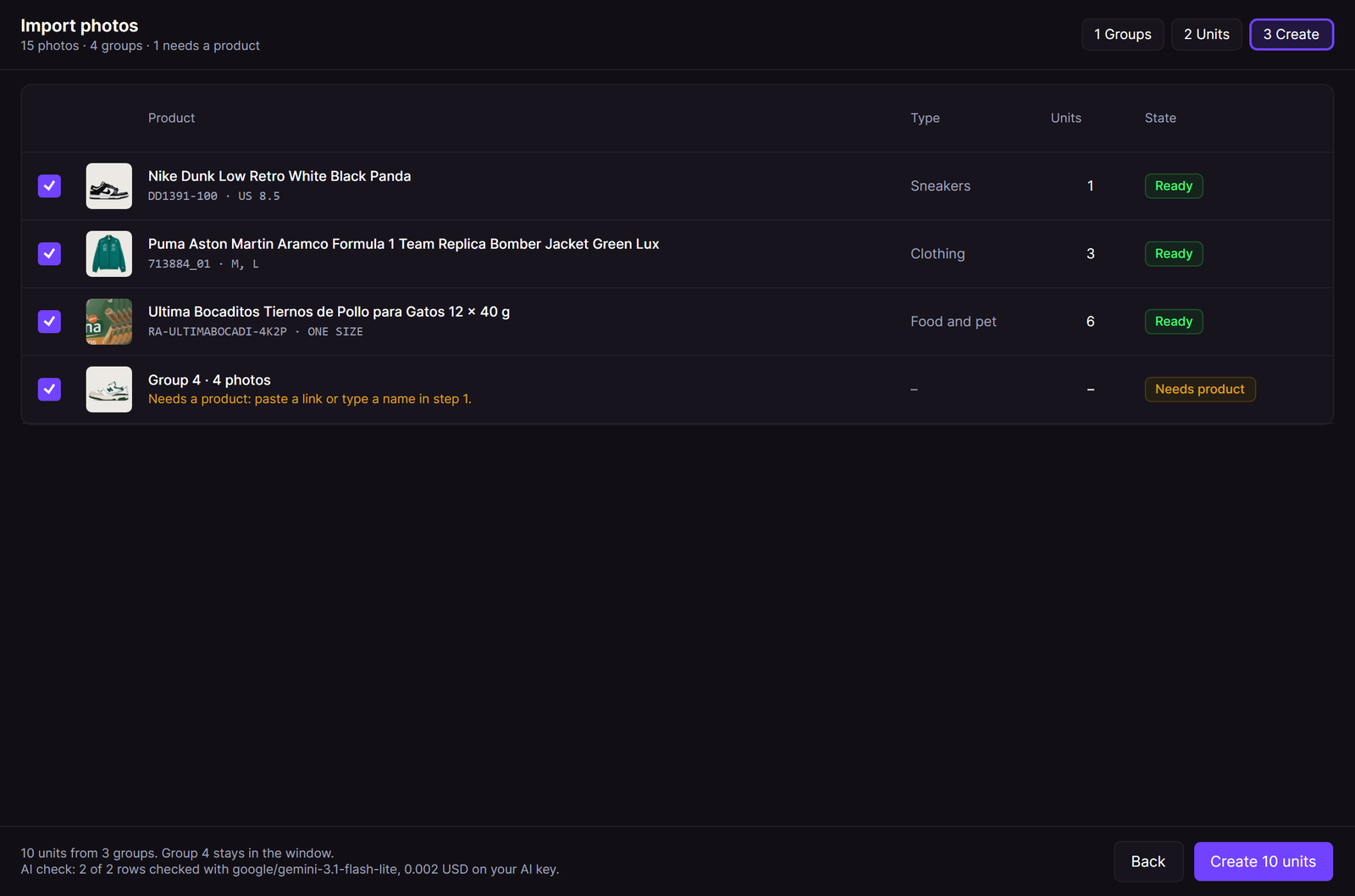
Step 3: one line for each group. Only the ready groups are created.
Step 3 shows one line for each group with its type, the number of units and its state:
- Ready: the group creates its units.
- Needs product: paste a link or type a name in step 1.
- Needs region, Needs size, Needs quantity, Needs condition, Needs box, Needs cost or Needs date: the line says what is missing.
Click Create N units. RestocksAIO uploads the photos of the ready groups and creates their units. A group that waits keeps its reason and stays in the window. The window closes when no group is left.
What happens to the units:
- A catalogue product keeps its catalogue SKU and size.
- A product outside the catalogue gets one SKU of its own for all its units, for example
RA-ULTIMABOCADI-4K2P. - Each unit gets its product type, the link that you pasted and the best-before date.
- Only the photos of a group are uploaded. A photo that you left out stays on your computer.
The button shows only when at least one group is ready and photo storage is available.