 RestocksAIO Docs
On-demand sizes
Sell sizes on your Shopify store without stock, price them from the StockX buy cost, and buy the pair yourself after the sale.
An on-demand size is a size your Shopify store sells without stock. Some sellers call it a dropship size. You buy the pair from a source after the order arrives. An in-stock size is backed by a unit in your Inventory.
RestocksAIO reads which sizes are on demand from your store. It prices them with a Price sync rule, and it shows each on-demand sale in Review as a Buy from source card.
RestocksAIO never buys for you. Open source opens the product in your browser. You place the order yourself.
On-demand sizes and Price sync are included in Premium.
On-demand sizes work on Shopify only. eBay listings are always in-stock listings in RestocksAIO. Check the rules of your sales channel and your local law before you sell items that you do not hold.
Tell RestocksAIO how your store marks on-demand sizes
RestocksAIO does not create on-demand sizes. You set them up in Shopify. RestocksAIO then needs to know how your store marks them.
- Go to Settings → Accounts and select your Shopify account.
- Find On-demand sizes under Publishing defaults.
- Choose one option in the dropdown:
- No stock and keeps selling (one variant per size): a size is on demand when Shopify keeps selling it at zero stock.
- Option: (name): your store has a variant option for delivery, for example an option with the values Ready to ship and 7-10 days. Tick the values that mean in stock. Every other value is on demand.
RestocksAIO suggests a choice from your store's own products. Change it if it is wrong.
A size sold on demand is not held against your units. It is never flagged as not backed.
On-demand sizes in the Marketplace tab
- The On demand chip shows only the products that have an on-demand size.
- The Stock column of a product reads, for example,
2 / 3 · 4 on demand. That is units held, units advertised and the number of on-demand sizes. - Open a product to see its sizes. Each size row has an In stock column and an On demand column with the price on each store.
- Source shows the monitored buy cost and its age, for example
StockX 84.16 € · 4 min. Hover over it to see the ask, the fees, the buying account and the rule. - Rule shows the rule that prices the size.
- An on-demand size holds no quantity. Set quantity leaves it out.
Price on-demand sizes from the StockX buy cost
- In the Marketplace tab, click Price sync, then Add rule.
- Under Sizes, choose On-demand sizes.
- Under Source, choose StockX buy cost.
- Set Margin (%), for example 18, and Prices end in, for example .95.
- Check the Example, Price changes and Not priced.
- Click Activate rule.
RestocksAIO reads the StockX price of each product every 5 minutes by default. The buy cost is the lowest ask of the size plus the buyer fee and shipping of your StockX buying account. See the worked example.
When a size cannot be sourced
A size has no source in three cases. Nobody sells it on StockX. StockX does not list the style code. The last read is too old.
With Offline: sold out on Shopify, an active rule makes that size sold out on your store. The product and its other sizes stay up. The size reads Offline on the store, it cannot be sourced under Needs attention. It goes back on sale when the source returns.
Shopify can show a size as sold out only when it tracks stock for that variant. If it does not, RestocksAIO shows this message: Shopify does not track stock for this variant, so it cannot be shown as sold out. Turn on stock tracking for it in Shopify, or end the listing.
When an on-demand size sells: Buy from source
The sale appears in Review with the On demand label and the title Sold on demand on (store) — buy the pair on (source).
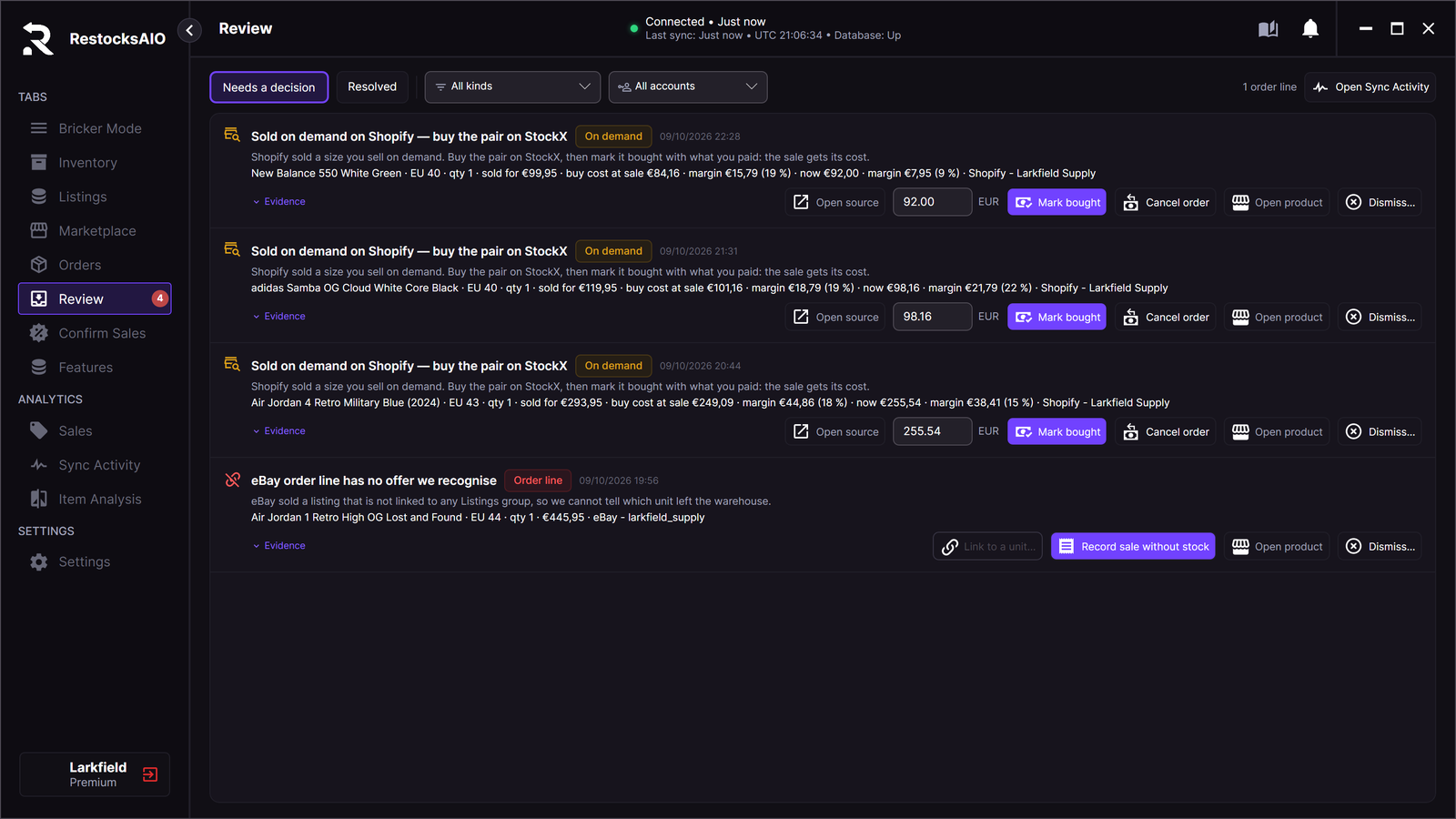
The card shows the buy cost at the sale and the buy cost now.
The card shows the sale price, the buy cost at sale and the buy cost now, each with its margin before the store fees. The buy cost at sale is recorded once, when RestocksAIO first sees the order, if a buy-cost rule watched the size. Otherwise it reads unknown.
| Button | What it does |
|---|---|
| Open source | Opens the product at the source in your browser. Nothing is bought for you. |
| Mark bought | Type what you paid, fees and shipping included, then click Mark bought. RestocksAIO creates the Inventory unit with that purchase cost and attributes the sale to it. |
| Cancel order | Opens the order on the store, where you cancel or refund it. The next order read closes the sale in RestocksAIO. |
| Open product | Opens the product in the Marketplace tab. |
After Mark bought, the sale has its cost. It then shows in Orders and Sales with the right profit.