 RestocksAIO Docs
Find Product
Paste a StockX, GOAT, Amazon or shop link, or type a name, a SKU or a barcode. RestocksAIO finds the catalogue product or fills a new product from the page.
Find product is the search box of Add Item. It also opens for each group in Import photos and in the phone app. Use one box for every kind of product: sneakers, clothing, accessories, collectibles, electronics, food and pet products and other items.
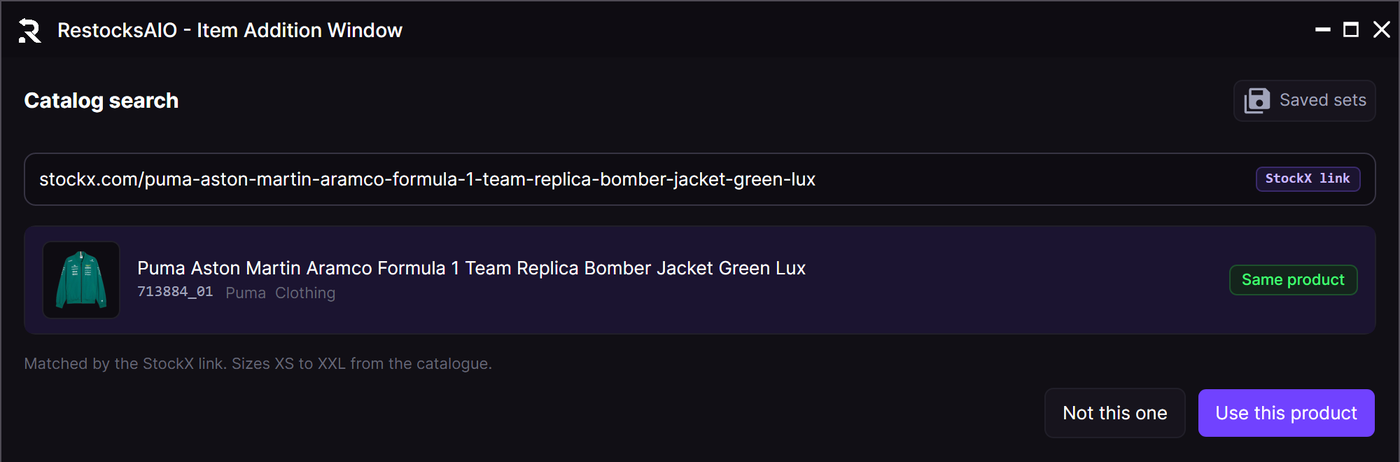
A StockX link finds the catalogue product. The tag says why it is the same product.
Find product needs the desktop app version of 16 November 2026 or later. An older version has the catalogue search of sneakers only.
What you can type
Click Add Item, then type or paste in Paste a link, or type a name, a SKU or a barcode. The tag at the right side of the box shows what RestocksAIO read.
| You type | Tag | What RestocksAIO does |
|---|---|---|
| A StockX, GOAT, Alias or Klekt link | StockX link (or the name of the site) | It reads the product name from the link and finds the catalogue product. It does not open the page. |
| An Amazon link or a link of another shop | Amazon link (or the shop) | It reads the page on your computer. A barcode, a model number or the name on the page can find the catalogue product, for example "Matched by the model number on the Amazon page." If the catalogue has no such product, it fills a new product from the page. |
| A SKU or a style code | SKU | It finds the catalogue product in any spelling. 713884-01, 713884 01 and 713884_01 find the same product. |
| A barcode (EAN or UPC) | Barcode | It finds the product of the barcode. |
| A name | Name | It lists the catalogue products that match the words. |
What each answer means
One product: Same product
A link, a SKU or a barcode that matches one catalogue product shows one row with the tag Same product. The line under the row names the proof, for example "Matched by the StockX link. Sizes XS to XXL from the catalogue."
- Click Use this product to continue. A catalogue product opens the size step, as before.
- Click Not this one when the product is wrong.
A short list
A name shows the catalogue products that match. Each row shows its proof:
- All words: the product name has every word that you typed.
- 3 of 4 words: the product name has most of the words.
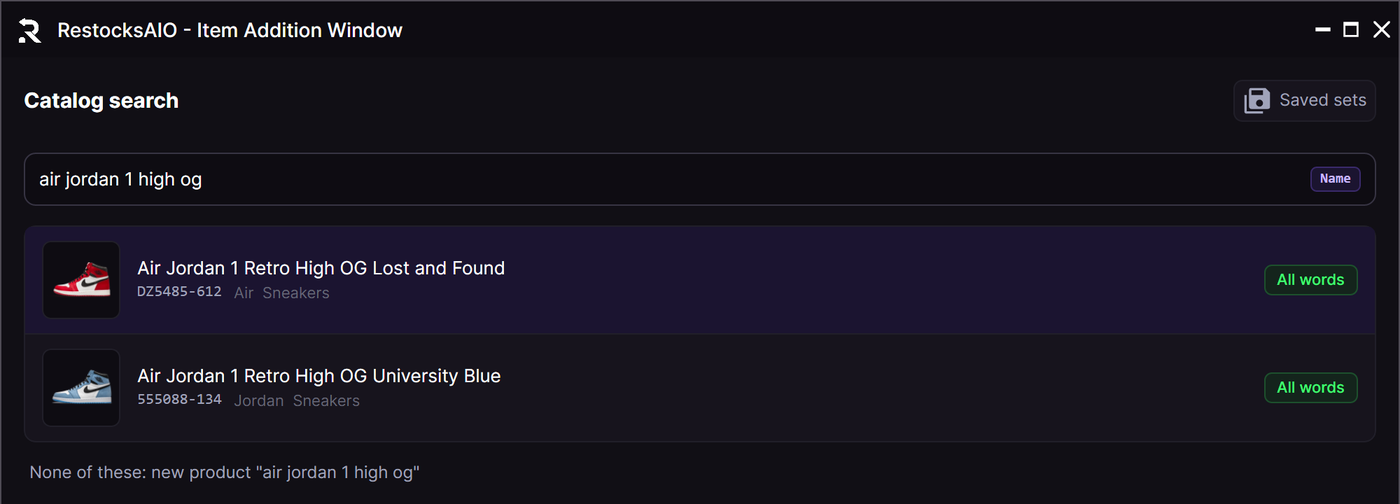
A name shows a short list. Each row shows why it matches.
Click the correct row. If no row is correct, click None of these: new product "…". RestocksAIO then makes a new product with the name that you typed.
RestocksAIO shows a catalogue product only when it has a proof: the same barcode, the same style code or model of the same brand, the same marketplace link, or the words of the name. It does not show unrelated products to fill the list.
A new product from the page
When the catalogue does not have the product of a shop link, RestocksAIO reads the page. It fills Name, Brand, Type and Code and shows the photo of the page.
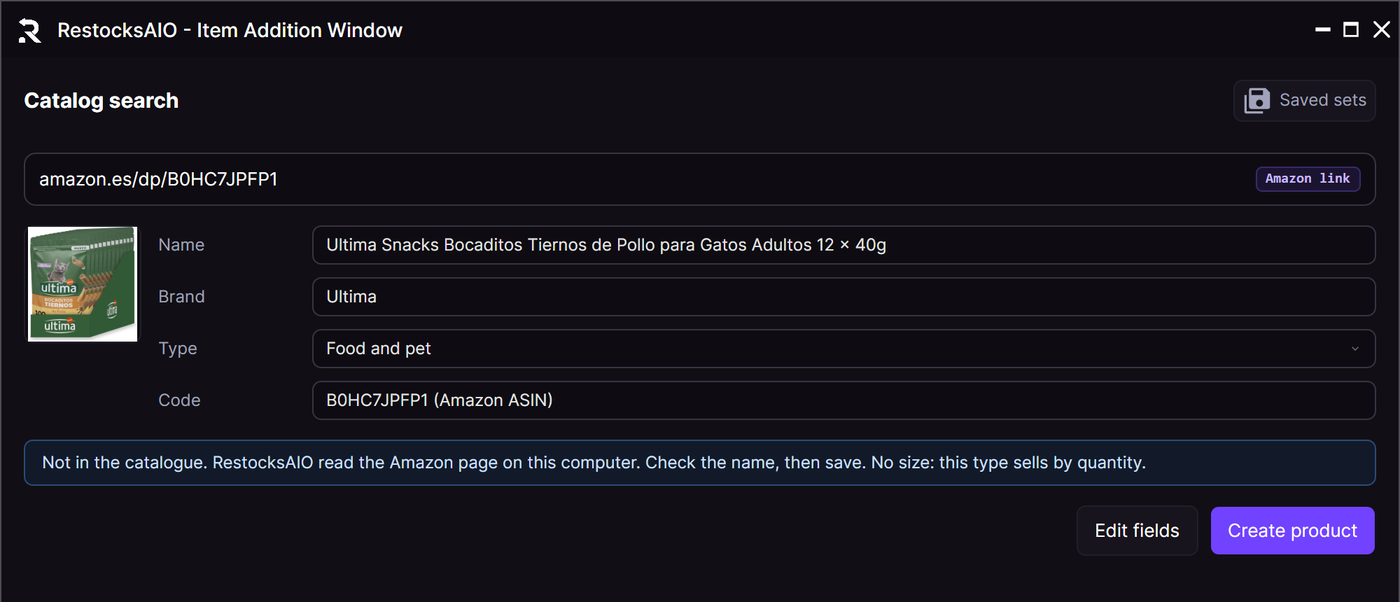
An Amazon link of a product that is not in the catalogue. RestocksAIO read the page on this computer.
- Check the name. Click Edit fields to change a field.
- Check the Type. The type decides what RestocksAIO asks next. See Product Types.
- Click Create product.
The page read runs on your computer. It sends no cookies and no login. It reads at most 3 MB and stops after 10 seconds. When a page cannot be read, a line names the cause, for example that the page does not exist. Then type the name: the name is enough.
The name only
When no catalogue product matches a name, RestocksAIO shows "No product in the catalogue matches these words. You can still add it: the name is enough." Choose the type. The SKU is optional. When you leave it empty, RestocksAIO makes one, for example RA-CAMISETA-7F3K.
A SKU that RestocksAIO made is for your Inventory only. RestocksAIO never puts it in a title, the eBay style code, a price search, a share link, an invoice or a label.
Sizes and quantity of a new product
After Create product or None of these, RestocksAIO asks for the fields of the type:
- Clothing: letter sizes as chips, or a size in Other (for example 42 or W32 L34). Each size gets its own quantity.
- Accessories: One size or a size.
- Collectibles, Electronics, Food and pet and Other: a Quantity. RestocksAIO stores the size as ONE SIZE.
- Food and pet: an optional Best before date, for example 2027-03-31.
Click Add to list. The product joins the list of Add Item like a catalogue product.
Where a product outside the catalogue can sell
StockX, Alias, GOAT and the other resale sites list catalogue products only. A product that is not in the catalogue goes to Inventory and to your store channels: eBay, Shopify, Vinted and Wallapop.
- When every row of the list is outside the catalogue, Add Item offers only the store channels. It shows no Bricker Mode options.
- When the list has catalogue products and other products, the catalogue products list on the resale sites. Each other row says why it did not list: "The unit is in Inventory; list it on eBay, Shopify, Vinted or Wallapop."
- Only Inventory creates the units of every row.
See Publish a product for the store channels.