 RestocksAIO Docs
Create a listing
Create an eBay or Shopify listing in the Publish Composer, step by step. Title, description, AI text, photos, Similar listings, policies, draft, go live.
The Publish Composer turns Inventory units into eBay and Shopify listings. RestocksAIO fills the listing from the style code and the catalogue. You check it, add your photos, and save a draft or go live.
eBay, Shopify and the Publish Composer are included in Premium. Connect an account first: Connect eBay or Connect Shopify.
Step 1: start the listing
| Start | Where | Use it when |
|---|---|---|
| Publish to… | Inventory, in the selection bar after you tick units | You hold the units. |
| New product → From inventory units… | Marketplace tab | Same as above. With no units ticked, RestocksAIO opens Inventory so that you can tick them. |
| New product → Quick List (draft)… | Marketplace tab | You do not hold the product yet. The listing is always saved as a draft, and no inventory is created. |
| New product → Duplicate from an eBay listing… | Marketplace tab | You want the category, item specifics and wording of an eBay listing. See step 7. |
A unit must be Available or Listed. It needs a product id or SKU and a size.
Step 2: set the planned offers
The composer lists one planned offer for each product, size and condition on the left, with the number of units it covers.
For each offer there is one row for eBay and one row for Shopify:
- Tick the channel to include it.
- Choose the Account. Each channel starts with its default account.
- Type the Price. It starts empty and reads Required. When Price sync has a suggestion, click Suggested … · Apply.
- Check the GTIN. Load GTINs fills every empty GTIN from the barcode database. A GTIN you typed is kept. A size the database does not know reads N/A.
Review units shows which units each offer uses. RestocksAIO picks the oldest purchase date first. Use automatic goes back to that choice. A manual change applies to this publish only.
The blockers badge counts the channels that are not ready. A blocked channel is skipped. The other channels still publish.
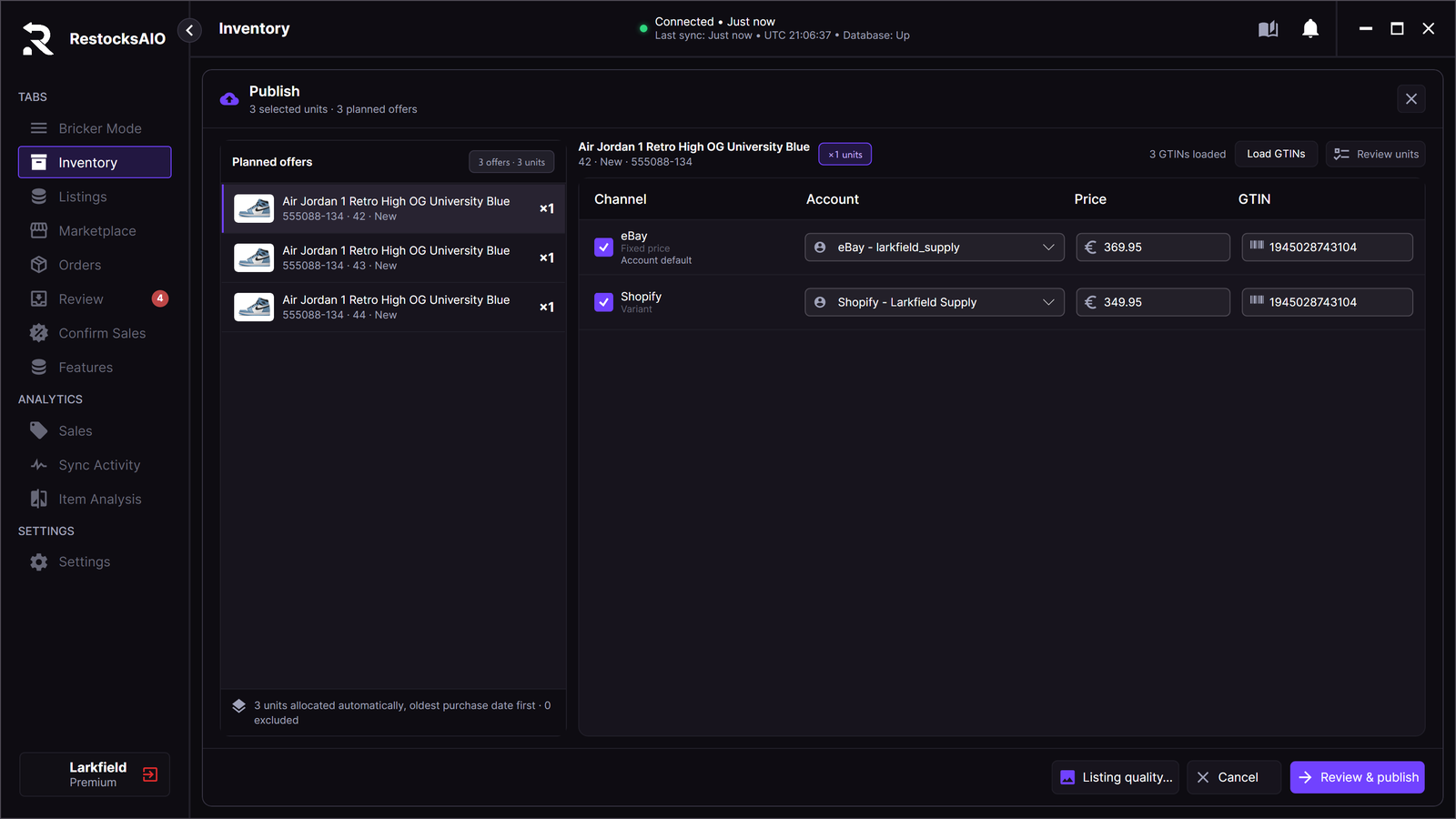
Three planned offers, one for each size. Each channel has its account, price and GTIN.
Step 3: check Listing quality
Click Listing quality…. It shows what each channel still needs for one product, with the exact reason.
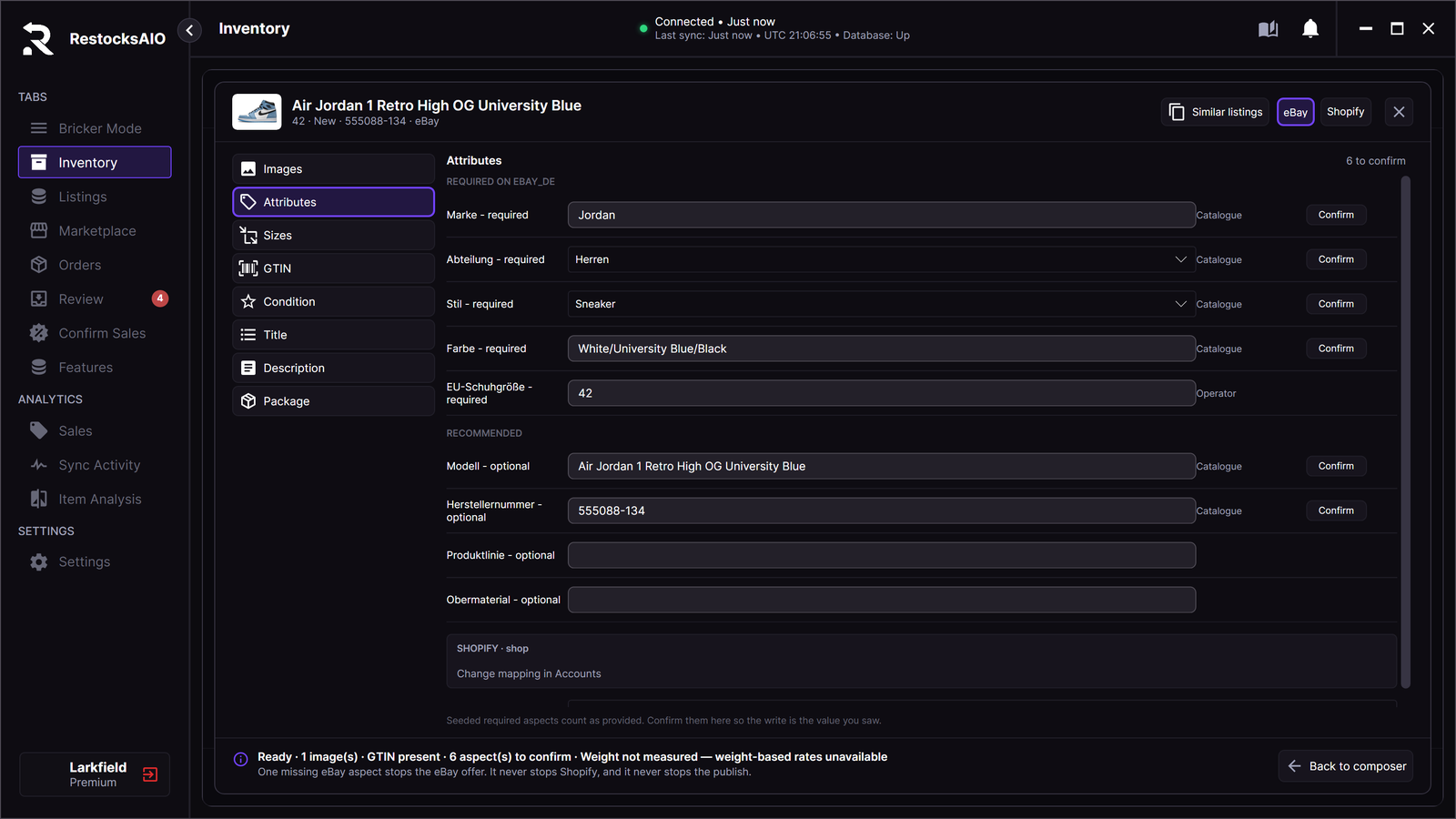
Listing quality → Attributes. Required item specifics are listed first.
| Tab | What you check |
|---|---|
| Images | The photos of the listing. See step 5. |
| Attributes | The eBay category and item specifics. See below. |
| Sizes | The size of each unit in US, EU and UK, and the size eBay and Shopify show. |
| GTIN | The barcode, or Does not apply. |
| Condition | New with box, New without box, New with defects, or Pre-owned in three grades. A Condition description is required for New with defects and Pre-owned. Shopify has no condition field. |
| Title | The listing title. See step 4. |
| Description | The listing description. See step 4. |
| Package | Package kind, weight and box size. See step 6. |
Attributes: category and item specifics
- Category - required is chosen automatically from the product name. RestocksAIO picks the men's, women's or kids' sneaker category of eBay for the gender of the product. To change it, pick another eBay suggestion in the dropdown.
- Under Required on (marketplace), the required item specifics are filled from the catalogue: brand, department, colour, style code, model and size. Click Confirm on a filled-in value, so the value sent to eBay is the value you saw.
- Recommended item specifics are optional.
- A missing required item specific stops the eBay offer only. It never stops Shopify.
Sizes
RestocksAIO writes each size as the eBay site writes it. Example: 42,5 on eBay Spain, Germany, France and Italy, and 9.5 on eBay UK and US.
Two or more sizes of one product and condition become one eBay listing with a size choice. On Shopify they become one product with one variant for each size. eBay publishes the whole listing or nothing. If one size holds the listing back, fix that size or leave its units out of this publish.
Step 4: write the title and the description
Without AI: your Writing style
Click Writing style on the Title or Description tab. It holds your instructions for one account.
| Field | What it does |
|---|---|
| Title pattern | Sets the order of the title parts: brand, model, colourway, style code and size. Only the order of the parts is read. |
| Description template (also used without AI) | Sets the lines of the description: title, brand, model, colourway, style code, size, condition, department, what is included and shipping. A line with no facts is left out. |
| Style guide | Your instructions for the AI text. |
| Learn my style | Reads up to 8 of your own listings on the account and drafts a style from them. It needs an AI provider and at least 2 listings with a description. Nothing is saved until you press Save. |
| Reset to default | Brings the built-in pattern and template back. |
eBay titles have 80 characters and Shopify titles 255. To fit the limit, the pattern drops filler words first, then the style code, then colourway words.
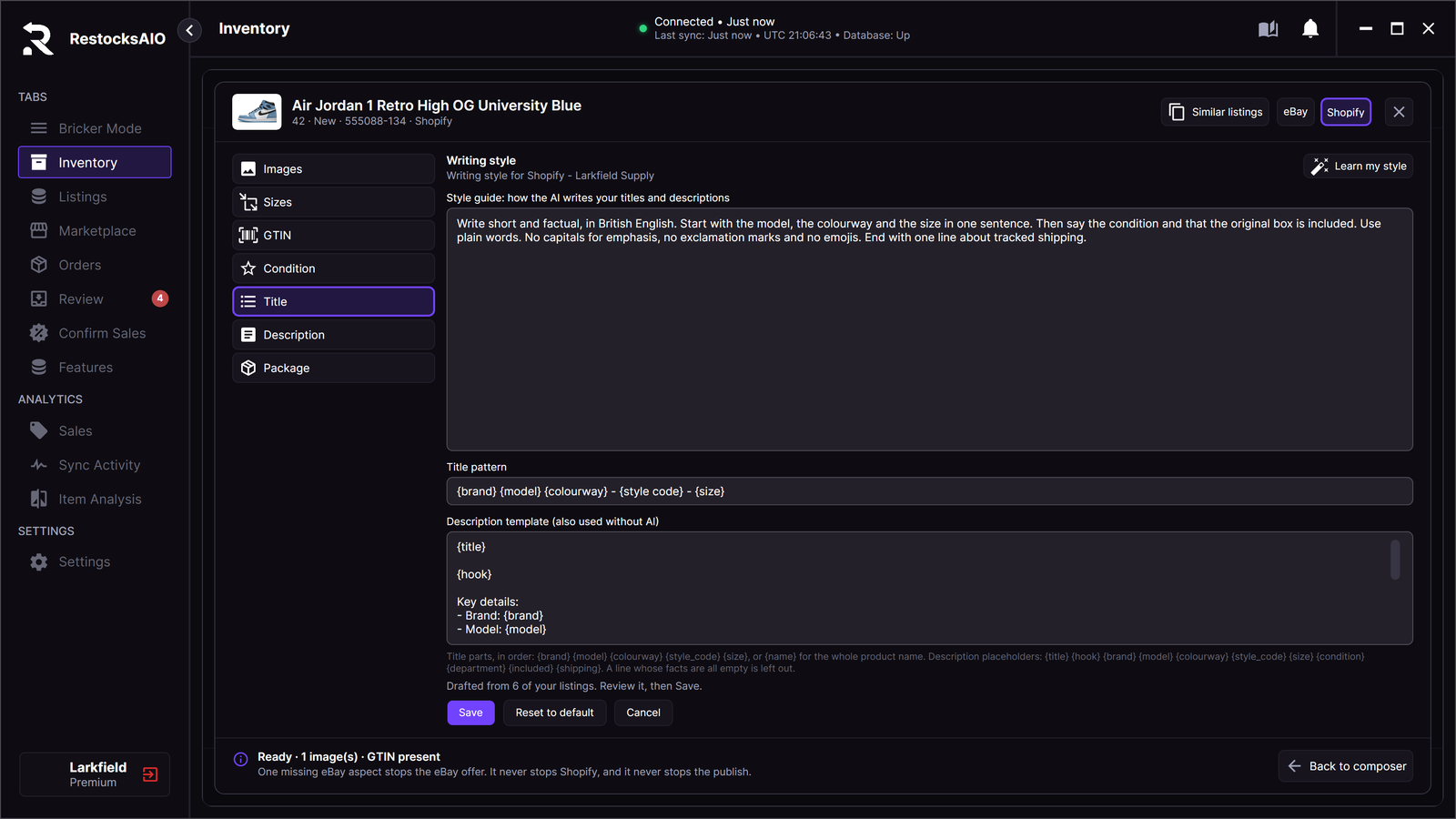
Learn my style drafted this style from 6 listings. Nothing is saved until you press Save.
On the publish screen
Each ticked channel row of the publish screen shows its Title, with the character count of the site, and its Description. RestocksAIO fills them with the text that your writing style builds. Edit them in the row, or in the larger editors of Listing quality. Both places change the same text.
With an AI provider, the channel header shows Generate title & description. One click writes the title and the description of every ticked channel, each in the length limit of its site. Nothing is published before you click Publish. When one channel fails, it keeps its text and its line says why.
Language
Each channel writes in the language of its site: Vinted in the language of its country site, Wallapop in Spanish, eBay in the language of its marketplace, and Shopify in English. To choose another language for an account, use Language in Writing style. See Description templates.
With AI: Generate title & description
With an AI provider set up in Settings → AI, the Title and Description tabs show Generate title & description.
- Click Generate title & description. RestocksAIO writes both in one request, in your writing style.
- The result is marked Suggested. Read it.
- Click Keep to use it, or Discard to drop it. Nothing changes until you click Keep.
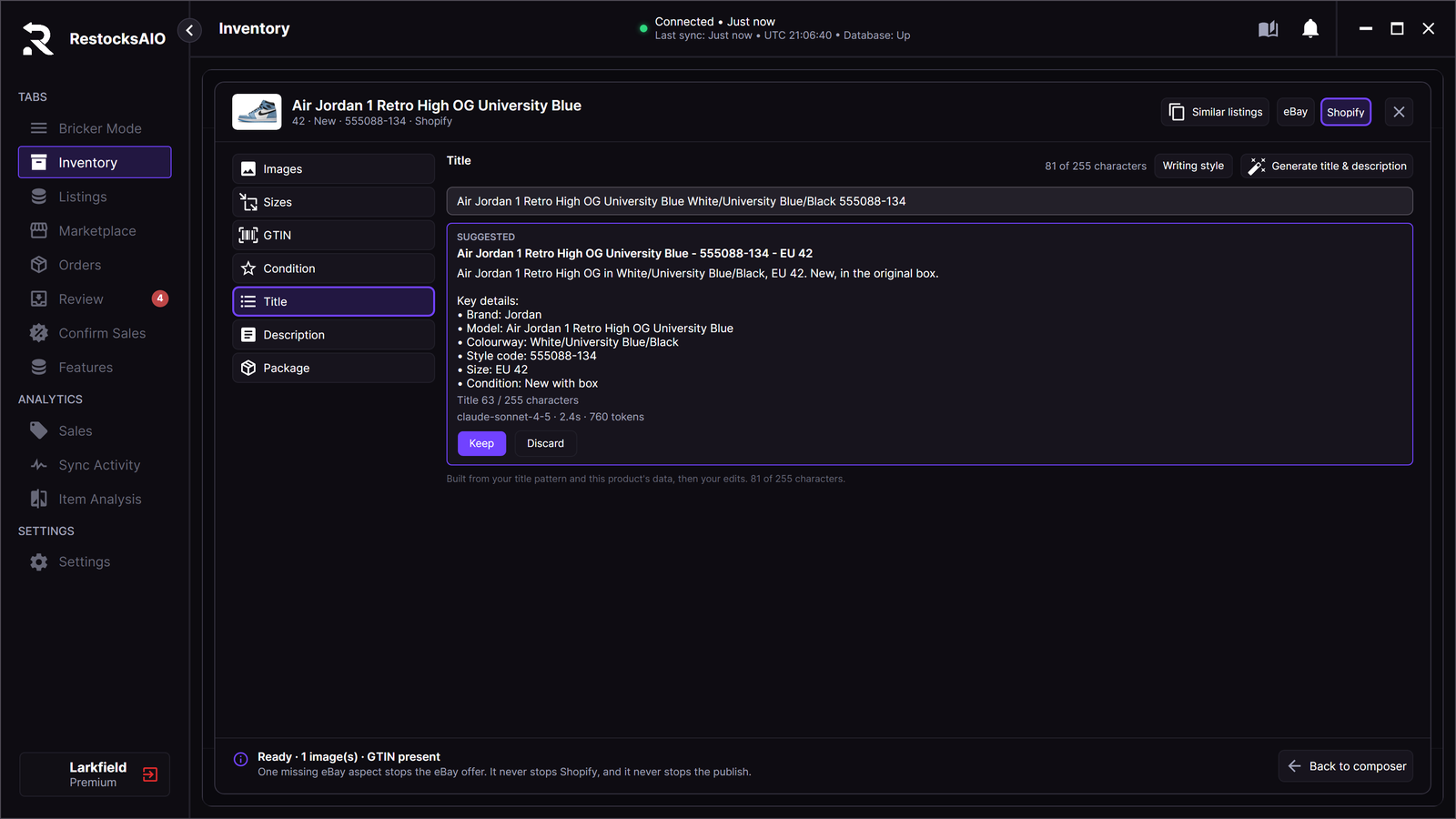
A suggested title waits for Keep or Discard.
RestocksAIO checks the answer against the product data: codes, sizes, years, prices and claims such as authentic or free shipping. If the answer fails the check twice, you see The AI answer was not used. Your text is unchanged. A title over the limit cannot be kept. The description has up to 1,200 characters.
What is sent to your AI provider:
- the catalogue facts of the product: brand, name, colourway, style code, department and category;
- the condition, the size and the item specifics;
- a shipping line, and the text built from your pattern and template;
- search terms from similar eBay titles;
- the language of the listing.
No photo is sent. The description and the photos of another seller are never sent or copied. See Seller Assistant for the provider setup.
Step 5: add photos
Open Listing quality… → Images.
- New and deadstock pairs may use the catalogue images. Click a tile to include it. The first selected tile is the main photo.
- Add from computer adds JPG, PNG or WebP files, up to 12 MB each.
- Add photo adds a photo by HTTPS link.
- The arrows set the order. A moved tile changes place at once, and the tiles show their new numbers.
- When the product or the unit has your own stored photos, the listing uses those photos. The catalogue pictures stay as unticked tiles. Tick a tile to add it. Pictures from listings on other marketplaces are left out. See Photo Storage.
- Your photos upload to eBay and Shopify when you publish.
Limits: up to 24 photos on eBay and 10 on Shopify. A size inside an eBay listing with several sizes has up to 12.
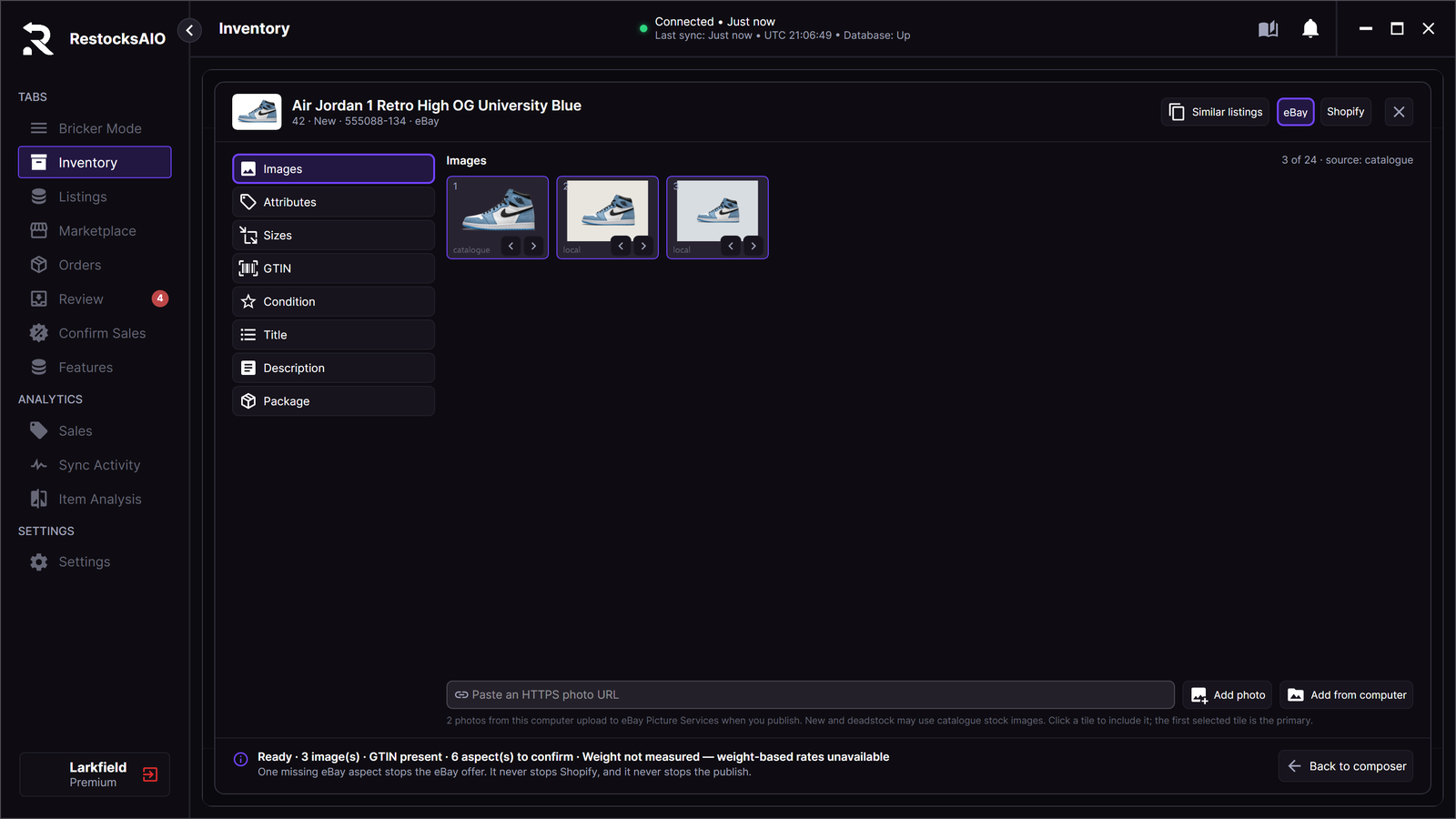
Two photos from this computer beside the catalogue image. The first selected tile is the main photo.
Used pairs and pairs listed as New with defects need your own photos. The channel is blocked until one of your photos is selected. The message is Used listings need your photos — catalogue stock images are not enough.
RestocksAIO has no crop. To remove the background of a stored photo, use Remove background in the Photo library. eBay and Shopify show the cutout first. Vinted and Wallapop never get a cutout.
Watermark and picture order
Each eBay and Shopify account can add your watermark to the photos it receives. It can also put the pictures of one source first. Both are off until you set them under Settings → Accounts → Publishing defaults → Listing photos.
- A tile that gets the watermark of the selected store shows the word watermark. The line under the gallery gives the count.
- The preferred picture source sets the order of the gallery. It does not tick or untick a tile. After you move a tile with the arrows, your order stays.
- You choose for each store if its photos carry a watermark. For eBay, read eBay's picture policy first.
See Listing photos for every setting.
Step 6: choose policies and the package
- eBay policies. Each eBay offer uses the Fulfilment, Payment and Return policy of the account. Click the cell with Account default to choose other policies for this offer, then click Apply to this offer. You create and edit the policies under Settings → Accounts. See Connect eBay.
- Presets. A preset holds the package kind, the weight, the box size and the three policies. RestocksAIO has 11 built-in templates, for example Footwear · original box. Click Use preset to apply one.
Step 7: start from a similar listing (optional)
Similar listings in Listing quality drafts the listing from similar eBay listings, or from one you paste.
- RestocksAIO finds up to 5 similar eBay listings by GTIN, by style code, or by brand and model.
- It offers the category, item specifics, the condition and common title words. Each one shows its source.
- You tick what to apply. A value from your catalogue is never replaced.
- The description and the photos of another seller are never copied. No price is read.
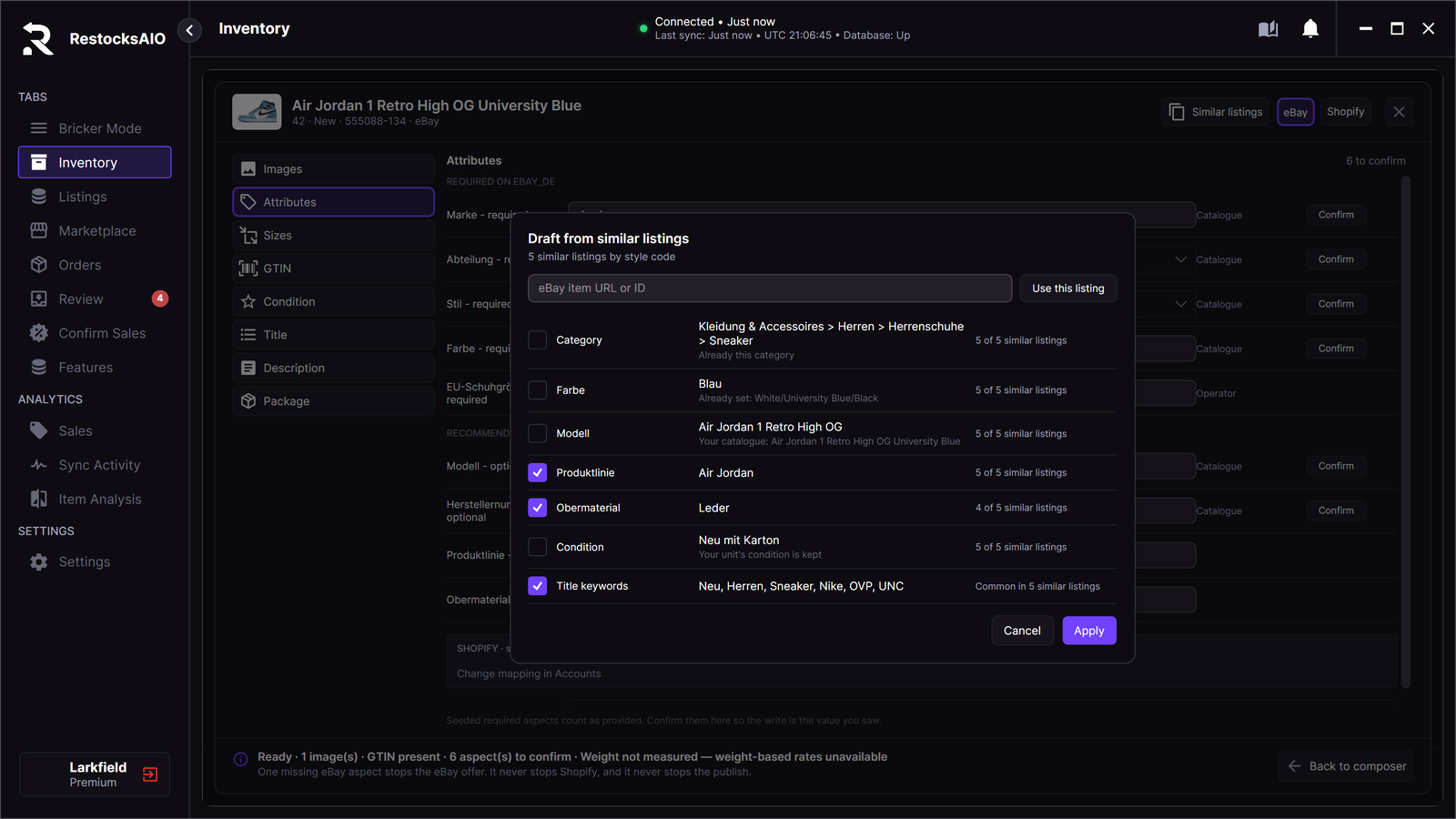
Each row names its source. You tick what to apply. A value from your catalogue is kept.
Duplicate from an eBay listing… (Marketplace tab → New product) reads one listing:
- Paste the eBay item URL or ID.
- Click Use this listing.
From your own eBay listing, RestocksAIO also offers the description and the same three policies. It fills the composer. It does not clone the listing on eBay. Photos and the price are not copied. A listing with several sizes gives its first size only.
Step 8: review, then save a draft or go live
- Click Review & publish. The review lists everything that will be created, and every channel that will not.
- To create the listings unpublished, tick Save as draft.
- Click the last button. It reads Publish N channel listings, or Save N channel drafts when Save as draft is ticked.
You can click Run in background and continue your work. The result shows Channel listings created, Units linked and Needs attention. Retry publish sends only what is missing. Open Marketplace shows the new listings.
Each listed row of the result has an Open button. It opens the listing on eBay, the product in the Shopify admin, or the item on Vinted or Wallapop. The Marketplace tab shows the new listings at once.
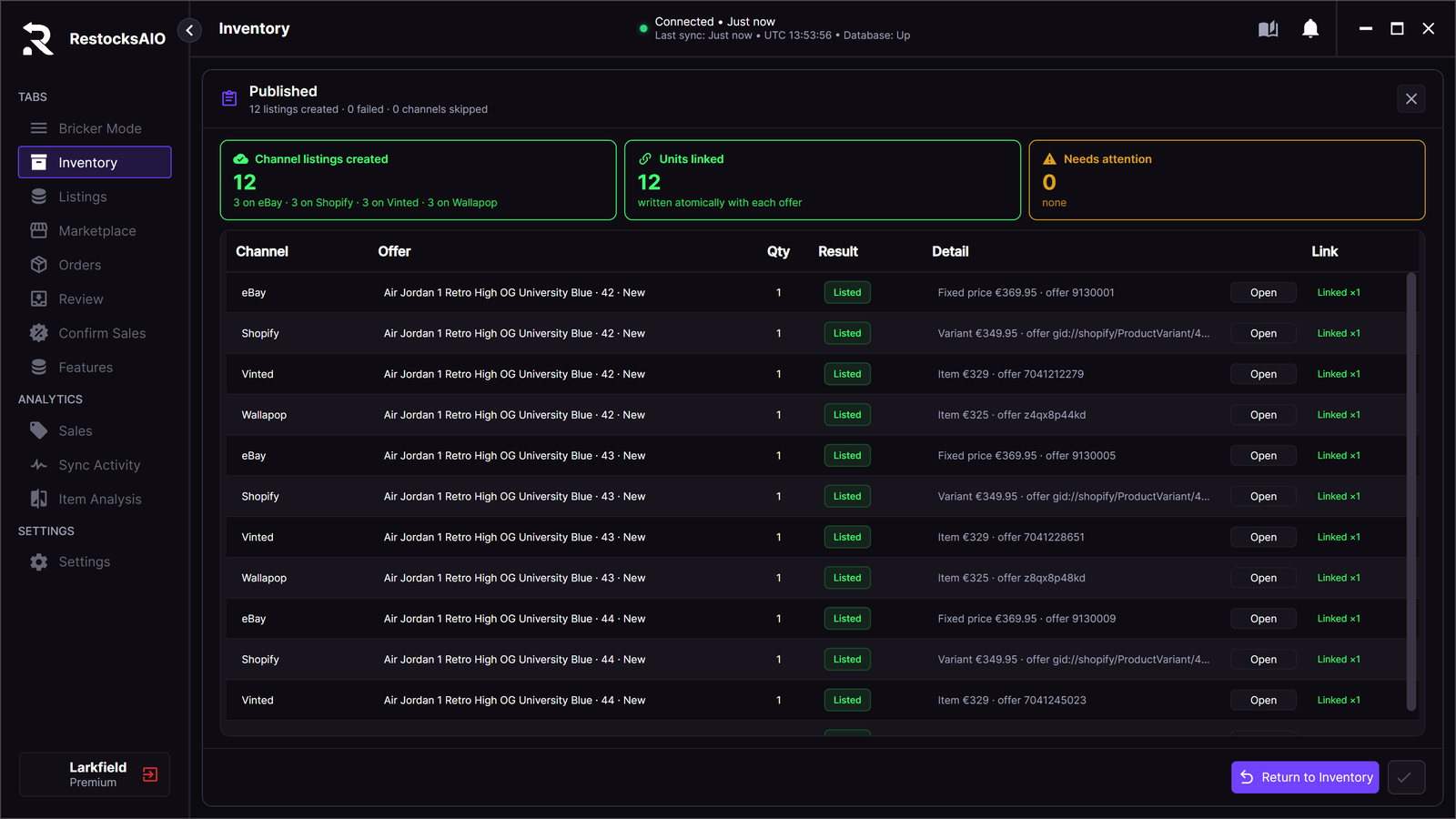
The result of a publish: each listed row has an Open button and a Linked mark.
- Live: the listing is published on the store.
- Draft: on eBay, an unpublished offer. On Shopify, a product with the status Draft. Nothing is on eBay until you go live.
The composer itself is not saved. If you leave it before the review step, your work is lost.
Go live later
- Open the Marketplace tab and click the Drafts chip.
- Tick the drafts.
- Click Go live in the selection bar.
- Read the confirmation and click Go live · N.
Each draft is published as it is. Before a live publish, RestocksAIO asks eBay for the listing fees and stops when eBay returns a warning. It does not show you a fee amount. eBay charges its normal listing fees.
If a store refuses a draft, the row keeps the reason of the store in full. Fix the problem, then send the draft again.
What the Publish Composer does not do
- No Best Offer, scheduled listings or promoted listings. An eBay row can be Fixed price or Auction. See eBay auctions.
- No CSV import of eBay or Shopify listings, and no edit of price, title or description across all offers at once.
- No AI title or description from photos. Only the eBay item specifics of Similar listings can come from your photos, through the Photos route of Settings → AI. See Seller Assistant.
- No fields for the Shopify compare-at price, collections or SEO. The vendor is the brand, and the product type is the catalogue category.
After publishing
- The listings appear in the Marketplace tab. Each write appears in Sync Activity.
- Every listing stays linked to its Inventory units. When a unit sells on another marketplace, RestocksAIO lowers the quantity on eBay and Shopify. See Marketplace tab.
- When a pair sells on eBay or Shopify, its Bricker Mode tasks delete its listing on the resale marketplaces. See When a pair sells on eBay or Shopify.
- A sale shows in Orders and Sales, the same as a sale on any other marketplace.