 RestocksAIO Docs
Sell Returned Pairs
Bring returned, rejected, used or damaged-box pairs back into Inventory with their real condition, box and defects, then sell them on Vinted, Wallapop or eBay.
A pair can come back to you: a StockX or GOAT reject, a buyer's return, a pair with a damaged box, or a worn pair. RestocksAIO puts it back into Inventory with its real condition. When you publish the pair, every channel shows that condition.
This page describes version 0.4.41.34 and later. In older versions, a returned pair keeps the condition and box of the sale, and the photo intake is not available.
Choose the path
| The pair | Use |
|---|---|
| You sold it with RestocksAIO, and it is in Sales. | Return a sold pair |
| It is not in RestocksAIO yet, and you have its photos. | Create units from photos |
Do not create a new unit for a pair that is in Sales. The new unit would have a second purchase cost, and the old sale would still count as a sale.
Return a sold pair
- Open Sales and select the sales of the pairs that came back.
- Right-click and choose Returned: back to Inventory.
- In Pairs returned to you, choose the Condition and the Box. RestocksAIO does not fill them in for you.
- Optional: type a Condition note, for example "Scuff on the left toe".
- Click Back to Inventory.
What happens:
- Each pair goes back to Inventory as Available, with its unit ID and its stored photos.
- The sale stays in Sales as Refunded. It leaves the Profit, Fees and Awaiting payout tiles.
- When you select several sales, the condition, box and note apply to every pair. Change one pair later in its unit detail.
Create units from photos
Use this for pairs that are not in RestocksAIO yet. The photos must be in Photo Storage or in a folder on your computer.
From stored photos
- Open Inventory → Photos.
- Select the photos of the pairs. No unit on the left shows the photos that no unit uses yet.
- Click Create inventory items. The window Create inventory from stored photos opens. Nothing is uploaded again.
From a folder
- Open Inventory → Photos and click Import folder. To put the photos into a group, open the group on the left first.
- Choose the folder. Each subfolder is one product. Its name or a file name holds the style code.
- Tick Create inventory units.
RestocksAIO compares the content of each photo with your stored photos. The file name does not count. A photo that you turned in an earlier import is also found. A folder whose photos are all stored starts unticked:
- When an Inventory unit already holds the photos, the folder leaves the list. It gets no barcode read, no AI check and no cutout. Choose Show → Already in Inventory to see these folders. Each one shows "Already in Inventory: SKU · size" with the units that hold the photos. Tick a folder to import it again.
- "Already uploaded, but no unit in Inventory holds these photos" means that no unit holds them, for example after a failed save. The folder stays in the list. Tick the folder to create its units again.
An unticked folder costs no AI check. A folder with only some stored photos imports as usual and shows, for example, "3 of 5 photos are already stored". The photo storage keeps one copy of each photo. A size row holds at most 24 photos.
What RestocksAIO does by itself
The box barcodes, the size list, the AI check and the cutout cover need a version newer than 0.4.41.34.
When the size rows open, RestocksAIO starts these steps for stored photos and for a folder. You do not click anything.
- Box barcodes. RestocksAIO reads each photo for a box-label barcode (UPC or EAN). It looks up each code in the barcode catalogue. Then it makes one size row for each pair that it finds, with its photos.
- SKU and size. A barcode fills only an empty SKU or Size. A value that you typed always wins. When the barcode and the row do not agree, RestocksAIO fills nothing and shows a red line under the row. A box label that names another product than the folder name also shows a red line.
- Cutout cover. When the cutout service is available, RestocksAIO chooses the best side view of the pair and removes its background. The row shows its place in the queue, then a preview. See Cutout cover.
- AI check. The AI model looks at the photos of each row one time. It uses your Photos key in Settings → AI, or RestocksAIO AI (included) without a key. See AI check.
A folder without a readable barcode shows "No box barcode in these photos. Enter SKU and size yourself." The rows then come from the file names.
Review each pair
Each product shows one or more size rows. Give each returned or used pair its own row:
| Field | What to enter |
|---|---|
| SKU | The style code. See A SKU or a size that is not in the catalogue. |
| Region and Size | The size on the box label, for example US 9. A box barcode or a size in a file name, such as _US9_, fills them in. A size with its letter, for example US 4Y, 10C or 11W, uses the youth, kids or women's size table. When you change Region, the size changes to the same size in the new region, for example US 9 to EU 42.5. A box barcode fills the size in the Preferred Size Type from Settings, for example EU 42.5 instead of US 9. A region that you choose on the row always wins. |
| Quantity | 1 for a returned pair. Only identical new pairs in a good box, without a note, can share one row. |
| Condition | New, Used or New with defects. |
| Box | Good Box, Missing Lid, Damaged Box or No Original Box. |
| Cost (blank = 0) | Your purchase cost in your main currency. |
| Condition note (optional) | What a buyer must know, for example "Small mark on the sole". |
| Photos | Click the thumbnails of this pair. A click adds or removes one photo. A photo can be in one row only. A photo in no row is not uploaded. |
Fill the empty fields of every row
Above the folders, the line Every size row without a value: sets one value on many rows at once.
- Choose a Condition, a Box and a Cost. You can leave one of them empty.
- Click Apply to empty fields.
RestocksAIO fills only the fields that are still empty. A value that you chose, or that an AI check tick set, does not change. The status line shows the number of fields that it filled.
A SKU or a size that is not in the catalogue
A row with an unknown SKU or size still creates its unit.
- A SKU that is not in the catalogue shows "Not in the catalogue. It imports with the name and size you give it; marketplaces list it once it has a catalogue SKU."
- After the import, the window counts these rows. For example: "2 size rows have no catalogue SKU or size: the units are in Inventory, and you edit the SKU or size there to list them."
- The marketplaces cannot list such a unit. Open the unit in Inventory and correct its SKU or size first.
Arrange the photos
The first selected photo of a row is the cover of the unit.
- Drag a photo onto another photo to move it there.
- Click the magnifier on a photo to open it large. The arrow keys show the next and the previous photo. Use Turn left and Turn right in the large view to turn the photo.
- Right-click a photo for more:
- Make it the cover (first photo)
- Move earlier and Move later
- Turn right 90° and Turn left 90°. The upload, the AI check and the cutout use the turned photo. The file on your computer does not change.
- Leave this photo out of the import. The photo goes out of every row and is not uploaded. The file stays on your computer.
When you turn a photo, the folder thumbnail also turns. Stored photos from the Photo library cannot be turned here, because they are already uploaded.
The size list
The Size field has a list arrow inside it. Click it to see the sizes of the SKU's brand size table.
- Type the SKU first.
- Click the arrow in Size.
- Choose US, EU or UK.
- Click a size. RestocksAIO sets Region and Size.
You can still type the size yourself. Use the list to correct a size that a wrong box label filled in.
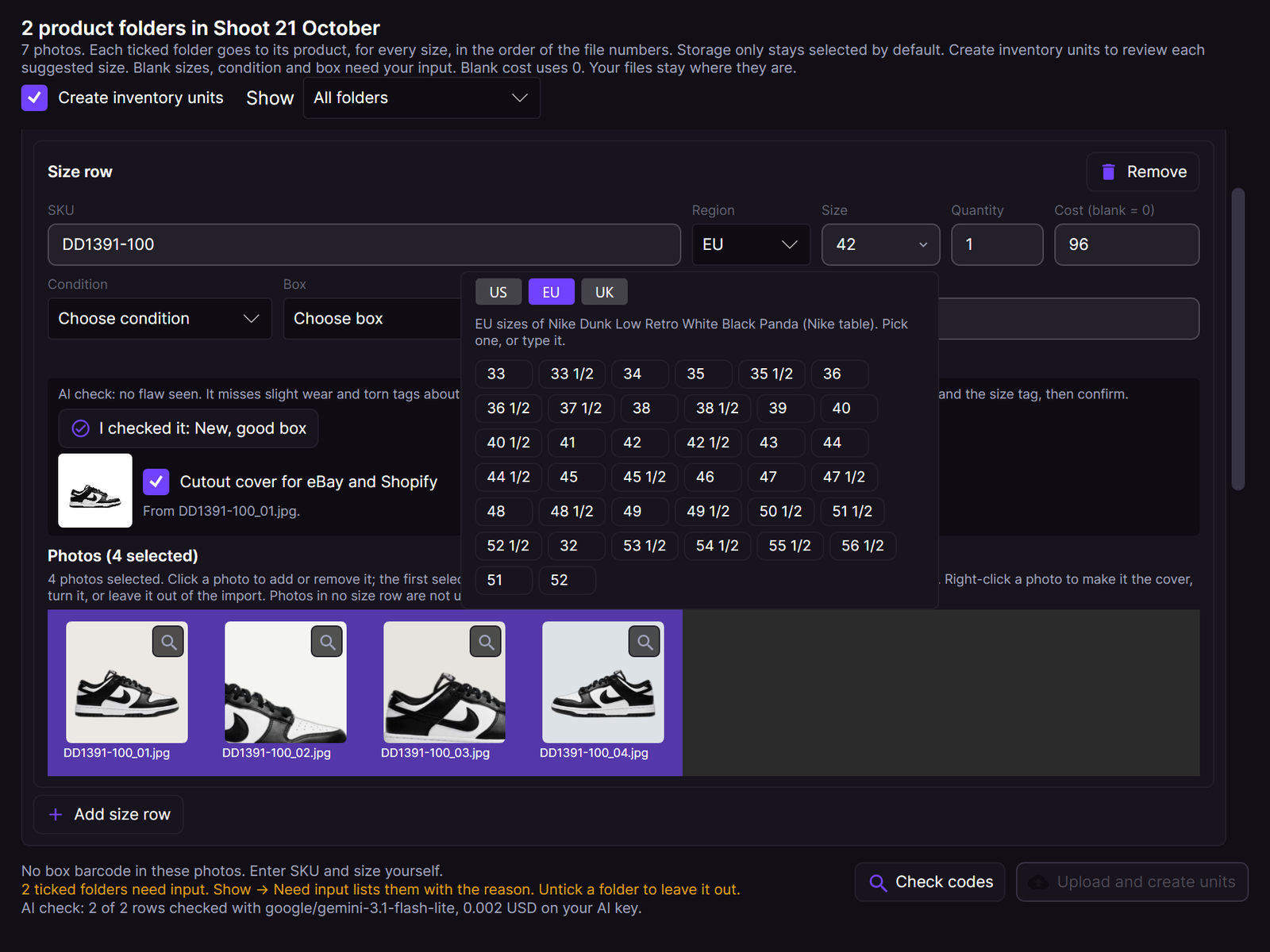
A size row: the size list of the brand, the AI check with I checked it, and the cutout cover.
AI check: a "please check" list
The AI check shows the points that you must look at. It never chooses the condition, the box or the note for you.
- A red line shows a pair, a size or a label that may not belong together. For example, a size tag that is not the size of the row, or two box labels with different sizes.
- A tick box shows each possible flaw: yellowing, sole wear, creasing, dirt or stains, insole wear, other damage, or box damage. Each tick box names its photo file. Nothing is ticked.
- Tick each flaw that is true. A tick adds its sentence to the Condition note. While you have not chosen them yourself, a tick also sets Condition (wear: Used; another flaw: New with defects) and Box (Damaged Box). Untick to take them back. Your own choice always wins.
- When the AI sees no flaw, look at the sole, the insole and the size tag yourself. Then click I checked it: New, good box. This sets New and Good Box. The button and its advice then go away.
- The window shows the AI cost of the run.
The AI misses slight wear and torn tags about half the time. Always check the pair yourself.
The AI check does not count a colour or a shape of the design as a flaw. For example, an adidas 4D lattice midsole or a cream or gum sole is not yellowing, and a lid corner whose glued flap came open is not box damage. The notes come in the language that you set in Settings → AI → Photos → Language of the photo notes.
Without a Photos key, RestocksAIO AI (included) does the AI check. Each pair counts against your daily allowance of 300 photo requests. See RestocksAIO AI (included).
When no AI route is available, each row shows "AI check: add a Photos key in Settings → AI (OpenRouter, about $0.001 a pair)." To set the key, see Seller Assistant.
Cutout cover
The tick box Cutout cover for eBay and Shopify shows when the cutout is ready. It is ticked.
- When ticked, RestocksAIO stores the cutout with the label cutout and makes it the cover of the new units. When the units share product photos, the cutout is the cover of the product.
- eBay and Shopify listings show the cutout first. Vinted and Wallapop never get the cutout. They get only your real photos.
- The original photos stay stored.
- A failed cutout never stops the units. The row says what failed.
To make a cutout of another photo later, use Remove background in the Photo library.
Create the units
Click Create units for …. With a folder, the button reads Upload and create units for …. It counts only the folders that are ready.
- RestocksAIO checks each ticked folder on its own. A folder that needs input shows Needs input: and the reason in red under its name, for example "Choose a condition for SKU DD1391-100". It stays ticked and waits. The ready folders import.
- Use Show at the top to list Folders to import, Need input, Ready, Left out (not ticked) or Already in Inventory.
- To leave a whole folder out of this import, untick it.
- The photos of a folder upload first. Its units come when all of its photos are stored. A failed photo in one folder does not stop the other folders.
- The cutout covers save after the units exist, in the background. A line under the list counts them, for example "Saving cutout covers in the background: 3 of 5 done." You can go on with the next folders meanwhile. When you close the window while covers still save, the window hides and closes itself after the last cover.
- Click Hide to hide the progress box. The next import shows it again.
- A finished folder leaves the list. When nothing is left, the window closes. The main window then shows what RestocksAIO did, for example "Imported 12 photos and created the inventory units." When a step fails or you stop the run, the folders that need a retry stay in the window with the reasons.
Rules
- A used pair, a pair with another box, or a pair with a note needs its own row and its own photos. Its photos describe that pair only.
- Identical new pairs in a good box share their photos through the product. They become one listing with a quantity, not one listing for each pair.
- A row whose SKU is not in the catalogue, or whose size the product does not have, still creates its unit. Correct the SKU or the size in Inventory before you publish it. See A SKU or a size that is not in the catalogue.
- RestocksAIO saves the units before it links their photos. If the save fails, no unit is created. Choose the button again to retry. A retry skips the rows that are already done, so it does not create the same pair twice.
- Photo links are only added. The photos stay on their product too.
Change the note later
Open the unit's detail in Inventory and select Condition & status. Condition note is next to Item condition and Packaging. Click it to change it. The change saves at once.
Publish the pair
Select the unit in Inventory and open the Publish Composer.
- A used, defective or other-box pair, or a pair with a note, is its own listing with its own photos.
- Each channel's condition note starts with the pair's note, then its box when the box is not good, for example "Scuff on the left toe. Box: damaged." The default description template prints it under Condition notes. You can change it for each channel.
- Vinted and Wallapop rows use the site's own condition grades. The default grade never claims more than the unit's condition.
- Vinted and Wallapop take only your own photos. See Photo Storage.
Messages
| Message | What to do |
|---|---|
| Choose the box for SKU … | Pick a value in Box. |
| A used pair, a pair with another box, or a pair with a note needs its own photos. Add one size row for each pair of SKU … | Set Quantity to 1 and click Add size row for each other pair. |
| SKU … is not in the catalogue. Check the SKU, or add the product with Item Addition first. | Correct the SKU, or add the product first. |
| … is not a size of … Check the region and the size. | Correct Region or Size. |
| Saving the inventory failed. No unit was created. | Choose the button again. |
| Choose the condition of the pair. / Choose the box of the pair. | In Pairs returned to you, pick both values. |