 RestocksAIO Docs
Photo Studio
Cut the item out of your listing photos and put it on another background, then save one photo set for each account. For clothes, caps, bags and shoes.
Photo Studio makes other photos of one listing for your other accounts of the same site. It cuts the item out of the listing photos and puts it on another background. Then it saves one photo set for each account. Copy to accounts sends that set with the copy.
Photo Studio works for clothes, caps, bags and shoes. You need no Inventory item and no photo storage. The photos come from the copy of the listing that RestocksAIO keeps on your computer.
Photo Studio is in the macOS app and the new Windows app, from version 0.4.41.66. Background removal needs Premium, with up to 300 cutouts a day. Your original listing photos stay unchanged.
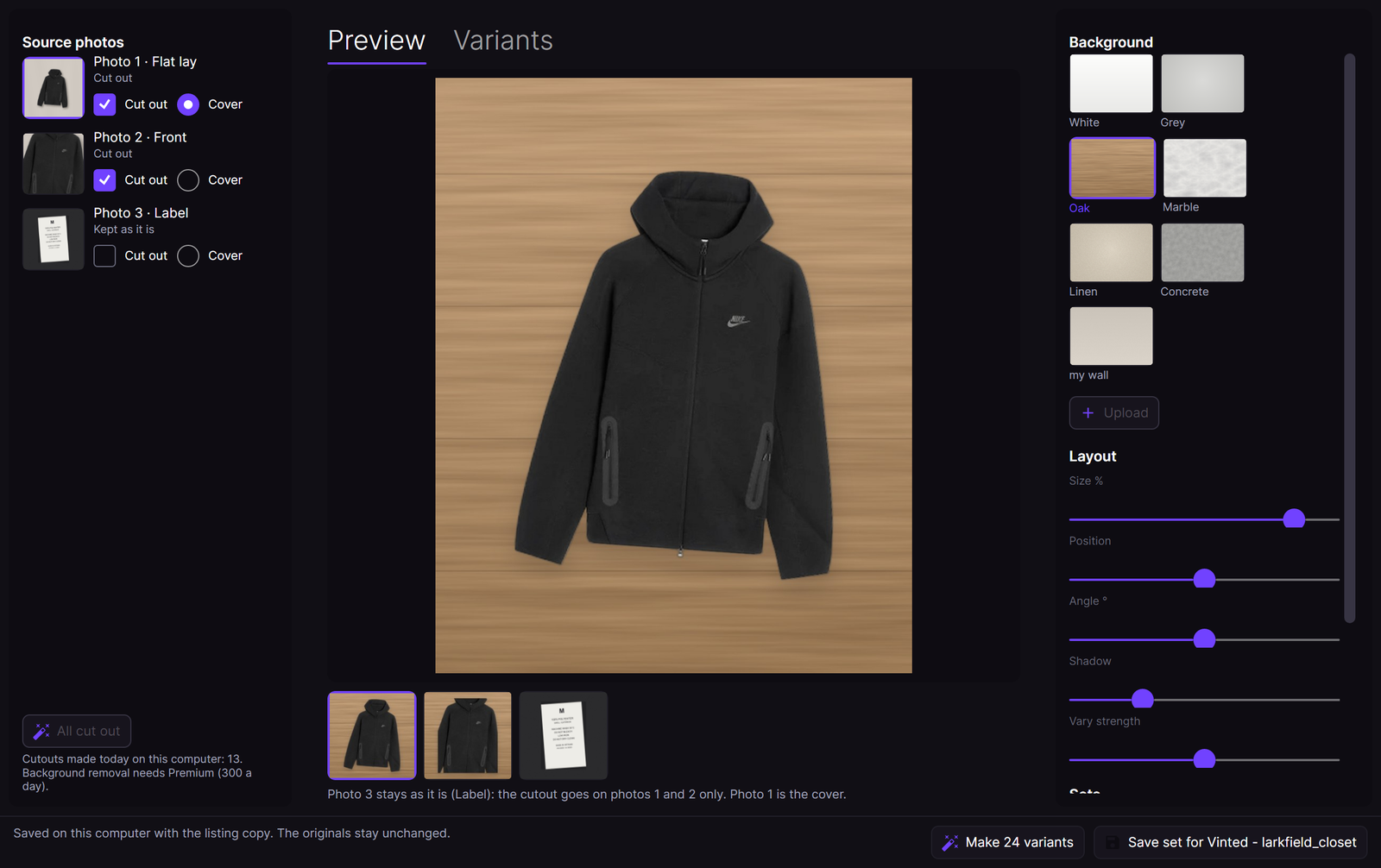
A hoodie from a Vinted listing on the Oak background. The label photo stays as it is. Sample photos.
Open Photo Studio
- Open the Marketplace tab.
- Right-click a live Vinted, Wallapop, eBay or Shopify listing.
- Open More, then click Photo Studio….
The menu shows Photo Studio… only when the copy of the listing on your computer has its photos. RestocksAIO saves that copy when it reads the listing. If the copy is not there yet, wait for the next listing refresh.
You can also click Open in Photo Studio in the Copy to accounts window.
The source photos
The left column shows each photo of the listing.
- Cut out: on, the photo gets the new background. Off, the photo stays as it is.
- Cover: the first photo of the set on each account.
- The tag after the photo number shows what the photo shows, for example Front, Back, Worn, Flat lay, Detail, Label, Defect or Packaging. For shoes, the tags include Side, Sole and Box.
- The line under the tag shows the state: Not cut out yet, Cutting out…, Cut out or Kept as it is.
RestocksAIO sets the first choice for you:
- Label, detail, defect and packaging photos stay as they are. A buyer must see these photos as you took them.
- For an item that is not a shoe, the cover is the first main photo in the listing order. It is never a label or a detail photo.
- For shoes, photo 1 stays the cover. The sole, box, label and size tag photos stay as they are.
Change any choice before you save. Click Cut out N more to cut out the photos that have no cutout yet. RestocksAIO cuts each photo out one time and keeps the cutout on your computer.
Backgrounds and layout
- Background: White, Grey, Oak, Marble, Linen or Concrete. The app draws these backgrounds.
- Upload: adds a photo of your own background, for example a bed, a table or a wall. Use a JPG, PNG or WebP file of 15 MB or less. RestocksAIO keeps its own copy.
- Size %, Position, Angle ° and Shadow place the item on the background.
- Vary strength sets how much each variant changes.
A garment starts larger, centred and with a soft shadow, in a 4:5 photo. A cap, a bag or another item sits a little low. Shoes keep the square layout.
Variants
- Click Make 24 variants. The Variants tab shows 24 versions on the backgrounds of the account.
- Tick one variant for each other account. The line under the grid names the account of each tick.
- Click Save N sets.
Shuffle makes 24 new variants. Make 24 more adds 24 variants. Click a variant to show it in Preview.
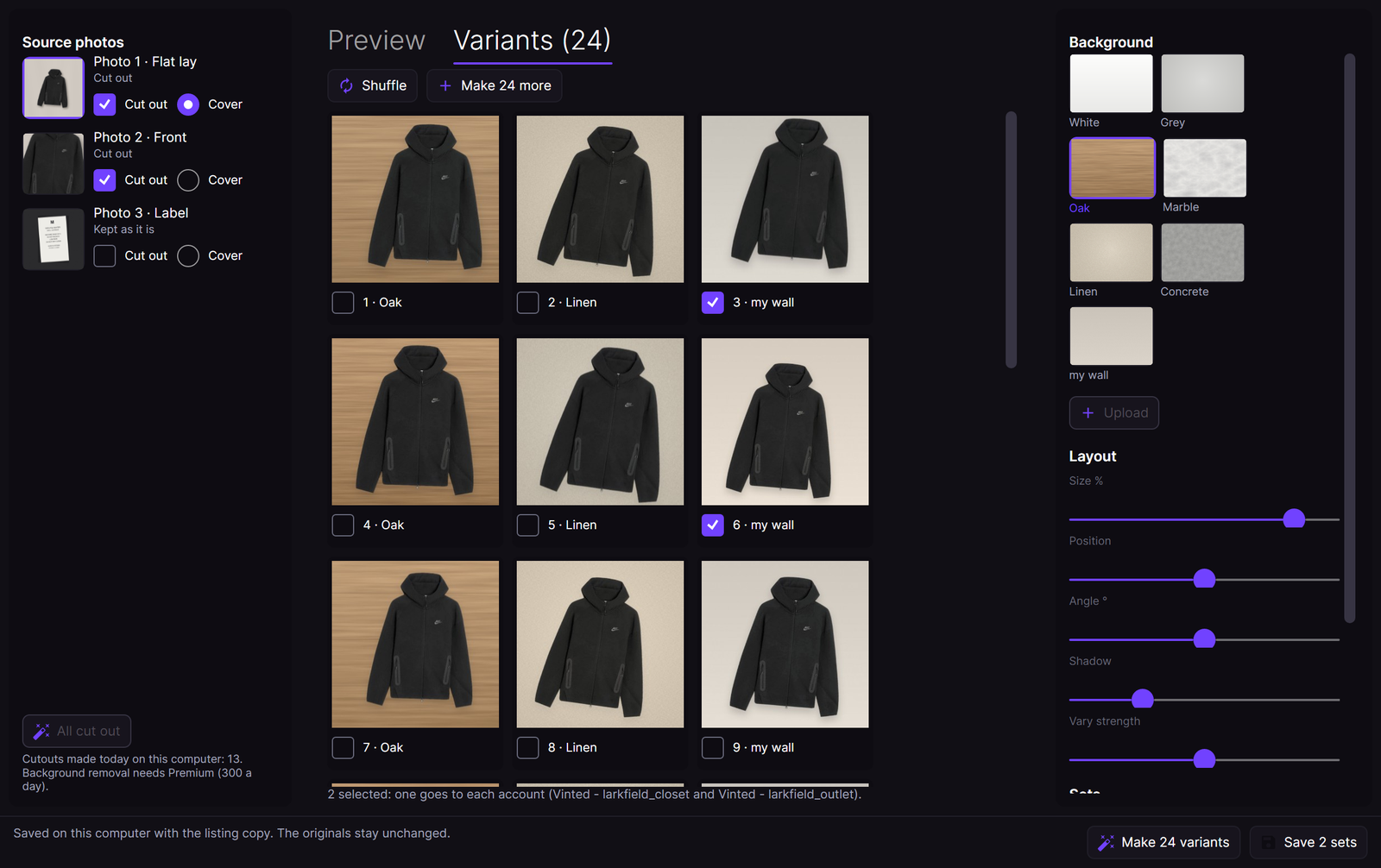
Two ticked variants: one goes to each other account.
Sets
The Sets list shows one row for each account of the site.
| Row | What it means |
|---|---|
| original | The listing photos of the account that holds the listing. Not changed. |
| Editing | The account that Save set for … saves to. Click another row to edit its set. |
| Saved | A set that you saved in Photo Studio for this account. |
| Ready | The account has no saved set. A copy uses the photos of its Account look. |
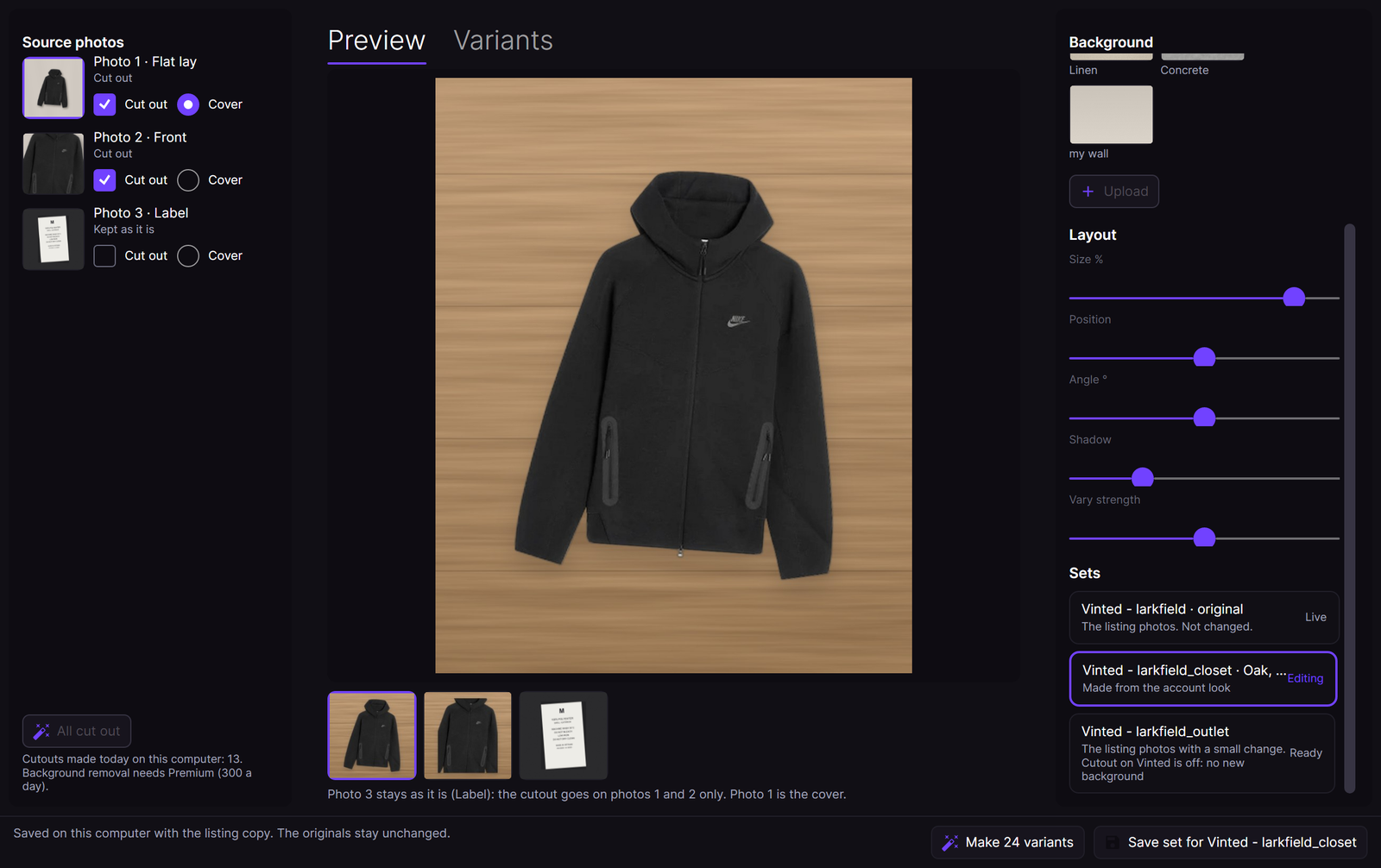
The sets of three Vinted accounts. Sample accounts.
Click Save set for … to save the preview for the account in edit. The footer then shows "Saved for … Copy to account can send it to this account now." A new save replaces the old set of the same account.
Vinted and Wallapop
Vinted and Wallapop ask for real photos of the item. An account of these sites gets a new background only when Cutout on Vinted (or Cutout on Wallapop) is on in its Account look. This setting is off at the start. When it is off, the copy gets your photos with a small change: crop, turn, light and colour. The background stays.
eBay and Shopify copies keep the listing photos.
What Photo Studio does not do
- It does not change the live listing. To put new photos on live Vinted or Wallapop listings, use New photos on all in the Spread view.
- It does not make an image with AI. The app draws every photo on your computer. Only the cutout uses the background removal service.
- When a cutout fails, for example at the daily limit, Photo Studio shows the reason. It never sends a photo without its cutout in its place.
Messages
| Message | What to do |
|---|---|
| This listing has no local copy with photos yet. The app saves one at the next listing refresh. | Wait for the next listing refresh, then open Photo Studio again. |
| The photos of the listing copy cannot be read. Wait for the next listing refresh, then open Photo Studio again. | Wait for the next listing refresh. |
| Tick Cut out on a photo first. | Tick Cut out on at least one photo. |
| Connect another account of this site in Accounts to save a set for it. | Connect a second account of the site in Settings → Accounts. |